Computers / Keyboards Input
User Manual for Amazon Basics 2.4G Wireless Backlight Keyboard and Mouse Combo CK241GL+CM621GL
Quick guide for the Amazon Basics 2.4G Wireless Backlight Keyboard and Mouse Combo (CK241GL+CM621GL). Learn how to connect the devices, adjust keyboard and mouse backlight settings, and configure function keys for Windows and Mac OS.
Quick answers from the manual
Quick answer
- This manual covers the setup and operation of the Amazon Basics 2.4G Wireless Keyboard and Mouse Combo (CK241GL+CM621GL), including backlight controls and OS-specific function key settings. p. 1
Key actions
- Connect via 2.4G p. 1
- Adjust Keyboard Backlight p. 1
- Adjust Mouse Backlight p. 1
Technical specifications
| Parameter | Value | Meaning | Pages |
|---|---|---|---|
| Keyboard Backlight Levels | 4 | Off, 30%, 60%, 100% | p. 1 |
| Mouse Backlight Effects | 22 | RGB lighting effects | p. 1 |
Show 1 more answers Show less
Where to find it in the PDF
- User Manual p. 1
Table of contents
Quick guide from the manual
This document provides setup and operation instructions for the Amazon Basics 2.4G Wireless Backlight Keyboard and Mouse Combo. Ensure you have all components: Keyboard, Mouse, USB Receiver (located in the mouse battery compartment), and USB-C charging cable.
Connection
To connect the devices to your computer:
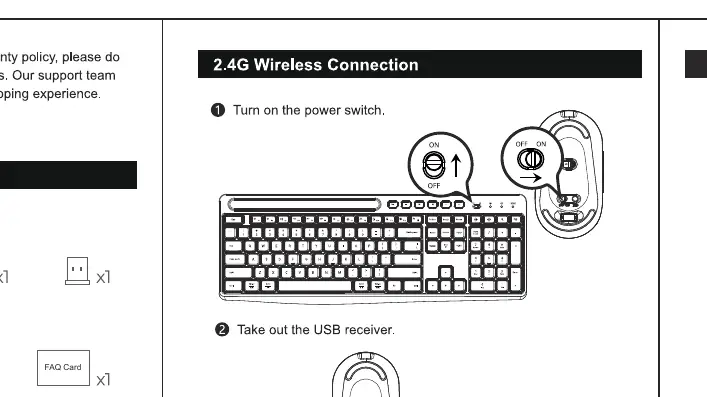
- Turn on the power switch on the device.
- Remove the USB receiver from the mouse battery compartment.
- Insert the USB receiver into an available USB port on your computer.
Keyboard Backlight
The keyboard features 4 levels of brightness: Off, Low (30%), Mid (60%), and High (100%). Use the FN + END key combination to cycle through these effects.
Mouse Backlight
The mouse includes 22 RGB lighting effects. The backlight control button is located at the bottom of the mouse:
- Switch effects: Short press the light button at the bottom to cycle through effects.
- Turn on/off: Press and hold the light button for 3 seconds.
Function Keys and OS Compatibility
The keyboard supports both Windows and Mac OS. Use the designated keys to switch modes. For Windows users, the F1-F12 keys can be locked or unlocked:
- Locked: Multi-media functions are used directly (default).
- Unlocked: F1-F12 functions are accessed via Fn + F1-F12.
Note: The F1-F12 Lock/Unlock function is not applicable for Mac OS.
Support
For any issues, contact support at [email protected].
Practical help
Common problems
Keyboard backlight not changing
Use the Fn + End key combination to cycle through the 4 available brightness levels.
Mouse backlight not changing or turning off
Use the button at the bottom of the mouse. Short press to cycle effects; hold for 3 seconds to toggle the light on or off.
Before use
- Ensure the USB receiver is removed from the mouse battery compartment
- Plug the USB receiver into the computer
- Turn on the power switch on both the keyboard and mouse
- Charge the devices using the provided USB-C cable
Show more Show less
Specs in practice
- Keyboard Backlight
- 4 levels: Off, Low (30%), Mid (60%), High (100%)
- Mouse Backlight
- 22 RGB lighting effects
Images and diagrams
- The manual includes a connection diagram showing the power switch location and USB receiver insertion.
- A backlight control diagram illustrates the button locations for both keyboard and mouse.
Model compatibility
- Compatible with Windows and Mac OS.
- F1-F12 Lock/Unlock function is specific to Windows only.

Manual page author
Michael Turner
Technical manual editor