Automotive / Jump Starters
User Manual for Amazon Basics Computer Vertical 2.4GHz Wireless Mouse
Quick guide for the Amazon Basics Computer Vertical 2.4GHz Wireless Mouse. Includes setup instructions, DPI adjustment, troubleshooting, and technical specifications.
Quick answers from the manual
Quick answer
- To set up the mouse, insert two AAA batteries, plug the nano receiver into your computer's USB port, and slide the power switch to ON. p. 8
Key actions
- Adjust DPI speed p. 8
- Clean the mouse p. 9
First start
- Insert batteries and connect receiver p. 8
Problems and fixes
Mouse is jerky or slow
Clean the sensor, move closer to the device, change surface, or adjust DPI.
p. 9
Mouse does not connect
Check batteries, ensure switch is ON, check USB connection, restart device.
p. 10Technical specifications
| Parameter | Value | Meaning | Pages |
|---|---|---|---|
| Power Supply | 3V (two AAA batteries) | Required battery type and voltage. | p. 10 |
| Operating Range | 10m (32.81ft) | Maximum distance for wireless connection. | p. 11 |
Where to find it in the PDF
- Parts Overview p. 7
- Using the Mouse p. 8
Table of contents
Manual images
Click an image to enlargeQuick guide from the manual
This guide covers the setup and operation of the Amazon Basics Computer Vertical 2.4GHz Wireless Mouse. To start using the mouse, insert two AAA batteries, plug the nano receiver into a USB port on your computer, and slide the power switch to the ON position. You can adjust the mouse speed using the DPI button.
Safety Instructions
- Choking Hazard: Keep packaging materials and the device away from children and pets.
- Battery Safety: Do not mix old and new batteries, or different types (alkaline, standard, rechargeable). Remove batteries if the mouse will not be used for an extended period. If a battery leaks, avoid contact with skin and eyes.
- Usage: Use only in dry areas. Do not expose to extreme temperatures. Do not immerse in water or liquids.
Package Contents
- Mouse
- Nano receiver
- AAA battery (x2)
- User Manual
Setup and Usage
Connecting the Mouse
- Remove the battery cover.
- Insert two AAA batteries, ensuring correct polarity (+/-).
- Replace the battery cover.
- Plug the nano receiver into an available USB Type-A port on your computer.
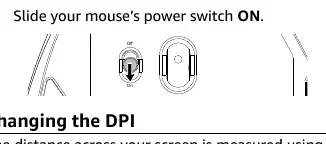
- Slide the power switch on the bottom of the mouse to the ON position.
DPI Adjustment
The mouse speed can be adjusted by pressing the DPI button. The available DPI settings are 1000, 1200, 1600, and 2400.
Cleaning and Maintenance
- Wipe the mouse with a soft, slightly damp cloth.
- Use a soft brush or compressed air to clean the nano receiver.
- Do not use corrosive detergents, wire brushes, or sharp utensils.
- Store the nano receiver in the slot within the battery compartment when not in use.
Troubleshooting
- Mouse is slow, fast, or jerky: Ensure the sensor on the bottom is clean and free of debris. Move the mouse closer to the receiver. Try using the mouse on a different surface. Adjust the DPI setting.
- Mouse does not connect: Ensure batteries are working and the switch is set to ON. Verify the nano receiver is fully plugged into a working USB port. Restart your computer. Check compatibility (Windows 10/11+, Linux, or Chrome).
Technical Specifications
- Power Supply: 3V (two AAA batteries)
- Battery Life: Up to 4 months (varies by usage)
- Frequency Band: 2.4 GHz (2.402 GHz – 2.480 GHz)
- Operating Range: 10m (32.81ft)
- Sensor: Optical
- USB Connector: USB Type-A
Practical help
Common problems
Mouse movement is jerky, too slow, or too fast
Clean the sensor on the bottom with a soft cloth, move the mouse closer to the receiver, try a different surface, or press the DPI button to change the speed.
Mouse does not connect to the device
Check that batteries are installed correctly and the mouse is switched ON. Ensure the nano receiver is fully inserted into a working USB port. Restart the computer.
Before use
- Ensure you have two AAA batteries.
- Verify your computer has an available USB Type-A port.
- Check that your operating system is Windows 10/11 or later, Linux, or Chrome.
- Ensure the mouse power switch is set to ON.
Specs in practice
- DPI (Dots Per Inch)
- Determines mouse speed. Higher DPI means faster cursor movement.
- Operating Range
- The maximum distance (10m) the mouse can be from the receiver while maintaining a connection.
- Frequency Band
- The 2.4 GHz wireless signal used for communication between the mouse and the receiver.
Images and diagrams
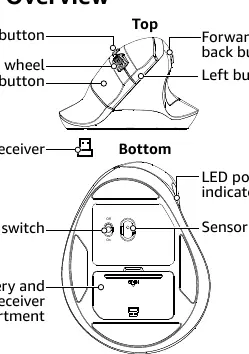
- The top of the mouse features the DPI button, scroll wheel, left/right buttons, and forward/back buttons.
- The bottom of the mouse contains the On/Off switch, optical sensor, LED power indicator, and the battery/nano receiver compartment.
Model compatibility
- Compatible with Windows 10/11 or later, Linux, and Chrome operating systems.

Manual page author
David Miller
Documentation analyst
Organizes user manual content into clear summaries, with attention to model details, product context, and everyday usability.