Mobile / Smartphones
User Guide for Tap to Pay on iPhone
Learn how to accept contactless payments directly on your iPhone. This guide covers the setup requirements and step-by-step instructions for processing physical card and digital wallet transactions.
Quick answers from the manual
Quick answer
- Tap to Pay on iPhone allows you to accept contactless payments directly on your device without extra hardware. You need a supported payment app and the latest iOS version. p. 1
Key actions
- Process a card payment by opening the app, entering the amount, and having the customer hold their card horizontally at the top of the iPhone. p. 1
- Process a digital wallet payment by opening the app, entering the amount, and having the customer hold their device near the top of the iPhone. p. 1
First start
- Update your iPhone to the latest iOS version via Settings > General > Software Update and ensure you have a supported payment app. p. 1
Show 2 more answers Show less
Problems and fixes
Transaction failure
Ensure the card or device is positioned correctly at the top of the iPhone and check if the card is supported by your payment app.
p. 1Where to find it in the PDF
- Tap to Pay on iPhone Instructions p. 1
Table of contents
Quick guide from the manual
Tap to Pay on iPhone allows you to accept all types of in-person contactless payments directly on your device. This feature eliminates the need for extra terminals or hardware, providing an easy, secure, and private payment solution.
Requirements
To use Tap to Pay on iPhone, ensure you meet the following requirements:
- Supported Payment App: You must have a compatible payment application installed.
- Latest iOS: Ensure your iPhone is updated to the latest version of iOS. You can check for updates by going to Settings > General > Software Update and selecting Download and Install.
- Regional Availability: Note that this feature is not available in all markets.
Accepting contactless debit and credit cards
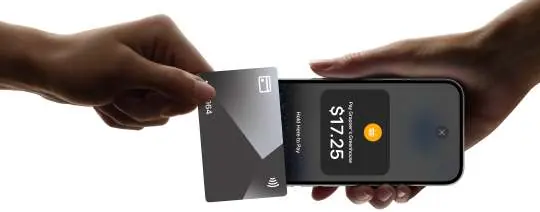
- Open the payment app on your iPhone and enter the purchase amount.
- Present your iPhone to the customer.
- The customer holds their card horizontally at the top of your iPhone, over the contactless symbol.
- When you see the "done" checkmark, the transaction is complete.
Accepting Apple Pay and other digital wallets
- Open the payment app on your iPhone and enter the purchase amount.
- Present your iPhone to the customer.
- The customer holds their device near the top of your iPhone, near the contactless symbol.
- When you see the "done" checkmark, the transaction is complete.
Additional information
Some contactless cards may not be accepted by your payment app, and transaction limits may apply. For more information, visit the official Apple developer website at https://developer.apple.com/tap-to-pay/how-to-accept-payments/ or check regional availability at https://developer.apple.com/tap-to-pay/.
Official resources from the manual
Manufacturer information
Apple Inc.
Practical help
Common problems
Transaction not completing
Ensure the customer holds their card or device horizontally at the top of your iPhone, near the contactless symbol.
Feature not working
Ensure you are using a supported payment app and have the latest version of iOS installed.
Before use
- Ensure you have a supported payment app installed.
- Update your iPhone to the latest version of iOS via Settings > General > Software Update.
- Verify that Tap to Pay is available in your region.
Show more Show less
Specs in practice
- Contactless Symbol
- A trademark owned by EMVCo, LLC, indicating where the customer should place their card or device.
Images and diagrams
- The diagrams illustrate the correct positioning of the customer's card or device near the top of the iPhone to complete a transaction.
Model compatibility
- Requires a supported payment app.
- Not available in all markets.
- Some contactless cards may not be accepted by your payment app.

Manual page author
David Miller
Documentation analyst