Electronics / Cables & Adapters
User Guide for Cable Matters USB-C 2-Port Video Adapter
Quick guide for the Cable Matters USB-C 2-Port Video Adapter. Learn how to connect your HDMI or VGA display, troubleshoot common issues, and check technical specifications.
Quick answers from the manual
Quick answer
- The Cable Matters USB-C 2-Port Video Adapter allows you to connect an HDMI or VGA display to a USB-C or Thunderbolt 3 port. Note that only one display can be used at a time. p. 2
Key actions
- Connect the adapter to the host device's USB-C/Thunderbolt 3 port. p. 2
- Connect your HDMI or VGA cable to the adapter. p. 2
First start
- Plug the adapter into the host device, connect the display cable, and select the correct input on your display. p. 2
Problems and fixes
Device not detected
Ensure your device supports DisplayPort Alternate Mode and try a different USB-C port.
p. 2Technical specifications
| Parameter | Value | Meaning | Pages |
|---|---|---|---|
| HDMI Resolution | 3840x2160 @ 30Hz | Maximum supported resolution for HDMI output | p. 2 |
| VGA Resolution | 1920x1080 @ 60Hz | Maximum supported resolution for VGA output | p. 2 |
Where to find it in the PDF
- Product Overview p. 1
- Installation and Specs p. 2
- Warranty and Support p. 4
Table of contents
Quick guide from the manual
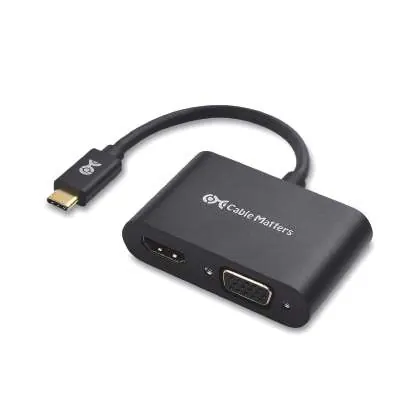
The Cable Matters USB-C 2-Port Video Adapter allows you to connect an HDMI or VGA display to a USB-C or Thunderbolt 3 port on your computer or mobile device. Please note that only one display can be connected and used at a time.
Installation Instructions
Follow these steps to set up your adapter:
- Directly connect the adapter to the USB-C or Thunderbolt 3 port of your host device.
- Connect an HDMI or VGA cable from your display to the corresponding port on the adapter.
- Select the correct HDMI or VGA input on your display device using its menu.
- Ensure your host device and display are set to a compatible video resolution.
Note: To achieve 4K video resolution, both your computer source and the output display must support 4K.
Troubleshooting Tips
- DisplayPort Alternate Mode: Your host device must support DisplayPort Alternate Mode (video over USB) for the adapter to function.
- Connection Issues: If you experience issues, try connecting the adapter to a different USB-C or Thunderbolt 3 port on your device.
- Cables: Test the HDMI or VGA cable with other equipment to rule out cable faults.
- VGA Limitations: VGA does not support audio transmission or HDCP for viewing protected content.
Technical Specifications
- Host Connector: USB-C / Thunderbolt 3 (Male)
- Display Connectors: HDMI (Female), VGA (Female)
- OS Compatibility: Windows, Mac, Chrome, Linux, Android
- HDMI Resolution: Up to 3840x2160 @ 30Hz
- VGA Resolution: Up to 1920x1080 @ 60Hz
Customer Support and Warranty
This product includes a limited one-year warranty covering defects in materials and workmanship. Cable Matters provides lifetime technical support. For questions, contact [email protected].
Practical help
Common problems
No display output
Ensure your host device supports DisplayPort Alternate Mode (video over USB).
VGA display has no audio
VGA does not support audio transmission; use an HDMI connection if audio is required.
Connection issues
Test the adapter with a different USB-C/Thunderbolt 3 port or try a different HDMI/VGA cable.
Before use
- Verify your host device supports DisplayPort Alternate Mode
- Have a compatible HDMI or VGA cable ready
- Ensure your display supports the resolution you intend to use
Specs in practice
- Compatibility
- Works with Windows, Mac, Chrome, Linux, and Android
Images and diagrams
- The adapter features a USB-C male connector for the host device and two female ports (HDMI and VGA) for display output.
Model compatibility
- Only one display is supported at a time.
- 4K resolution requires both a 4K computer source and a 4K output display.

Manual page author
Michael Turner
Technical manual editor
Reviews PDF manuals for structure, safety notes, and practical product details so readers can find the right information quickly.