Electronics / Cables & Adapters
User Guide for StarTech 1P3FP-USB-SERIAL USB to Serial Adapter Cable
Quick-start guide for the StarTech 1P3FP-USB-SERIAL adapter. Includes driver installation steps for Windows and macOS, pinout diagrams, and verification procedures.
Quick answers from the manual
Quick answer
- To install the StarTech 1P3FP-USB-SERIAL, download the driver from the official StarTech website, run the setup file for your OS (Windows or macOS), and connect the cable to your computer. p. 1
Key actions
- Download driver p. 1
- Install driver p. 1
- Verify installation p. 1, 2
Problems and fixes
Driver installation verification
Check Device Manager (Windows) or System Information (macOS) for the Prolific USB-to-Serial Comm Port.
p. 1, 2Technical specifications
| Parameter | Value | Meaning | Pages |
|---|---|---|---|
| Connector | USB-A to RS232 DB9 | Interface type | p. 1 |
Where to find it in the PDF
- Installation and Setup p. 1
- Regulatory and Warranty p. 2
Table of contents
Quick guide from the manual
This guide provides instructions for setting up the StarTech 1P3FP-USB-SERIAL adapter. Before beginning, ensure your computer has an available USB Type A port. You must download the latest drivers from the official StarTech website at www.startech.com/1P3FP-USB-SERIAL before connecting the device to your computer.
Installation
Windows
- Navigate to the StarTech support website and download the Driver Package.
- Right-click the downloaded file and select Extract All.
- Browse the extracted folder and run the Setup file.
- Follow the on-screen instructions to complete the installation.
- Connect the USB to Serial Adapter Cable to an available USB port.
macOS
- Download the driver package from the StarTech website.
- Double-click the downloaded file.
- Open the folder corresponding to your macOS version and run the Setup file.
- Follow the on-screen instructions to complete the installation.
- Connect the USB to Serial Adapter Cable to an available USB port.
Verification
To verify the installation on Windows, navigate to the Device Manager, expand Ports (COM & LPT), and check for the Prolific USB-to-Serial Comm Port. On macOS, navigate to System Information, expand the Hardware section, click USB, and confirm the Prolific USB-to-Serial Comm Port appears in the list.
Pinout Diagram
The DB9 connector pinout is as follows:
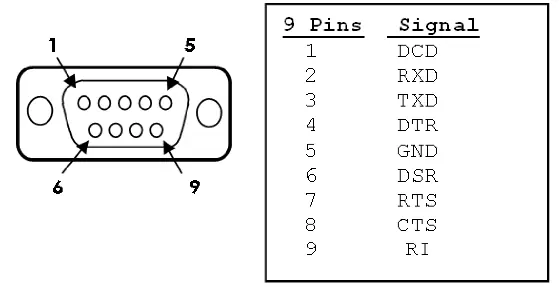
- 1: DCD
- 2: RXD
- 3: TXD
- 4: DTR
- 5: GND
- 6: DSR
- 7: RTS
- 8: CTS
- 9: RI
Official resources from the manual
Practical help
Common problems
Driver not recognized or device not working
Verify the installation in Device Manager (Windows) or System Information (macOS) to ensure the Prolific USB-to-Serial Comm Port is listed.
Connection issues
Ensure the USB port is active and the driver package was installed correctly for your specific operating system version.
Before use
- Computer with an available USB Type A port
- Internet connection to download the latest driver package
- Administrator access to install drivers
Images and diagrams
- Product diagram illustrates the connection between the Serial Peripheral Device (DB9) and the Host Computer (USB).
- Pinout diagram details the 9-pin signal assignments for the DB9 connector.
Model compatibility
- Requires an available USB Type A port.
- Drivers must be downloaded from the StarTech website for the specific operating system.

Manual page author
Emily Carter
User documentation editor
Prepares concise manual descriptions and highlights the most useful setup, operation, and maintenance information for readers.