Electronics / Cables & Adapters
User Manual for Sealevel SeaLINK+2/232.PC USB to RS-232 Adapter
Quick guide for the Sealevel SeaLINK+2/232.PC USB to 2-Port RS-232 adapter. Includes installation instructions, technical specifications, and troubleshooting steps.
Quick answers from the manual
Quick answer
- The SeaLINK+2/232.PC is a USB to 2-port RS-232 adapter. Install the software first, then connect the hardware to internal motherboard USB headers. p. 3, 6, 7
Key actions
- Install software before connecting hardware. p. 6, 7
First start
- Install drivers from the Sealevel database, select P/N 2208, then plug into motherboard USB headers. p. 6, 7
Problems and fixes
Adapter not working
Check BIOS USB settings, verify driver installation, and use WinSSD utility for loopback testing.
p. 11Technical specifications
| Parameter | Value | Meaning | Pages |
|---|---|---|---|
| Power | +5 VDC | Supply line voltage | p. 10 |
| Operating Temperature | 0° to 70° C | Operating range | p. 10 |
Where to find it in the PDF
- Software Installation p. 6
- Physical Installation p. 7
- Specifications p. 10
Table of contents
Manual images
Click an image to enlargeQuick guide from the manual
The Sealevel SeaLINK+2/232.PC is a USB to 2-port RS-232 asynchronous serial adapter designed for internal PC mounting. Crucial: Do not connect the device to a USB port until the software is installed. The device is USB bus-powered and requires no user hardware configuration.
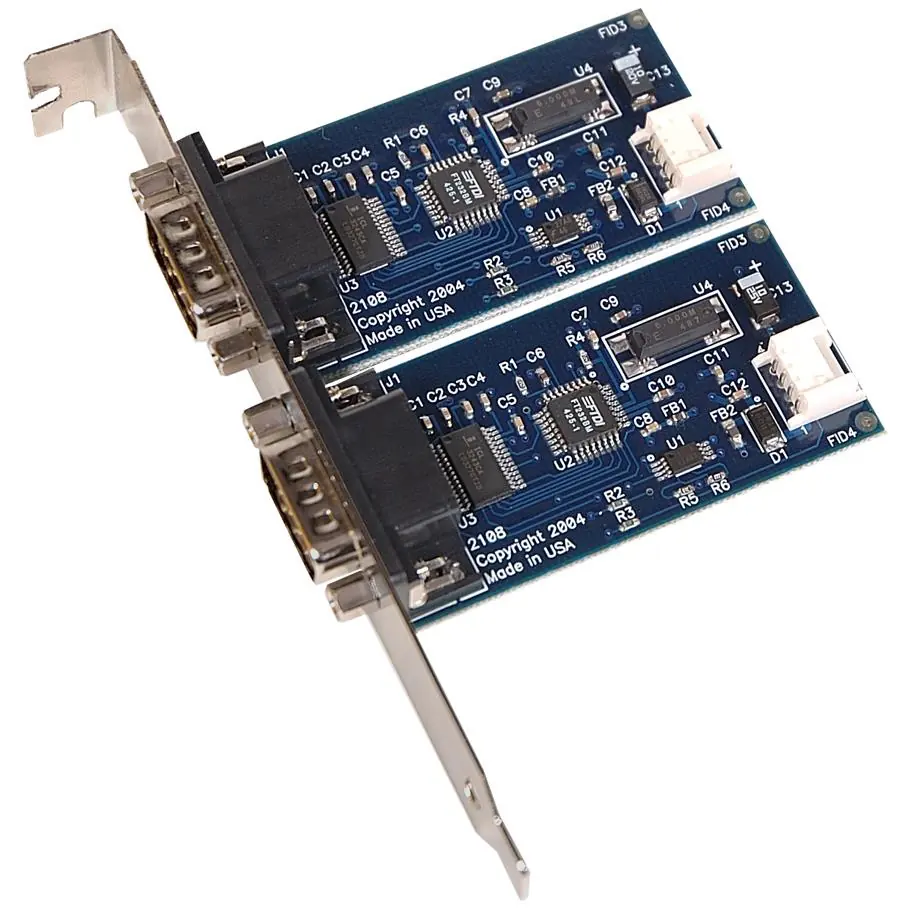
What's included
- SeaLINK+2/232.PC Adapter
- Two SeaLINK+232.PC boards (Item# 2108)
- Standard size PC bracket
- Two CA260 14” USB header cables
Software installation
The device is compatible with Windows 98/ME/2000/XP/Vista. Windows NT is not supported.
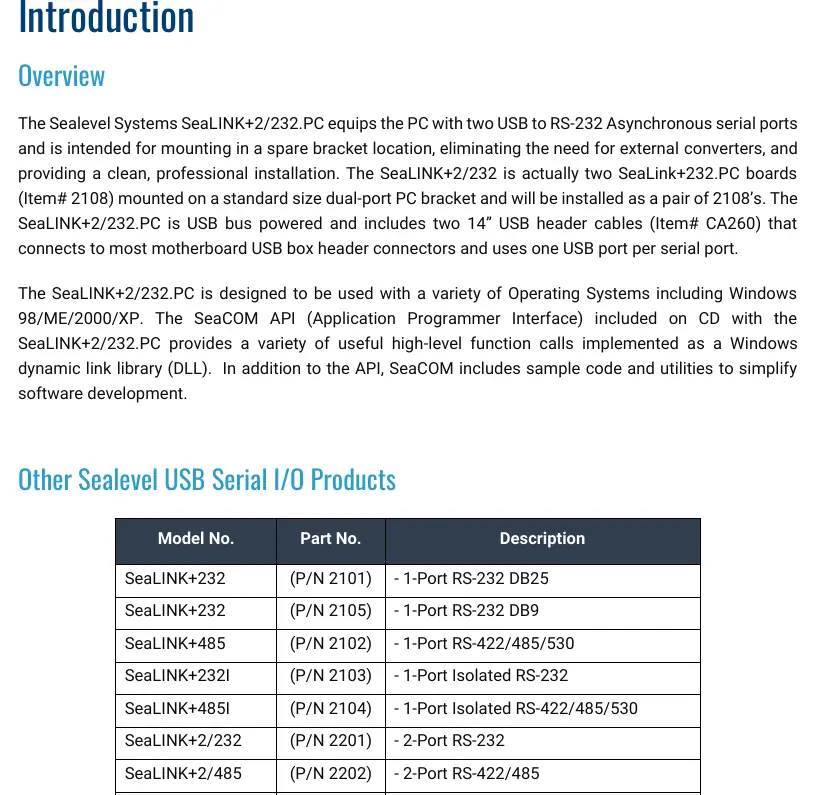
- Locate and install the correct software from the Sealevel software driver database.
- Select Part Number 2208 for your device.
- Follow the on-screen prompts. If a warning about Authenticode signature appears, select 'Yes' to proceed.
- Once software is installed, proceed to physical installation.
Physical installation
The adapter is intended for mounting in a spare bracket location. Once the software is installed:
- Plug the SeaLINK+2/232.PC into two available USB header connectors on the motherboard.
- The system will detect the new hardware.
- Verify operation using the Sealevel Systems WinSSD diagnostic utility found in the Start/Programs group.
Technical description and pinout
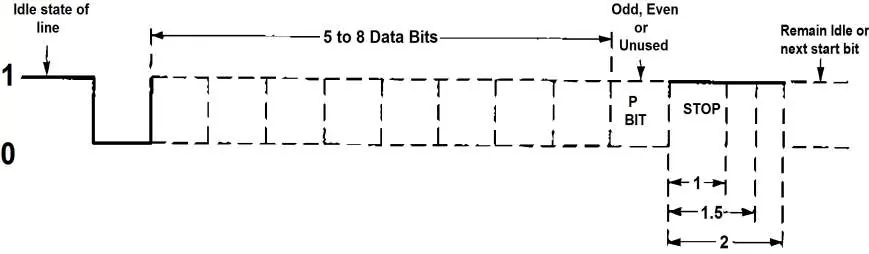
Each port utilizes a USB UART with a programmable baud rate and data format. The RS-232 transceivers support data rates up to 460.8K baud.
DB9 Male Connector Pin Assignments:
- Pin 1: DCD (Input)
- Pin 2: RD (Input)
- Pin 3: TD (Output)
- Pin 4: DTR (Output)
- Pin 5: GND
- Pin 6: DSR (Input)
- Pin 7: RTS (Output)
- Pin 8: CTS (Input)
- Pin 9: RI (Input)
Troubleshooting
If the adapter is not working:
- Ensure USB support is enabled in the System BIOS.
- Verify that the Sealevel software is correctly installed.
- Use the WinSSD utility to perform a loopback test. Connect TD to RD using the supplied loopback plug. If the test transmits and receives the HEX pattern 55AA and an ASCII string, the device is functioning correctly.
Specifications
- Operating Temperature: 0°C to 70°C (32°F to 158°F)
- Storage Temperature: -50°C to 105°C (-58°F to 221°F)
- Power Requirements: +5 VDC, 50 mA per port
- Dimensions: 2.578" x 1.310" (per board)
Practical help
Common problems
Adapter not detected or not working
Ensure USB support is enabled in the System BIOS and that the Sealevel drivers are installed.
Communication failure
Use the WinSSD utility to perform a loopback test (connecting TD to RD). If the test fails, contact technical support.
Before use
- Do not connect the device to a USB port until the software is installed.
- Verify your operating system is supported (Windows 98/ME/2000/XP/Vista).
- Ensure you have two available USB header connectors on the motherboard.
- Have the two CA260 USB header cables ready.
Specs in practice
- Operating Temperature
- 0°C to 70°C.
Images and diagrams
- The PCB silk screen diagram shows the layout of the 2108 boards.
- The asynchronous communication diagram illustrates data framing (start/stop bits, parity).
Model compatibility
- Windows NT is not USB aware and cannot support this device.

Manual page author
Michael Turner
Technical manual editor
Reviews PDF manuals for structure, safety notes, and practical product details so readers can find the right information quickly.