Lighting / Stage Lighting
User Manual for Citronic Matrix Bar Pro 154.052UK
Quick guide for the Citronic Matrix Bar Pro 154.052UK. Learn how to mount, connect via DMX or Art-Net, configure channel modes, and troubleshoot common issues.
Table of contents
Quick guide from the manual
The Citronic Matrix Bar Pro is a professional LED lighting fixture featuring 200 high-output SMD LEDs. It supports multiple control methods including internal auto programs, sound activation, DMX512, and Art-Net. The unit is designed for versatility, allowing for tripod mounting or truss installation, and supports daisy-chaining multiple units.
In the box
- 1 x Main unit
- 1 x Tripod stand
- 1 x Twist and lock UK mains lead
- 1 x 1m RJ45 cable
- 2 x Quick-release mounting brackets
- 1 x Vertical mounting bracket
- 2 x Hex keys
- 1 x User guide
Placement and mounting
- Mount the unit to the included tripod stand or use the provided brackets for truss or wall mounting.
- Always use secondary safety fixings when mounting overhead.
- Ensure adequate airflow around the fixture housing to prevent overheating.
- Keep the unit away from damp or dusty environments.
- Do not aim the LED output directly into the line of sight to avoid eye injury.
Rear panel controls
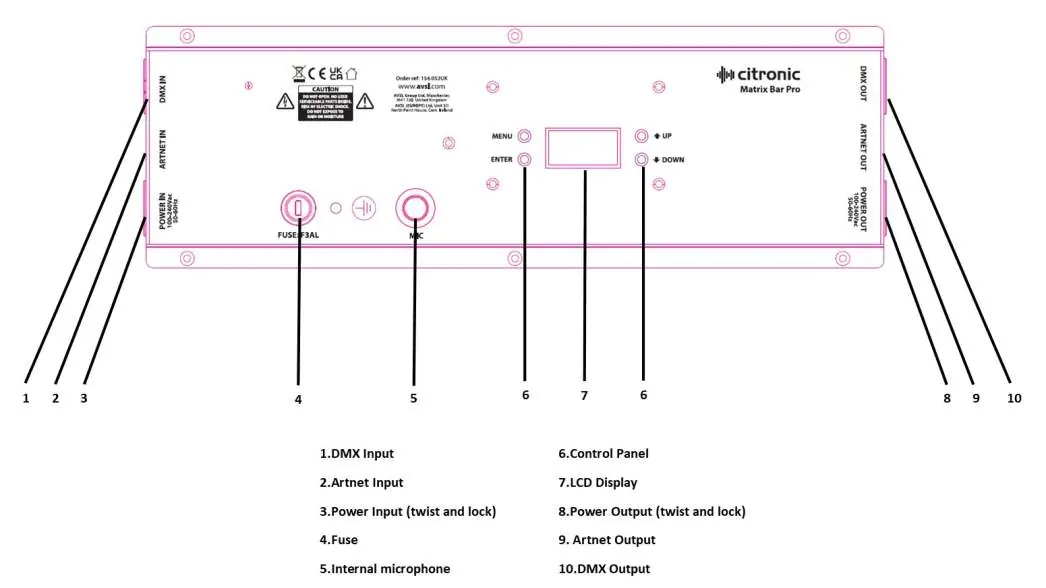
The rear panel features the digital control panel, LCD display, and all connection ports. Use the MENU button to enter settings, UP and DOWN to navigate, and ENTER to confirm selections.
DMX and Art-Net operation
DMX Mode: Connect your DMX controller to the DMX IN socket using a balanced XLR cable. Additional fixtures can be daisy-chained from DMX OUT to the next unit's DMX IN. Select A001 in the menu to set the DMX address.
Art-Net Mode: Connect the Art-Net source to the Art-Net IN (RJ45) port using a Cat5e or Cat6 cable. Ensure the Network Switch is set to ON in the system menu and configure the Universe, IP Address, and Subnet Mask.
Channel Modes: The unit supports 3, 5, 17, 80, or 120 channel modes. Ensure the selected channel mode matches your controller settings.
Cleaning and maintenance
- Use a soft cloth with a neutral detergent to clean the casing.
- Do not use strong solvents.
- The unit contains high voltage and is not user-serviceable; refer all repairs to qualified personnel.
Troubleshooting
- No power: Check mains voltage, ensure the outlet is switched on, verify the power lead is connected properly, and check the external fuse.
- No light output: Check control panel mode settings and DMX controller settings (dimmer levels, blackout).
- Unresponsive to DMX: Ensure the unit is in DMX mode, the DMX address is correct, the controller is not set to blackout, and cables are secure.
- Overheating: Ensure adequate ventilation and that the unit is not placed too close to a heat source.
Practical help
Common problems
No power
Check mains voltage, outlet status, power lead connection, and the external fuse.
No light output
Verify control panel mode settings and check DMX controller settings (dimmer levels, blackout).
Unresponsive to DMX
Ensure unit is in DMX mode, correct DMX address is set, controller is not in blackout, and cables are connected.
Overheating/Cutting out
Ensure adequate ventilation and move the unit away from heat sources.
Before use
- Verify all items are present (main unit, tripod, cables, brackets).
- Ensure the unit is in a dry, dust-free environment.
- Check that the power lead is securely connected.
- If mounting overhead, always use secondary safety fixings.
- Ensure adequate airflow around the fixture.
Specs in practice
- DMX channels
- Supports 3, 5, 17, 80, or 120 channel modes.
- Power supply
- 110-240Vac, 50/60Hz.
Images and diagrams
- 1-3: DMX, Art-Net, and Power inputs.
- 5: Internal microphone.
- 6: Control panel buttons (Menu, Enter, Up, Down).
- 7: LCD Display.
- 8-10: Power, Art-Net, and DMX outputs.
Model compatibility
- Supports DMX512 protocol.
- Supports Art-Net (DMX-over-Ethernet) via RJ45.
- Can be daisy-chained for power and data.

Manual page author
David Miller
Documentation analyst
Organizes user manual content into clear summaries, with attention to model details, product context, and everyday usability.