Power / Power Banks
Comsol 20000mAh USB-C Power Bank User Manual
Quick guide for the Comsol 20000mAh USB-C Power Bank (Model DPC20GY). Learn how to charge your devices, check battery levels, and maintain your power bank for optimal performance.
Quick answers from the manual
Quick answer
- The Comsol 20000mAh Power Bank (DPC20GY) is a portable charger with 45W total output, featuring USB-C Power Delivery for laptops and two USB-A ports for other devices. It includes LED indicators to show remaining battery capacity. p. 1
Key actions
- Charge the power bank p. 1
- Check battery level p. 1
First start
- Fully charge the power bank before first use. p. 1
Show 4 more answers Show less
Problems and fixes
Charging does not start
Press the On/Off button to start charging.
p. 1Maintenance and reset
- Charge and discharge every three months if not in use. p. 1
Technical specifications
| Parameter | Value | Meaning | Pages |
|---|---|---|---|
| Capacity | 20000mAh | Battery capacity | p. 1 |
| Total Output | 45W | Maximum power delivery | p. 1 |
Where to find it in the PDF
- User Manual p. 1
Table of contents
Manual images
Click an image to enlargeQuick guide from the manual
The Comsol 20000mAh USB-C Power Bank (DPC20GY) is designed to charge laptops, tablets, and smartphones using USB-C Power Delivery. Before first use, it is recommended to fully charge the power bank. If a device does not start charging automatically, press the On/Off button.
Power Bank Layout
The device features the following ports and controls:
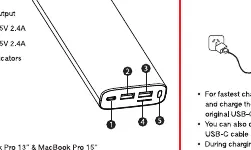
- USB-C Input & Output: Main port for charging the power bank and devices.
- USB-A Output 1: 5V 2.4A output.
- USB-A Output 2: 5V 2.4A output.
- Capacity LED Indicators: Displays remaining battery level.
- Power On/Off Button: Used to check capacity or manually start charging.
Charging the Power Bank
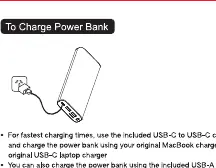
To charge the power bank, connect it to a USB-C laptop charger or a standard USB wall charger using the included USB-C to USB-C cable or a USB-A to USB-C cable. The LED indicators will flash while charging and remain permanently on when charging is complete.
Charging Devices
For MacBook or USB-C Laptop: Connect the USB-C port on the power bank to your laptop using the included USB-C to USB-C cable. Press the On/Off button to start charging.
For iPhone or Smartphone: Use a certified USB-C to Lightning cable or the appropriate cable for your device. Connect to the power bank's USB-C or USB-A port. Charging should start automatically; if not, press the On/Off button.
Checking Capacity
Press the On/Off button to view the remaining capacity via the LED indicators:
- 4 LEDs: 75% to 100%
- 3 LEDs: 50% to 75%
- 2 LEDs: 25% to 50%
- 1 LED: 5% to 25%
- Flashing LED: Less than 5%
Safety Instructions
- Fully charge the power bank before first use to maximize battery life.
- Store in a cool and dry place.
- Operating temperature range is -10°C to 45°C.
- If not used for long periods, charge and discharge the unit every three months.
- The power bank may feel warm during operation; this is normal.
- Do not dispose of in fire or heat, and avoid contact with harmful chemicals or detergents.
Technical Specifications
- Capacity: 20000mAh
- Watt Hour Rating: 72.4Wh
- Total Output: 45W
- Weight: 450g
- Charging Time: 12 hours with 2A charger or 24 hours with 1A charger
Practical help
Common problems
Device does not start charging automatically
Press the On/Off button to manually initiate the charging process.
Power bank feels warm during use
This is a normal operating condition and is not a cause for concern.
Before use
- Fully charge the power bank before first use.
- Ensure you have the correct cable (USB-C to USB-C for laptops).
- Check that your device is compatible with USB-C Power Delivery.
Show more Show less
Images and diagrams
- The layout shows the USB-C input/output port and two USB-A output ports.
- The LED indicator table helps interpret the remaining battery percentage.
Model compatibility
- Compatible with MacBook, MacBook Pro, laptops, ultrabooks, iPhone, iPad, and other USB devices.

Manual page author
Emily Carter
User documentation editor