Electronics / RFID Barcode Scanners
Quick Start Guide for Datalogic Skorpio X5 Rugged Mobile Computer
A comprehensive quick start guide for the Datalogic Skorpio X5. Includes instructions for battery installation, charging, SD card setup, and barcode scanning operations.
Quick answers from the manual
Quick answer
- The Skorpio X5 is a rugged mobile computer. To set it up, install the battery and handstrap, charge the device using a Datalogic-approved USB cable or dock, and insert a microSD card if needed. Scanning is performed by aiming the scan window at a barcode and pressing the scan trigger. p. 1, 2
Key actions
- Install battery p. 2
- Charge device p. 2
- Scan barcode p. 2
First start
- Charge the battery fully before first use. p. 2
Show 3 more answers Show less
Problems and fixes
Charging issues or overheating
Check for foreign objects in the dock slot and ensure no stickers are covering the wireless logo area.
p. 2Technical specifications
| Parameter | Value | Meaning | Pages |
|---|---|---|---|
| MicroSD Support | UHS-1 | Maximum supported speed class for memory cards. | p. 2 |
Where to find it in the PDF
- General View and Package Contents p. 1
- Installation and Operation p. 2
Table of contents
Manual images
Click an image to enlargeQuick Start Guide Overview
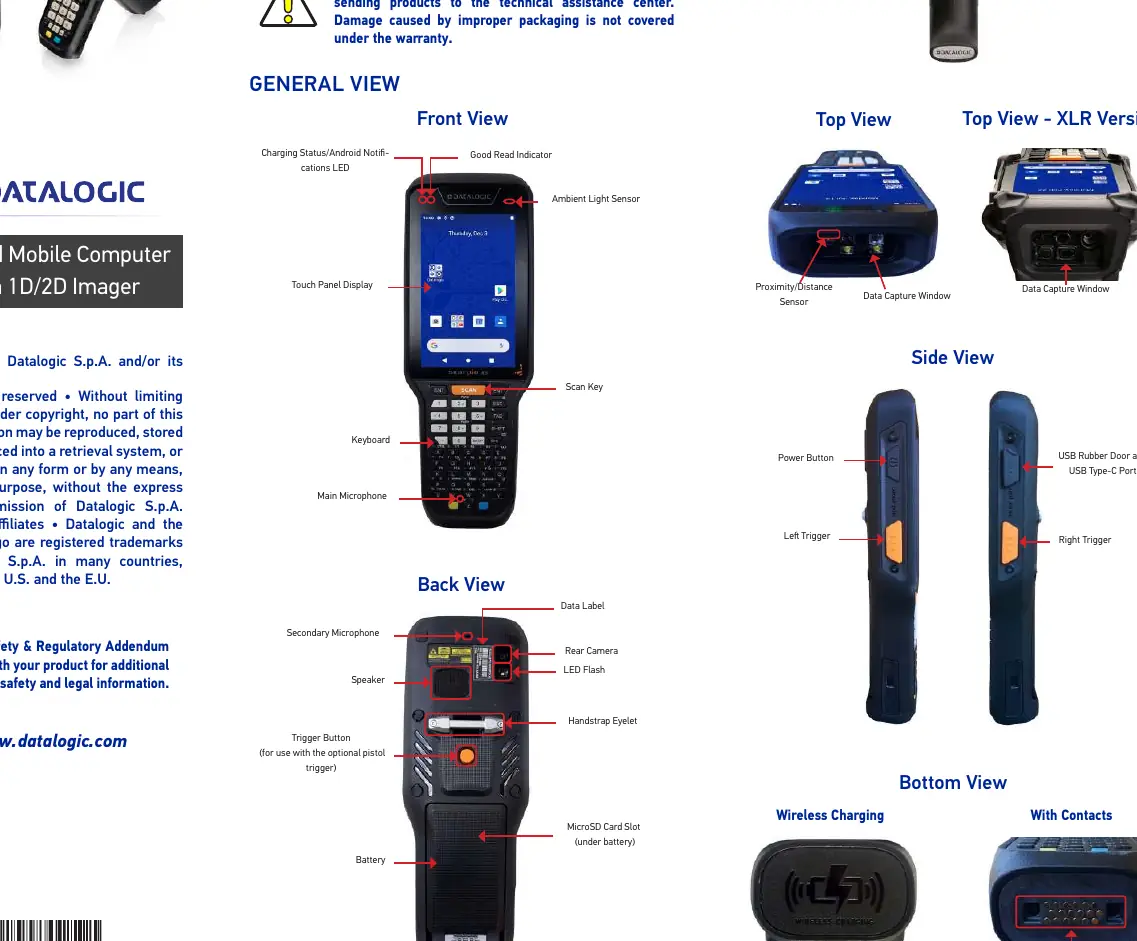
The Datalogic Skorpio X5 is a rugged mobile computer with a 1D/2D imager. This guide provides essential setup instructions to get the device ready for operation. Ensure you have all components from the package: the Skorpio X5 device, rechargeable battery pack, USB Type-A to Type-C cable, handstrap, and relevant accessories depending on the model (e.g., pistol grip).
Battery Installation
Follow these steps to install the battery and handstrap:
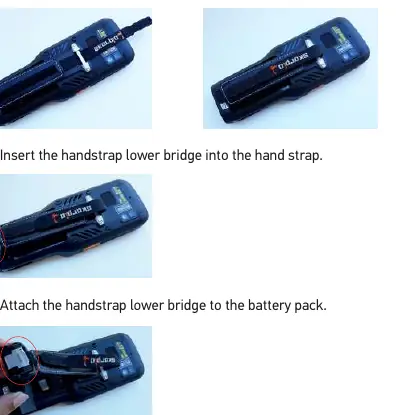
- Attach the handstrap to the eyelet on the device.
- Insert the handstrap lower bridge into the handstrap.
- Attach the handstrap lower bridge to the battery pack.
- Insert the battery pack into the slot, top first, and press it into place until it clicks.
Charging Instructions
The battery is not fully charged upon arrival. Charge the device before first use.
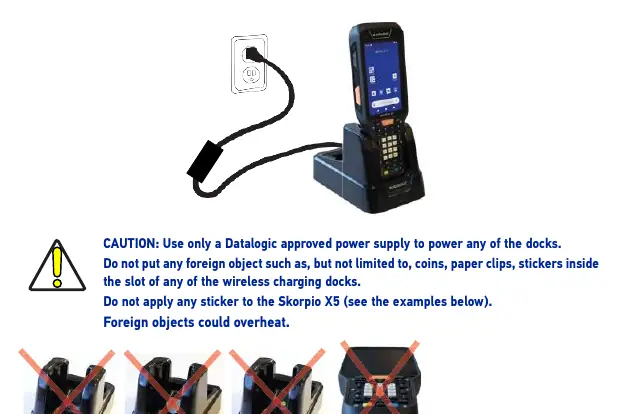
- USB Charging: Use the Datalogic USB Type-C wall adapter or connect the supplied Type-A/Type-C cable to a self-powered USB hub or computer port.
- Dock Charging: Insert the device into the optional dock with the screen facing front and the head facing up.
Charging Indicators: The charging LED on the top left of the display glows orange during charging and turns solid green when fully charged.
Caution: Use only Datalogic approved power supplies. Keep the wireless logo area free of stickers or foreign objects to prevent overheating.
Installing the SD Card
The Skorpio X5 supports microSD cards up to UHS-1 (104 MB/s bus speed).
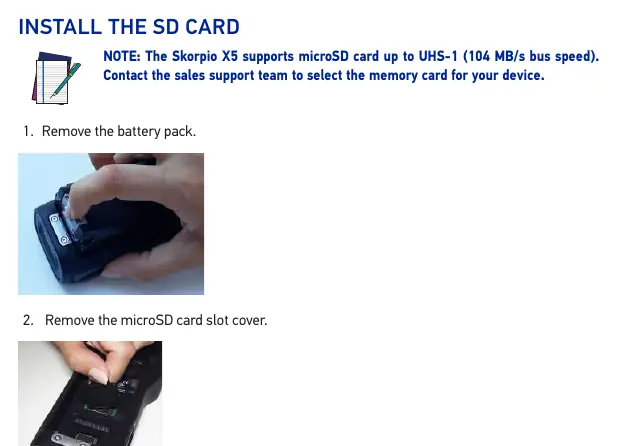
- Remove the battery pack.
- Remove the microSD card slot cover.
- Slide the cardholder to the right and pull it up.
- Insert the microSD card into the cardholder.
- Push the cardholder down and slide it to the left to lock.
- Replace the microSD card slot cover and the battery pack.
Scanning and Imaging
To scan a barcode:
- Point the scan window at the barcode.
- Press one of the scan triggers to project the laser aiming pattern.
- Center the symbol within the rectangular area formed by the aiming pattern.
- Wait for the timeout or release the Scan Key to capture the image.
Successful scans are indicated by a beep, a green spot (GreenSpot) on the barcode, and the good read indicator on the display glowing solid green.
Practical help
Common problems
Device not charging or overheating
Ensure no foreign objects (coins, paper clips, stickers) are inside the charging dock slot or on the wireless logo area.
Battery not holding charge
Ensure the battery is fully charged before first use. Use only Datalogic approved power supplies.
Before use
- Verify all package contents are present.
- Install the handstrap and battery pack.
- Charge the battery fully using a Datalogic approved power supply.
- Ensure the scan window is clean.
Show more Show less
Images and diagrams
- The device features a front-facing touch display, keyboard, and scan key.
- The back view includes the battery, rear camera, LED flash, and trigger button.
- The top view contains the data capture window and proximity sensor.
Model compatibility
- Use only Datalogic approved power supplies for docks.
- Supports microSD cards up to UHS-1 speed.

Manual page author
Emily Carter
User documentation editor