HVAC / Thermostats & Controls
Installation Guide for DEVI Connect Zigbee Gateway
Quick installation and setup guide for the DEVI Connect Zigbee Gateway. Learn how to connect to your network, pair Zigbee devices, and configure operating modes.
Table of contents
Manual images
Click an image to enlargeQuick guide from the manual
The DEVI Connect Zigbee gateway allows you to manage your Zigbee-enabled DEVI devices remotely. To get started, you need an internet connection, an open port on your router, and a power outlet. The gateway connects to your router via the provided Ethernet cable and to your devices via Zigbee wireless technology.
Components and Communication
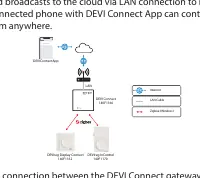
The system architecture consists of the DEVI Connect gateway communicating with Zigbee thermostats and broadcasting to the cloud via a LAN connection. The gateway should be positioned away from metal objects (like radiators) or enclosed spaces to ensure optimal wireless range. Zigbee thermostats also act as repeaters to extend the system's range.
Installation Steps
- Download the App: Install the DEVI Connect App from the Google Play Store or Apple App Store.
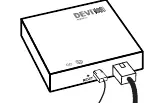
- Connect Hardware: Connect the gateway to your router using the provided Ethernet cable and plug it into a power outlet.
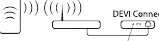
- Network Setup: Ensure your mobile device is connected to the same Wi-Fi network as the gateway. Follow the in-app prompts to add the gateway.
- Pairing Devices: Add sub-devices by clicking the plus icon in the app and selecting Add Device. Follow the wizard to pair your thermostat.
Operating Modes
DEVI thermostats can operate in three modes:
- Fit & Forget (Default): Manual temperature control via the dial; no app required.
- Local Control via Bluetooth: Use the DEVI Control App for commissioning, advanced settings, and weekly schedules.
- Remote Control via Zigbee: Use the DEVI Connect App for remote scheduling and control. Note that advanced commissioning settings (floor type, sensor type, etc.) must be configured via Bluetooth.
Network Settings and Reset
If the device fails to connect or needs to be reconfigured, you can reset the network settings. Press and hold the gateway button for more than 5 seconds until the device resets. After initialization, the device will return to the distribution network state, allowing you to repeat the pairing process.
LED Indicators
- Green LED constant: LAN connected.
- Green LED flash: Data in transmission.
- No LED: LAN cable not connected.
- Blinking: Pairing mode active.
Technical Specifications
- Power Supply: 5 V DC (USB-C)
- Wired Communication: 10/100M Ethernet Port (RJ45)
- Wireless Communication: Zigbee
- Transmission Range: Up to 30 m
- Operating Temperature: -10 °C to 45 °C
- Dimensions: 90 mm x 90 mm x 23 mm
Practical help
Common problems
Device fails to connect to the network
Ensure the phone and gateway are on the same Wi-Fi network. Press and hold the reset button for 5 seconds to reset the device and try again.
Pairing failed
Ensure the thermostat is in Zigbee mode. Press the reset button on the thermostat for 1 second to activate the pairing sequence.
Cannot change floor or sensor type settings
These settings are only configurable via Bluetooth. Switch the thermostat to Bluetooth mode, adjust settings in the DEVI Control App, then switch back to Zigbee mode.
Before use
- Ensure you have an active internet connection and an open port on your router.
- Download the DEVI Connect App.
- Have the provided Ethernet cable and power supply ready.
- Ensure your mobile device is connected to the same Wi-Fi network as the gateway.
Specs in practice
- Power supply
- 5V DC via USB-C connection.
- Wired Communication
- 10/100M Ethernet Port (RJ45) for router connection.
- Transmission range
- Up to 30 meters for Zigbee wireless communication.
- Operating temperature
- Safe operating range is -10 °C to 45 °C.
Images and diagrams
- Communication Map: Illustrates the connection flow between the gateway, router, cloud, and thermostats.
- Product Ports: Identifies the Reset button, USB-C power port, and LAN network port.
Model compatibility
- Compatible with DEVIreg InControl (140F1170) and DEVIreg Display Connect (140F1162).

Manual page author
David Miller
Documentation analyst
Organizes user manual content into clear summaries, with attention to model details, product context, and everyday usability.