Lighting / Smart Lighting
User Guide for Ecosmart 12CFA1960WCCT01 A19 Smart Bulb
Quick guide for the Ecosmart 12CFA1960WCCT01 A19 Smart Bulb. Learn how to install, connect to the Hubspace app, troubleshoot Wi-Fi issues, and configure smart features.
Table of contents
Quick guide from the manual
This guide provides essential information for setting up and operating your Ecosmart A19 Smart Bulb. The bulb requires a 2.4GHz Wi-Fi network and the Hubspace app for full functionality. Before returning the product to the store for issues, please contact Hubspace Customer Service at 1-877-592-5233 (8 a.m. - 7 p.m. EST, Monday-Friday; 9 a.m. - 6 p.m. EST, Saturday).
Safety Information
- Do not use in totally enclosed fixtures.
- This device is not intended for use with emergency exits.
- Do not connect to a standard (incandescent) dimmer or dimming control; use only the control provided or specified by these instructions.
Installation and Setup
- Download the App: Install the Hubspace app from the App Store or Google Play Store.
- Account Setup: Sign in or register to create a Hubspace account.
- Add Bulb: Tap the '+' button in the upper-right corner of the app.
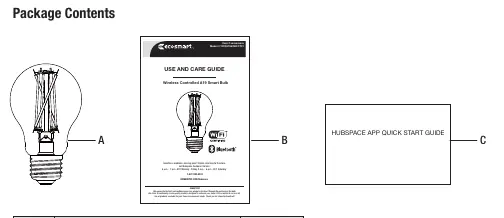
- Scan QR Code: Scan the QR code printed on the bulb or the Quick Start Guide. If scanning fails, you can enter the code manually.
- Power On: Connect the bulb to power and follow the on-screen instructions in the app.
Note: Bluetooth access is required on your phone during the setup process.
Operation and Features
Once connected, you can manage your lighting through the Hubspace app:
- Dimming: Adjust brightness levels directly in the app.
- Color Temperature: Select shades of white ranging from 2700K to 6500K.
- Group Control: Group multiple bulbs together to control them simultaneously or set up rooms.
- Schedules: Program the bulbs to turn on and off automatically.
- Voice Assistant: Connect your smart bulb to Google Assistant or Alexa via the Hubspace app.
Troubleshooting
- Wi-Fi Connection: Ensure you have a 2.4GHz Wi-Fi network. If the bulb is offline, check your Wi-Fi signal strength or move the router closer.
- QR Code Issues: If the code is damaged or unreadable, you can enter the numbers located under the QR code manually.
- App Connectivity: If the app cannot connect to the bulb, turn off your phone's Bluetooth, turn it back on, and try scanning again.
Technical Specifications
- Model: 12CFA1960WCCT01
- Input Voltage: 120V AC
- Frequency: 60Hz
- Power: 7W
- Brightness: 800 Lumens
- Efficacy: 114 LM/W
- CRI: 90
Manufacturer information
EcoSmart
Practical help
Common problems
Not connecting to Wi-Fi
Ensure the bulb is powered on, you have a 2.4GHz Wi-Fi network, and your internet connection is active.
Cannot find or scan QR code
The QR code is on the bulb housing or in the documentation. You can enter the numbers under the QR code manually in the app.
Product is offline
Check Wi-Fi signal strength. You may need to move your router, use mesh Wi-Fi, or Wi-Fi extenders.
App cannot connect to bulb
Turn off Bluetooth on your phone, turn it back on, and try scanning the QR code again.
Before use
- Ensure you have a 2.4GHz Wi-Fi network available.
- Download the Hubspace app.
- Ensure the bulb is not installed in a totally enclosed fixture.
- Do not use with standard incandescent dimmers.
- Have your Wi-Fi password ready.
Specs in practice
- Color Temperature
- Adjustable from 2700K (warm white) to 6500K (cool daylight).
Images and diagrams
- The QR code is located on the bulb housing and the Quick Start Guide.
- The Hubspace app setup requires tapping the '+' button to add the device.
Model compatibility
- Requires 2.4GHz Wi-Fi network.
- Not compatible with standard incandescent dimmers.
- Not for use in totally enclosed fixtures.
- Not for use with emergency exits.

Manual page author
Michael Turner
Technical manual editor
Reviews PDF manuals for structure, safety notes, and practical product details so readers can find the right information quickly.