Lighting / Smart Lighting
User Manual for Ecosmart T6 Smart Bulb 13T6E1240WRGB01
Quick guide for the Ecosmart T6 Smart Bulb (13T6E1240WRGB01). Learn how to install, connect to the Hubspace app, troubleshoot Wi-Fi issues, and configure smart lighting features.
Table of contents
Quick guide from the manual
This guide provides instructions for setting up and operating your Ecosmart T6 Smart Bulb. Key requirements include a 2.4GHz Wi-Fi network and the Hubspace app. Ensure the bulb is not installed in a totally enclosed fixture or used with standard dimmers.
Safety Information
- Warning: Only use the control provided with or specified by these instructions. This lamp will not operate properly when connected to a standard (incandescent) dimmer or dimming control.
- Warning: Not for use in totally enclosed fixtures.
- Warning: This device is not intended for use with emergency exits.
- Caution: Risk of Shock. Turn off power before inspection, installation, or removal. Do not open; there are no user-serviceable parts inside.
- Caution: Do not use if the outer lamp envelope is damaged or broken.
Package Contents
The package includes:
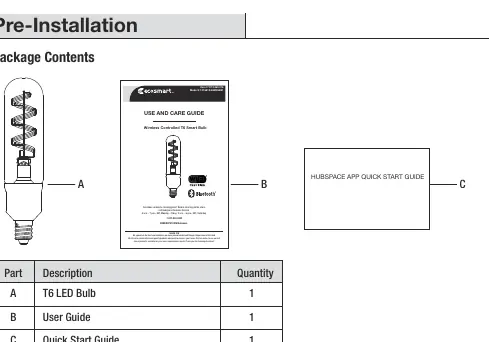
- A: T6 LED Bulb (1)
- B: User Guide (1)
- C: Quick Start Guide (1)
Operation
To set up your smart bulb:
- Download the Hubspace app from the App Store or Google Play Store.
- Sign in or register to create a Hubspace account.
- Tap the '+' button in the upper-right corner to add your bulb.
- Scan the QR code printed on the bulb or the Quick Start Guide.
- Connect your bulb to power and follow the on-screen instructions.
Note: Bluetooth access is required for product setup. The bulb requires a 2.4GHz Wi-Fi network.
Manual Set up
If you cannot scan the QR code:
- Power on the bulb.
- Tap the '+' button in the upper-right corner of the app screen.
- Tap the Search button in the lower-right corner and follow the directions in the Hubspace App.
Troubleshooting
If you experience issues:
- Not connecting to Wi-Fi: Ensure the product is connected to power and you have a 2.4GHz Wi-Fi network within range.
- Cannot find QR code: It is located on the bulb housing or in the documentation.
- QR code won't scan: Use the manual setup option (Step 8) or enter the numbers under the QR code manually.
- Offline issues: Ensure Wi-Fi signal strength is sufficient; consider using mesh Wi-Fi or extenders.
Bulb Specification
- Model: 13T6E1240WRGB01
- Input Volts: 120V AC
- Input Frequency: 60Hz
- Input Watts: 5.5W
- Lumens: 350 LM
- Efficacy: 64 LM/W
- CRI: 90
Manufacturer information
EcoSmart
Practical help
Common problems
My Hubspace product is not connecting to Wi-Fi.
Ensure the product is connected to power, your internet is working, and you are using a 2.4GHz Wi-Fi network within range.
I cannot find or scan the QR code.
The QR code is on the bulb housing. If it won't scan, use the manual setup option in the app or enter the numbers under the QR code manually.
My product is offline for long periods.
Check your Wi-Fi signal strength. You may need to move your router closer or use a Wi-Fi extender.
Before use
- Ensure you have a 2.4GHz Wi-Fi network.
- Download the Hubspace app.
- Turn off power at the switch before installation.
- Verify the fixture is not totally enclosed.
- Ensure your phone has Bluetooth enabled for setup.
Images and diagrams
- The bulb features a T6 shape.
- The QR code is located on the bulb housing.
Model compatibility
- Requires 2.4GHz Wi-Fi network.
- Not for use in totally enclosed fixtures.
- Not for use with standard dimmers.
- Compatible with Google Assistant and Alexa.

Manual page author
Emily Carter
User documentation editor
Prepares concise manual descriptions and highlights the most useful setup, operation, and maintenance information for readers.