Electronics / Monitors
User Manual for Ernitec 0070-24132-POE 4K POE Monitor
Quick guide for the Ernitec 0070-24132-POE 4K POE Monitor. Includes connection instructions, OSD menu setup, troubleshooting, and maintenance tips.
Table of contents
Manual images
Click an image to enlargeQuick guide from the manual
This document provides essential information for operating the Ernitec 0070-24132-POE 4K POE Monitor. Users should read the safety instructions carefully, specifically regarding electrical safety and proper ventilation. The monitor features a simplified control panel and multiple input options, including POE power input.
Controls
The monitor features a simplified control panel with five buttons located on the device:
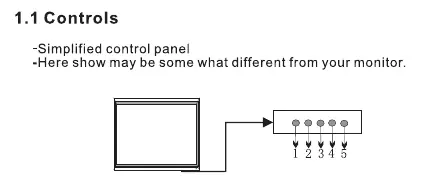
- 1 (AUTO): Selects the input source and makes menu selections.
- 2 (-): Lowers audio volume.
- 3 (+): Increases audio volume.
- 4 (MENU): Enters and exits the monitor's configuration menu.
- 5 (POWER): Turns the monitor on and off.
Connection Options
The monitor includes the following connection ports on the back:
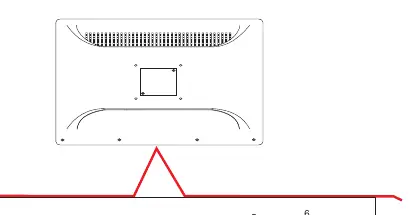
- DC 12-24V: Power supply input.
- HDMI: HDMI video input.
- USB: For software updates.
- AUDIO: Audio input.
- DP: Display Port video input.
- RJ 45: POE Power Input (60Watt Standard).
Basic OSD Setup
The On-Screen Display (OSD) menu allows for detailed configuration of the monitor:
- Brightness/Contrast: Adjust brightness, contrast, DCR, and Low Blue light settings.
- Color Setting: Configure color temperature, RGB levels, tone, saturation, and color mode.
- Input Source: Select between DP, HDMI 1, HDMI 2, and HDMI 3.
- Audio Settings: Manage mute, volume, and audio source.
- Multi-Window Settings: Configure PIP (Picture-in-Picture) size, position, and swap functions.
- OSD Settings: Adjust menu transparency, OSD position, timer, and rotation.
- Other Settings: Includes FreeSync mode, HDR, and factory reset options.
Troubleshooting
If you experience issues, consult the following solutions:
- Signal out of range: Adjust resolution, horizontal frequency, or vertical frequency. Check if the signal cable is connected.
- Vertical bar/stripe/noise: Work the auto-configure function or adjust clock, phase, or H/V position.
- No sound: Check volume settings and ensure the audio connection is secure.
- Power suddenly turned off: Ensure the sleep timer is not set and the power connection is secure.
Maintenance
Ensure power is removed from the monitor before performing any maintenance. Clean the screen and cabinet with a soft, damp, lint-free cloth. Do not use abrasive cleaners or wet cloths. If the monitor will not be used for extended periods, disconnect the power cable.
Manufacturer information
Ernitec
Practical help
Common problems
Signal out of range
Adjust resolution, horizontal frequency, or vertical frequency. Check if the signal cable is connected or loose.
Vertical bar, stripe, or noise on screen
Use the auto-configure function or manually adjust clock, phase, or H/V position.
No sound
Check the volume setting and ensure the monitor's audio connection is secure.
Power suddenly turns off
Ensure the sleep timer is not set and check that the power connection is secure.
Before use
- Ensure the monitor is placed away from heat sources.
- Verify that all cables are properly stowed and not pinched.
- Ensure adequate ventilation around the monitor.
- Check that the power connection is secure.
- Disconnect power if the monitor will not be used for long periods.
Images and diagrams
- The control panel buttons (1-5) are used for navigation, volume control, and power management.
- The connection panel (1-6) provides access to power, video inputs (HDMI, DP), and audio.
Model compatibility
- Troubleshooting for signal issues (out of range, noise) applies specifically to VGA mode.

Manual page author
Michael Turner
Technical manual editor
Reviews PDF manuals for structure, safety notes, and practical product details so readers can find the right information quickly.