Electronics / Monitors
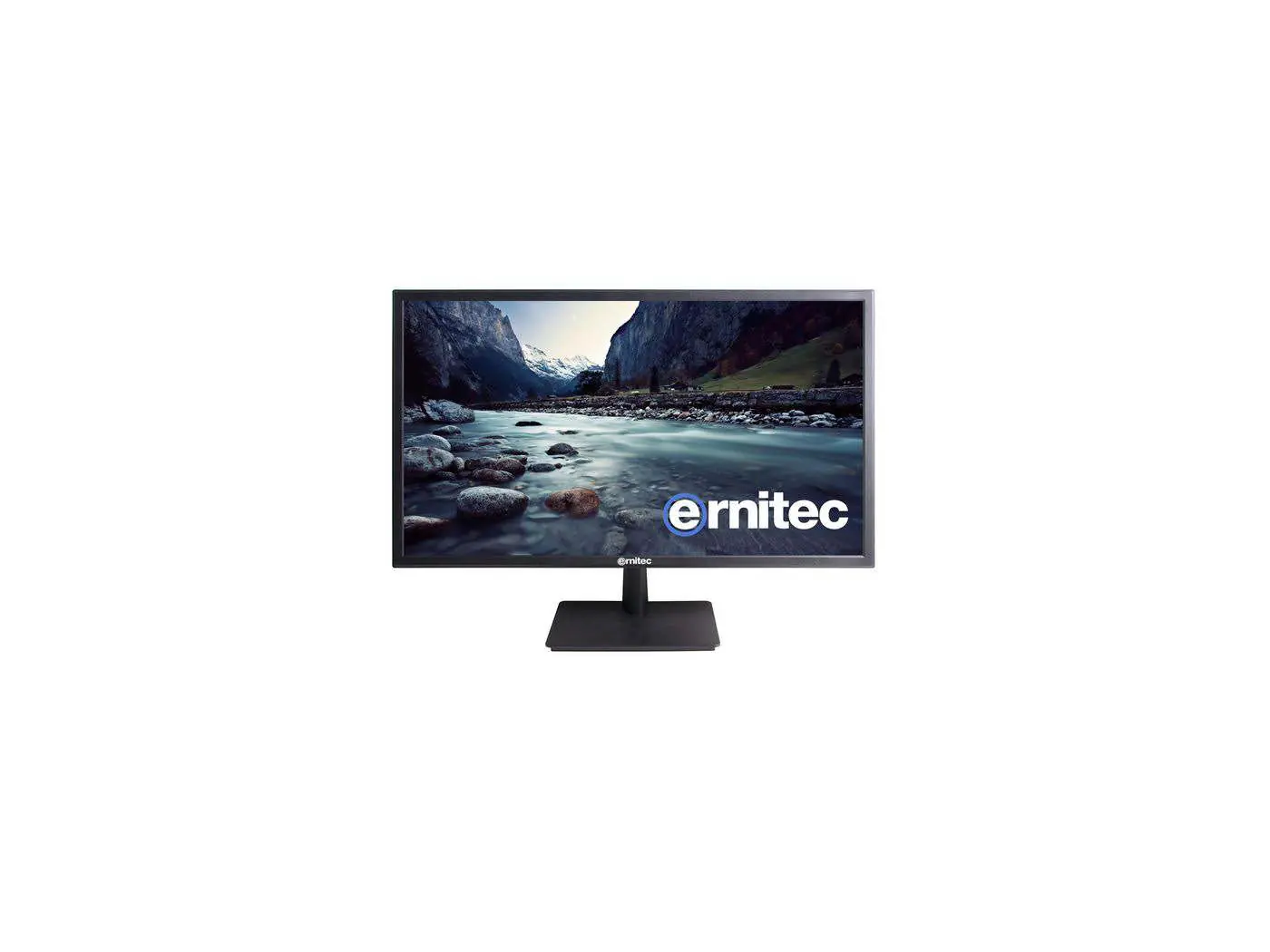
User Manual for Ernitec 0070-24128-POE 4K POE Monitor
Quick guide for the Ernitec 0070-24128-POE 4K POE Monitor. Learn about OSD settings, connection options, troubleshooting, and maintenance procedures.
Table of contents
Quick guide from the manual
The Ernitec 0070-24128-POE is a 4K POE monitor designed for professional use. This guide covers the essential setup, operation, and maintenance procedures. Key features include multiple input sources (DP, HDMI), POE power support, and an extensive On-Screen Display (OSD) menu for image and system adjustments.
Safety instructions
- Do not expose the monitor to rain or moisture.
- Do not operate in wet environments.
- Ensure adequate ventilation around the monitor.
- Do not place drinks or liquids on or near the monitor.
- Disconnect power if the monitor will not be used for long periods.
- Ensure all cables are properly stowed and not pinched.
- Use only attachments and accessories specified by the manufacturer.
- Do not remove the cover; no user-serviceable parts are inside. Refer servicing to qualified personnel.
Controls and connections
The monitor features a simplified control panel with five buttons:
- AUTO: Select input source and make menu selections.
- -: Lower audio volume.
- +: Increase audio volume.
- MENU: Enter and exit the configuration menu.
- POWER: Turn the monitor on and off.
The rear panel includes the following connection options:
- DC 12-24V: Power supply input.
- HDMI: Video input.
- USB: For software updates.
- AUDIO: Audio input.
- DP: DisplayPort video input.
- RJ45: POE power input (60Watt Standard).
OSD menu setup
The OSD menu allows for detailed configuration of the monitor:
- Brightness/Contrast: Adjust brightness, contrast, DCR, and Low Blue light settings.
- Color setting: Configure color temperature, RGB levels, tone, saturation, and color mode.
- Input source: Select between DP, HDMI 1, HDMI 2, and HDMI 3.
- Audio Settings: Adjust volume, mute, and audio source.
- Multi-Window Settings: Configure PIP (Picture-in-Picture) size, position, and swap functions.
- OSD Settings: Adjust language, menu transparency, position, timer, and rotation.
- Other Settings: Manage FreeSync, HDR, and factory resets.
Troubleshooting
If you experience issues, consult these solutions before contacting support:
- No signal/Out of range: Adjust resolution, horizontal frequency, or vertical frequency. Check if the signal cable is connected.
- Vertical bar/stripe: Perform auto-configuration or adjust clock, phase, or H/V position.
- No sound: Check volume settings and ensure the audio connection is secure.
- Power turns off suddenly: Ensure the sleep timer is not set and check the power connection.
Maintenance
Ensure power is removed before performing any maintenance. Clean the screen and cabinet with a soft, dry, lint-free cloth. Do not use wet cloths or abrasive cleaners.
Manufacturer information
Ernitec
Practical help
Common problems
Signal out of range
Adjust resolution, horizontal frequency, or vertical frequency. Check if the signal cable is connected or loose.
Vertical bar or stripe on screen
Work the auto configure or adjust clock, phase, or H/V position.
No sound
Check the volume setting and ensure the monitor's audio connection is secure.
Power is suddenly turned off
Ensure the sleep timer is not set and check that the power connection is secure.
Before use
- Ensure the monitor is placed in a well-ventilated area.
- Check that all cables are properly connected and not pinched.
- Verify the power source matches the monitor requirements.
- Remove power before performing any maintenance.
- Do not use the monitor near water or in wet environments.
Images and diagrams
- The monitor features a simplified control panel with 5 buttons: Auto, -, +, Menu, and Power.
- The rear panel includes ports for DC 12-24V, HDMI, USB (for software update), Audio, DP, and RJ45 (POE).
Model compatibility
- Supports POE power input (60Watt Standard).
- Supports multiple input sources including DP and HDMI.

Manual page author
Emily Carter
User documentation editor
Prepares concise manual descriptions and highlights the most useful setup, operation, and maintenance information for readers.