Electronics / Video Lighting
User Manual for GVM 1200B AIO LED Video Light
Quick guide for the GVM 1200B AIO LED Video Light. Includes installation, control panel operation, app setup, troubleshooting, and technical specifications.
Table of contents
Manual images
Click an image to enlargeQuick guide from the manual
The GVM 1200B AIO is a professional LED video light designed for photography and videography. Before use, ensure the ambient temperature is between -20°C and 45°C. Always remove the protective cover before turning on the light. Do not stare directly into the light source. The device requires a stable power supply and should be mounted securely on a light stand.
Product Overview
This light features COB LED technology with a CRI of 97+ and a color temperature range of 2700K to 6800K. It supports three lighting modes: CCT, Source Matching, and Effects. Control is available via the onboard panel, GVM Mesh Bluetooth App, or external DMX/CRMX controllers (accessories sold separately).
Installation
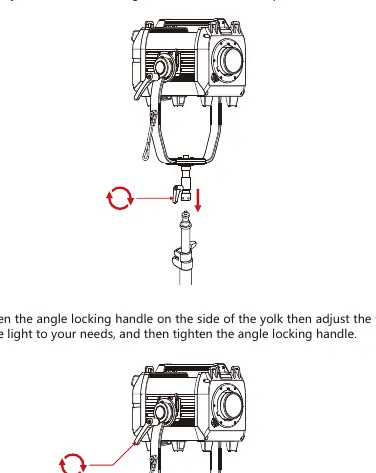
Stand Mounting: Slide the 5/8" receiver over the spigot on the light stand. Tighten the securing knob on the yoke to ensure the light does not wobble. Adjust the tilt angle by loosening the angle locking handle on the side of the yoke.
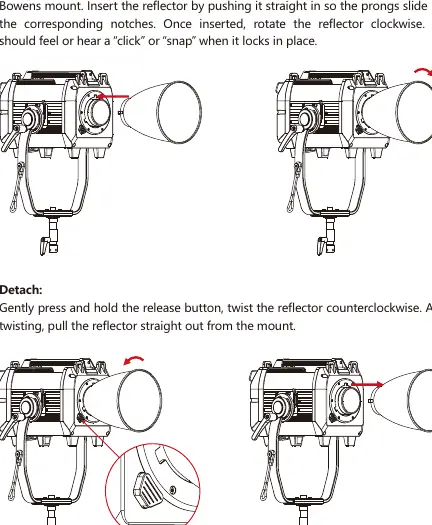
Reflector Installation: Align the three prongs on the reflector with the notches on the Bowens mount. Push straight in and rotate clockwise until you hear a click. To detach, press the release button and twist counterclockwise.
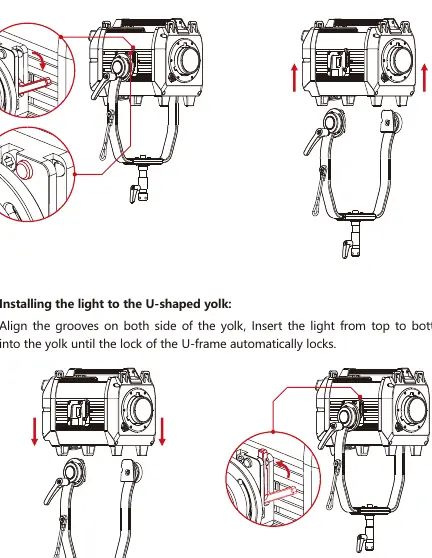
Yoke Disassembly: Press the release mechanism on both sides of the yoke to remove the light from the frame.
Control Panel
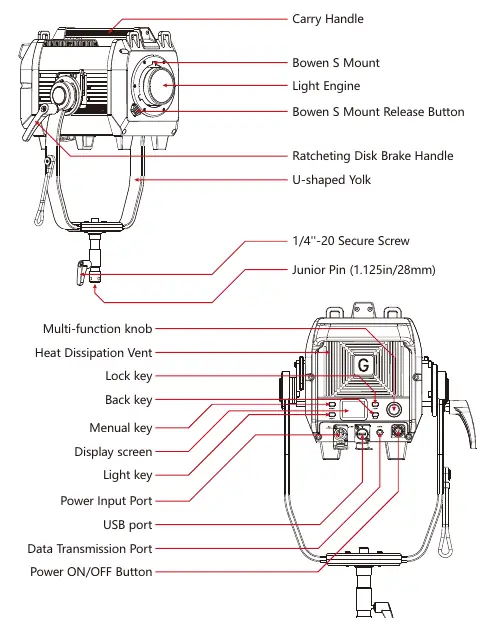
The rear control panel includes a display screen and several keys:
- Menu Key: Enters system settings.
- Light Key: Enters CCT dimming mode.
- Lock Key: Press and hold for 2 seconds to lock/unlock controls.
- Back Key: Returns to the previous menu.
- Multi-function Knob: Rotate to select/adjust parameters; click to confirm.
- Power ON/OFF: Long press to power the unit.
Functions and Settings
Access the menu to configure:
- DMX Settings: Requires GVM data box accessories.
- DIM Curve: Choose between Linear, Exp, Log, or S-Curve.
- Bluetooth: Toggle state or reset connection.
- Fan Settings: Choose Smart, High, or Silent mode. Note: Silent mode limits output power to 110W.
- Studio Mode: Saves settings for the next power-on.
- Upgrade: Firmware updates via USB flash drive (FAT32 format required).
App Control
Download the GVM app to control the light via Bluetooth. Ensure Bluetooth, network data, and location permissions are enabled on your smartphone. Use the "Add Device" button in the app to pair the light. Android users must enable GPS positioning for mesh technology to function.
Troubleshooting
If the light does not turn on, check the power adapter connection. If the app cannot find the device, ensure the light is on, not paired to another phone, and that your phone's Bluetooth and location services are active. For in-app control issues, reboot the device, reset the Bluetooth, and re-add the device to the list.
Maintenance
Unplug the power before cleaning. Use a dry, soft cloth to wipe off dirt; do not use wet cloths or solvent-based liquids. Store the device in its carrying case in a dry, well-ventilated place.
Practical help
Common problems
Indicator does not light up
Check if the power adapter is securely connected to the power plug and the light.
Bluetooth device not found in app
Ensure the light is turned on, not paired by another user, and that your phone has Bluetooth, network data, and GPS enabled.
App pairing failed
Reset the device Bluetooth and restart the app, then attempt to connect again.
In-app controls not accessible
Reboot the device, wait 5 seconds, reset the device Bluetooth, and add the device back to the list.
Before use
- Remove the protective cover from the light head.
- Ensure ambient temperature is between -20°C and 45°C.
- Verify power supply is within AC 100V-240V range.
- Mount the light securely on a compatible stand.
- Ensure the light is not placed near flammable solvents.
Specs in practice
- Bluetooth Distance ≤50M
- Maximum effective range for app-based wireless control.
Images and diagrams
- The control panel features a multi-function knob for navigation and dedicated buttons for Menu, Light, Lock, and Back functions.
- The data transmission port is located on the rear panel and requires specific GVM BOX accessories for DMX/CRMX functionality.
Model compatibility
- DMX and CRMX control require GVM BOX accessories (DCB-XLR5, CCB-XLR5, or LCBRJ45) purchased separately.
- The USB-C port is strictly for firmware updates via USB flash drive and does not support charging external devices.

Manual page author
Michael Turner
Technical manual editor
Reviews PDF manuals for structure, safety notes, and practical product details so readers can find the right information quickly.