Electronics / Video Lighting
User Manual for GVM-1000D Photography Light
Quick guide for the GVM-1000D photography light. Learn how to set up, control brightness, color temperature, RGB modes, use the mobile app, and troubleshoot common issues.
Table of contents
Manual images
Click an image to enlargeQuick guide from the manual
The GVM-1000D is a professional photography fill light designed for studio, outdoor, and live broadcast use. It features RGB and Bi-color temperature control, 18 scene modes, and app-based intelligent control. Ensure you read the safety instructions before operation.
Safety Instructions
- This is professional equipment; use under the guidance of a professional.
- Operating temperature range: -10°C to 40°C.
- Do not use near flammable solvents.
- Do not stare directly at the light source when it is on.
- Keep away from water and do not use in rain.
- Use only the original power adapter or compatible lithium batteries.
Product Structure
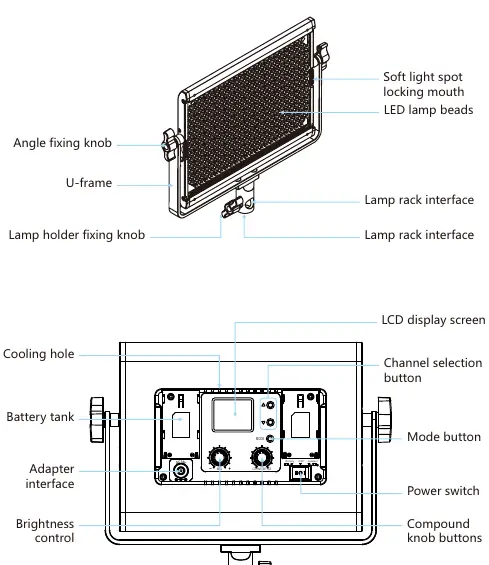
The unit features a U-bracket for 360° rotation, an LCD display screen, and a control panel on the back. Key components include the brightness control knob, multifunctional knob (for CCT/HUE/SAT/SC), mode button, and channel selection button.
Installation Method
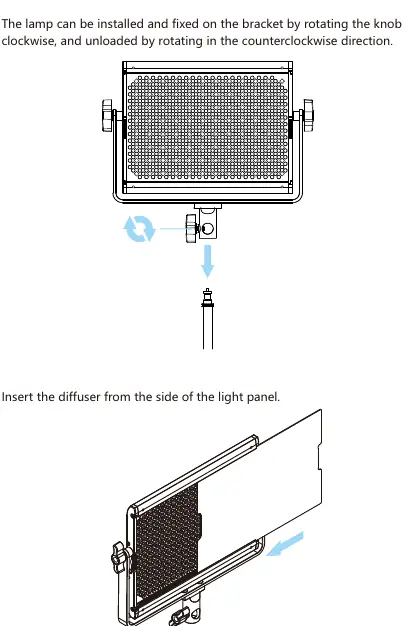
- Mounting: Attach the light to a bracket by rotating the knob clockwise.
- Diffuser: Slide the diffuser into the side of the light panel.
- Angle Adjustment: Loosen the U-bracket knobs, adjust the angle, and tighten the knobs.
- Power Supply: Connect the AC power adapter to the DC15V interface, or install two compatible lithium batteries into the battery slots.
Control Panel and Operation
The control panel allows for manual adjustments:
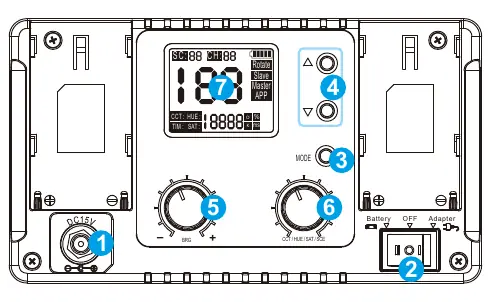
- Mode Button: Switch between Rotate, Slave, Master, and APP modes.
- Brightness Knob: Adjusts light intensity.
- Multifunctional Knob: Short press to switch between CCT, HUE, SAT, and SC modes. Rotate to adjust values. Long press for 3 seconds to enter/exit scene lighting mode.
- Channel Button: Used in Master/Slave mode to set the channel.
App Control
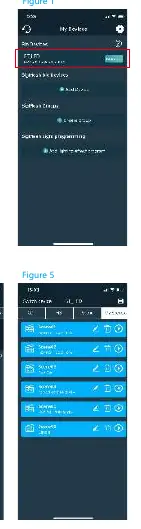
Download the "GVM LED" app. Switch the light to APP mode, enable Bluetooth and GPS on your phone, and connect to the device named "BT_LED" within the app. You can control brightness, color temperature, and scene effects remotely.
Troubleshooting
If the light does not turn on, check the power adapter connection or battery charge. If the knobs are unresponsive, ensure the device is not in Slave mode. For connection issues, verify the device is in APP mode and Bluetooth permissions are enabled.
Product Specifications
- Power: 45W
- Color Temperature: 3200K-5600K
- CRI: ≥97
- Illuminance: 7970lux@1m
- Voltage: AC 100-240V / DC 15V
Practical help
Common problems
Switch indicator does not light up
Ensure the power adapter is securely connected or charge the lithium batteries.
Brightness/Color knob is unresponsive
The unit may be in Slave mode. Press the 'MODE' button to switch to Master mode.
App cannot connect or control the light
Ensure the light is in APP mode, Bluetooth and GPS are enabled on your phone, and connect to 'BT_LED' in the app.
No RGB color in RGB mode
Check if the Saturation (SAT) value is set to 0. Increase the SAT value using the multifunctional knob or the app.
Before use
- Remove the protective cover from the light.
- Ensure the ambient temperature is between -10°C and 40°C.
- Verify the power source (AC adapter or two lithium batteries).
- Ensure the light is mounted firmly on a stable stand.
- Check that the diffuser is properly installed if needed.
Images and diagrams
- The control panel features a brightness knob, a multifunctional knob for parameter selection, and an LCD screen for status monitoring.
- The U-bracket allows for 360-degree rotation of the light panel.
Model compatibility
- Requires two lithium batteries for battery-powered operation.
- Not waterproof; do not use in rain or high-humidity environments.

Manual page author
David Miller
Documentation analyst
Organizes user manual content into clear summaries, with attention to model details, product context, and everyday usability.