Electronics / Sim Racing Equipment
User Manual for HORI Wireless Racing Wheel Apex
Quick guide for the HORI Wireless Racing Wheel Apex. Learn how to set up, connect to PS5, PS4, and PC, adjust sensitivity, remap buttons, and troubleshoot connection issues.
Quick answers from the manual
Quick answer
- The HORI Wireless Racing Wheel Apex is a wireless racing controller for PS5, PS4, and PC. Setup involves mounting the wheel, setting the hardware toggle switch, connecting the receiver, and performing a calibration by turning the wheel fully left/right and pressing pedals. p. 4, 5, 10, 11
Key actions
- Mounting the steering unit p. 8, 9
- Connecting to console p. 10, 11
- Assigning buttons p. 12
First start
- Update console software, charge the wheel, mount to a flat surface, set the toggle switch, connect the receiver, and calibrate. p. 4, 5, 10, 11
Show 4 more answers Show less
Problems and fixes
Product not working
Charge battery, reconnect, or reset the unit.
p. 17Maintenance and reset
- Use a thin object to press the reset button on the back of the product. p. 17
Technical specifications
| Parameter | Value | Meaning | Pages |
|---|---|---|---|
| Rotation Angle | 270 degrees | Maximum steering range. | p. 19 |
| Charging Time | 3 hours | Time to fully charge the battery. | p. 19 |
Where to find it in the PDF
- Quick Start Guide p. 4, 5
- Setup and Mounting p. 8, 9
- Connection and Calibration p. 10, 11
- Configuration (Assign/Sensitivity) p. 12, 13, 14, 15
Table of contents
Manual images
Click an image to enlargeQuick Guide
The HORI Wireless Racing Wheel Apex is designed for PlayStation 5, PlayStation 4, and Windows PC. Before using, ensure your console software is updated to the latest version. Charge the steering unit fully before the first use. The setup process involves mounting the wheel to a flat surface, setting the hardware toggle switch to the correct platform, connecting the receiver, and performing a calibration by turning the wheel fully left and right and pressing the pedals.
Mounting the Steering Unit
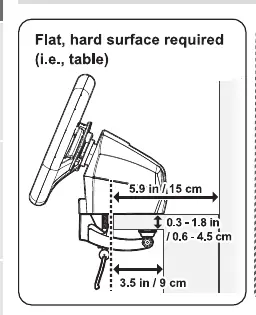
The steering unit must be mounted on a flat, hard surface such as a table. Use the included clamp and screw to secure the base. Ensure the surface is not uneven, too thick, or fragile (like glass). Tighten the clamp securely to prevent the unit from detaching during gameplay.
Connecting to Console
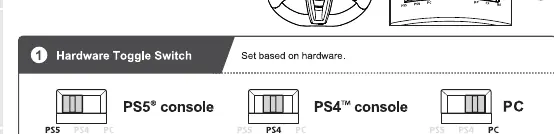
1. Connect the foot pedal cable to the steering unit's pedal port. 2. Set the Hardware Toggle Switch on the steering unit to the appropriate setting (PS5, PS4, or PC). 3. Set the Mode Toggle Switch to either Steering Mode or Normal Mode depending on your software compatibility. 4. Connect the wireless receiver to the console or PC. 5. Turn on the console and press the PS button on the wheel to log in.
Button Configuration
You can remap buttons using the Assign Mode feature:
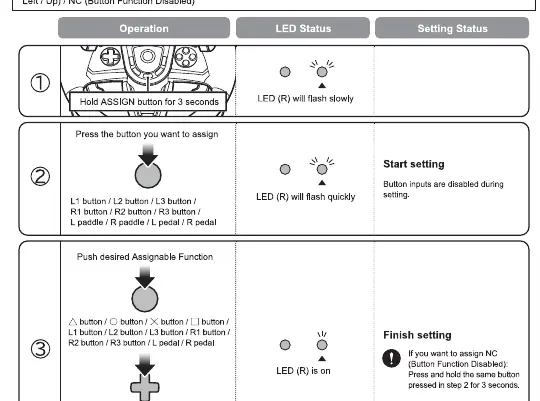
- Hold the ASSIGN button for 3 seconds until the LED (R) flashes slowly.
- Press the button you want to remap.
- Press the desired function button to assign it.
- The LED (R) will turn on to indicate the setting is finished.
Adjusting Sensitivity and Dead Zone
You can adjust the steering sensitivity, foot pedal sensitivity, and dead zone:
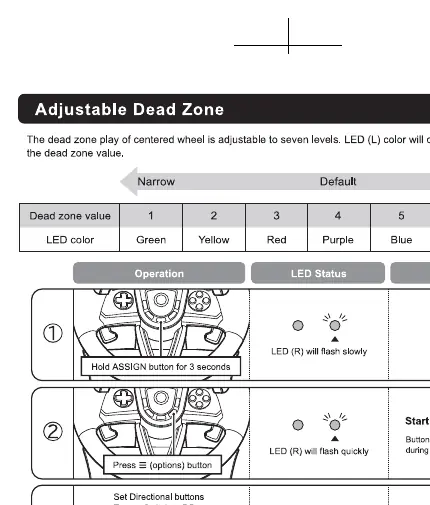
- Hold the ASSIGN button for 3 seconds.
- Press the Options button (for steering/dead zone) or the specific pedal (for pedal sensitivity).
- Use the Directional buttons to increase or decrease the value (7 levels available).
- Press the ASSIGN button to save settings.
Troubleshooting
If the product is not working, ensure it is fully charged and reconnected. If the product is unresponsive, use a thin object to press the reset button on the back of the unit. If steering or pedal input feels off, perform the calibration procedure: turn the wheel fully to the right, then to the left, and press the L and R pedals fully one at a time.
Specifications
- Connection: 2.4 GHz Wireless
- Rotation Angle: 270 degrees
- Charging Time: 3 hours
- Battery Life: Up to 10 hours
- Compatibility: PS5, PS4, Windows 10/11
Practical help
Common problems
Product not working
Check battery level, charge the unit, and ensure the receiver is connected properly.
Product unresponsive or unable to charge
Use a thin object (like a paper clip) to press the reset button on the back of the steering unit.
Steering or pedal input feels off
Perform calibration: turn the wheel fully left and right, and press the L and R pedals fully one at a time.
Before use
- Update console software to the latest version.
- Charge the steering unit fully.
- Mount the steering unit securely to a flat, hard surface.
- Set the Hardware Toggle Switch to the correct platform (PS5, PS4, or PC).
- Connect the receiver to the console or PC.
Show more Show less
Specs in practice
- Steering Diameter
- 28 cm (11 inches).
- Angle of Rotation
- 270 degrees for full steering range.
- Charging Time
- Approximately 3 hours for a full charge.
- Battery Life
- Up to 10 hours of continuous gameplay.
Images and diagrams
- Mounting: Use the clamp and screw to secure the wheel base to a table.
- Toggle Switches: Ensure the switch matches your console (PS5/PS4/PC) before connecting.
- Calibration: Turn the wheel fully left and right, and press pedals fully to calibrate.
Model compatibility
- Compatible with PlayStation 5, PlayStation 4, and Windows 10/11.
- PC compatibility is not tested nor endorsed by Sony Interactive Entertainment.

Manual page author
David Miller
Documentation analyst