Electronics / Gaming Peripherals
User Manual for HORI Wireless HORIPAD for Steam Controller
Comprehensive user guide for the HORI Wireless HORIPAD for Steam (2115-309UNN). Includes setup instructions, Bluetooth and wired connection steps, button layout, mode switching, and technical specifications.
Quick answers from the manual
Quick answer
- The HORI Wireless HORIPAD for Steam is a game controller that supports both Bluetooth wireless and wired USB connections. It features switchable Steam/XInput modes and Analog/Digital trigger modes. p. 1, 2, 4
Key actions
- Pairing the controller p. 3
- Charging the controller p. 2
First start
- Charge the controller, set the mode switch on the back, and pair via Bluetooth or connect via USB. p. 2, 3, 4
Show 4 more answers Show less
Problems and fixes
Controller unresponsive
Reset the product or relocate to an area without strong electro-magnetic interference.
p. 9Maintenance and reset
- If the controller function is disturbed by interference, reset the product to resume normal operation. p. 9
Technical specifications
| Parameter | Value | Meaning | Pages |
|---|---|---|---|
| Battery Life | 12 hours | Approximate usage time. | p. 8 |
| Charging Time | 3.5 hours | Time to fully charge. | p. 8 |
| Wireless Range | 33 ft / 10 m | Maximum operating distance. | p. 8 |
Where to find it in the PDF
- Quick Start Guide p. 2, 3, 4
- Layout and Features p. 5, 6
- Specifications p. 8
Table of contents
Quick Start Guide
The HORI Wireless HORIPAD for Steam supports both wireless Bluetooth and wired USB connections. Before first use, it is recommended to fully charge the controller.
Bluetooth Connection
- Set the switch on the back of the controller to Steam Mode.
- Press and hold the Steam button for 3 seconds to turn the controller on.
- Press and hold the Steam button again for 3 seconds to enter pairing mode (LED will blink twice).
- Select [HORIPAD STEAM] on your PC or Steam Deck Bluetooth settings.
Wired Connection
- Set the switch on the back of the controller to the desired mode (Steam Mode or XInput Mode).
- Connect the controller to your PC or Steam Deck Docking Station using the included USB-A to USB-C cable.
Compatibility
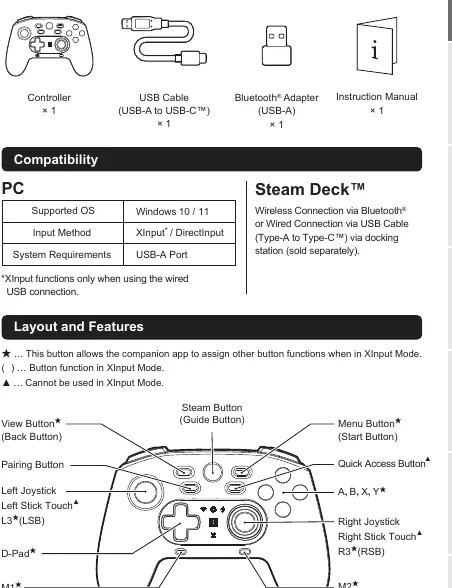
The controller is compatible with Windows 10/11 and Steam Deck. XInput functions are only available when using a wired USB connection.
Layout and Features
The controller features a variety of inputs including:
- Steam Button (Guide Button): Used for power and pairing.
- Quick Access Button: Displays a menu with simple settings.
- Capacitive Touch Thumbsticks: Enable assigned functions when touched.
- Mode Switch: Located on the back, toggles between Steam Mode and XInput Mode.
- Trigger Input Switch: Located on the back, toggles between Analog and Digital modes for L2/R2 triggers.
Modes
Steam Mode / XInput Mode
Use the switch on the back of the controller to select the appropriate mode. Steam Mode is optimized for Steam features, while XInput Mode is a standard PC input mode. For XInput mode, you may need to download the HORI Device Manager app to adjust button settings, Turbo settings, and stick sensitivity.
Analog Mode / Digital Mode
The trigger buttons (L2 and R2) can be switched between Analog Input (gradual input) and Digital (on/off) modes using the switch on the back of the controller.
Specifications
- Battery Life: Approximately 12 hours.
- Charging Time: Approximately 3.5 hours.
- Wireless Range: Up to 33 ft / 10 m.
- Operating Frequency: 2.4 GHz.
- Dimensions: W 6.1 x D 4.3 x H 2.3 in (15.5 x 11 x 6 cm).
- Weight: 0.4 lbs / 185 g.
Safety and Maintenance
- Do not use the controller near heat sources or in direct sunlight.
- Keep the product away from water, humidity, and dust.
- Do not disassemble, modify, or attempt to repair the product.
- If the battery leaks, do not touch the liquid.
- Recharge the battery at least once every three months to maintain functionality.
- Clean only with a soft, dry cloth; do not use chemical agents.
Practical help
Common problems
Controller not connecting via Bluetooth
Ensure the controller is in pairing mode (LED blinks twice). If it fails, check if the PC Bluetooth setting is turned on.
Low battery indication
The LED will blink when the battery is low. Connect the controller to a USB power source to charge.
Analog sticks miscalibrated
Do not touch the analog sticks when pairing or connecting the device, as it recalibrates automatically upon connection.
Before use
- Charge the controller fully before the first use.
- Ensure the mode switch on the back is set to the correct mode (Steam or XInput).
- If using Bluetooth, ensure the PC has Bluetooth enabled.
- Use only the included USB cable for charging and wired connection.
Show more Show less
Specs in practice
- Digital Mode
- Triggers L2/R2 act as standard on/off buttons.
Images and diagrams
- The back switch toggles between Steam Mode and XInput Mode.
- The trigger switch toggles between Analog and Digital input modes.
- LED indicators show pairing status, charging status, and Turbo activation.
Model compatibility
- Compatible with Windows 10 and Windows 11.
- Compatible with Steam Deck via Bluetooth or USB.

Manual page author
Michael Turner
Technical manual editor