Computers / Laptops
Maintenance and Service Guide for HP OMEN 16 inch Gaming Laptop PC
Comprehensive maintenance and service guide for the HP OMEN 16 inch Gaming Laptop PC. Includes detailed instructions for component removal, replacement, system diagnostics, BIOS setup, and battery care.
Table of contents
Manual images
Click an image to enlargeQuick guide from the manual
This guide provides essential maintenance and service information for the HP OMEN 16 inch Gaming Laptop PC (16-ap0xxx). It is intended for technicians and users performing authorized repairs. Always follow safety precautions, including electrostatic discharge (ESD) prevention, before opening the computer.
Safety and service considerations
Before performing any maintenance, ensure the computer is shut down and disconnected from all power sources and external devices. ESD precautions are critical: always use a grounded wrist strap and work on a static-dissipative surface to prevent damage to sensitive electronic components.
Removal and replacement procedures
The manual categorizes parts into Customer Self-Repair and Authorized Service Provider parts. Customer Self-Repair parts include the battery, memory modules, and solid-state drives. Accessing other components may require an authorized service provider to avoid voiding the warranty.
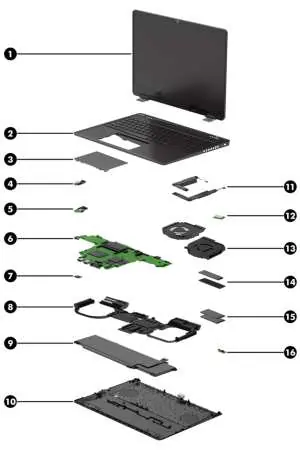
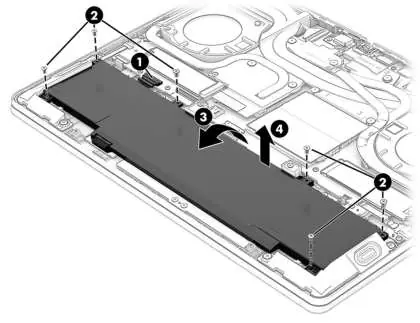
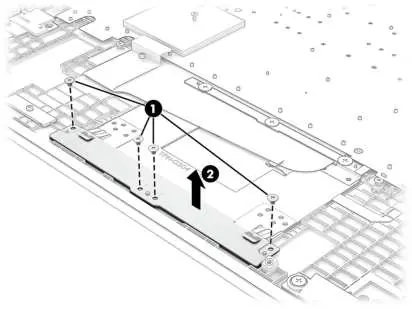
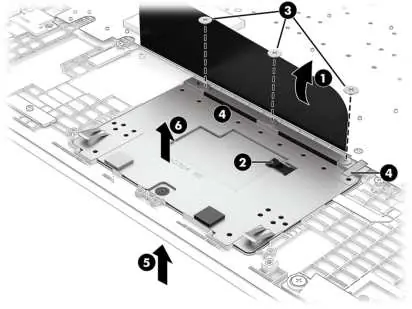
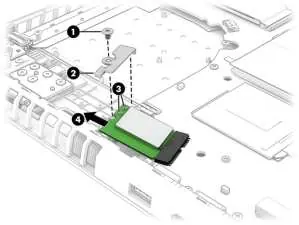
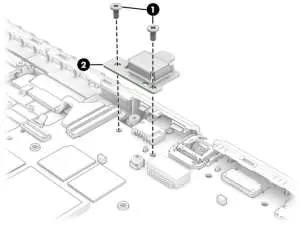
- Bottom cover: Loosen captive screws at the rear and remove noncaptive screws at the front.
- Battery: Disconnect the battery cable from the system board before removing screws.
- Memory modules: Spread retention clips outward to release the module at a 45-degree angle.
- Solid-state drive: Remove the bracket and thermal pad before pulling the drive from the socket.
BIOS and diagnostics
Access the Setup Utility (BIOS) by turning on the computer and pressing f10. Use this utility to configure hardware settings and startup sequences. For hardware troubleshooting, use the HP PC Hardware Diagnostics tool (accessible via f2 during startup or through the HP Support Assistant in Windows).
System recovery
If the system fails to boot, you can use Windows recovery tools or the HP Cloud Recovery Download Tool to create a bootable USB flash drive. To change the boot order, access the Startup menu by pressing esc and then f9 during startup.
Battery care
If you notice battery swelling, stop using the notebook immediately. Contact HP for replacement options. You can mitigate battery swelling by using the HP Adaptive Battery Optimizer (for consumer notebooks) or HP Battery Health Manager (for commercial notebooks).
Manufacturer information
HP Inc.
Practical help
Common problems
Computer overheating
Ensure air vents are clear, use the computer on a hard, flat surface, and do not block airflow.
Battery swelling
Stop using the notebook immediately and contact HP for replacement options.
System not booting
Use HP PC Hardware Diagnostics (UEFI) to isolate hardware failures or use the HP Recovery USB flash drive to restore the system.
Before use
- Shut down the computer completely.
- Disconnect the power cord and all external devices.
- Discharge static electricity by touching a grounded surface.
- Use a nonconductive, nonmarking pry tool for disassembly.
- Keep screws organized by size and location.
Specs in practice
- PCIe-4x4 NVMe
- Supported solid-state drive interface.
Images and diagrams
- Exploded views show the location of major components like the battery, fans, and system board.
- Screw location diagrams indicate which screws to remove for specific parts.
Model compatibility
- Display spare parts are available as subcomponents, not as whole units.
- Some features (like IMAX Enhanced Mode or Wake-on-voice) are available on select products only.

Manual page author
Emily Carter
User documentation editor
Prepares concise manual descriptions and highlights the most useful setup, operation, and maintenance information for readers.