Computers / Laptops
User Guide for HP OmniBook X Flip 16-AS0000
Comprehensive user guide for the HP OmniBook X Flip 16-AS0000. Learn how to set up your laptop, manage power settings, connect to networks, use entertainment features, perform system diagnostics, and maintain your device.
Table of contents
Manual images
Click an image to enlargeQuick guide from the manual
This guide provides essential information for setting up and using your HP OmniBook X Flip 16-AS0000. After initial setup, it is recommended to back up your hard drive, connect to a network, and familiarize yourself with the hardware and software. For quick support, use the HP Support Assistant app by searching for it in the taskbar.
Getting to know your computer
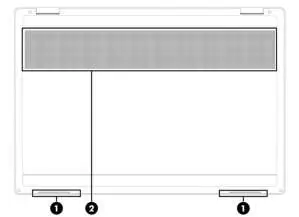
Your computer features various ports and components to enhance functionality. The right side includes a magnetic pen attachment area, an audio combo jack, and a USB 10 Gbps port. The left side houses various USB Type-C ports (some with Thunderbolt or HP Sleep and Charge capabilities), an HDMI port, and the AC adapter/battery light.
Connecting to a network
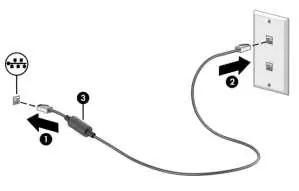
You can connect to the internet using WLAN (Wi-Fi) or a wired LAN connection. To connect to a WLAN, ensure the device is on, select the network status icon in the taskbar, and choose your network. For wired connections, plug a network cable into the network jack on the computer and the other end into a wall jack or router.
Entertainment features
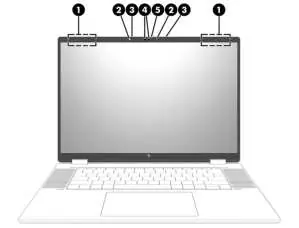
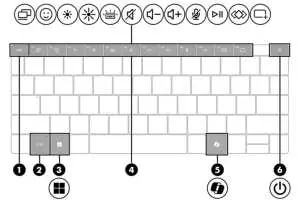
The computer includes a camera with a privacy cover for security. You can connect external audio devices like speakers or headphones to the audio combo jack. Video output is supported via HDMI or USB Type-C (Thunderbolt) ports. You can cycle through display states (PC screen only, Duplicate, Extend, Second screen only) by pressing f1.
Managing power
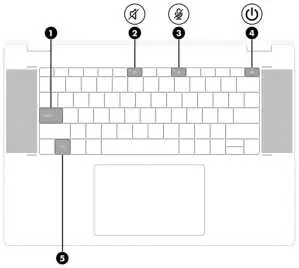
The computer supports Sleep and Hibernation modes to save power. You can initiate these states via the Start menu or by pressing the power button. HP Fast Charge allows the battery to charge to 50% in 30-45 minutes when the computer is shut down. Monitor battery levels using the Power icon in the taskbar.
Maintaining your computer
Regular maintenance keeps your computer in optimal condition. Use Disk Defragmenter (for hard drives) and Disk Cleanup to improve performance. Clean the exterior surfaces with a microfiber cloth moistened with water or a 70% isopropyl alcohol solution, ensuring the device is turned off and unplugged first.
Securing your computer
Protect your data using Windows passwords and Windows Hello (fingerprint or facial recognition). Keep your security software up to date to protect against viruses and other threats.
BIOS and Diagnostics
Access the Setup Utility (BIOS) by restarting the computer and pressing f10. HP PC Hardware Diagnostics (Windows or UEFI) can be used to test hardware components. If a failure is detected, a 24-digit failure ID code is generated for support assistance.
Backing up and recovery
Back up your information using Windows tools or the HP Cloud Recovery Download Tool to create a recovery USB flash drive. If the system fails, you can use these tools to restore or recover your system.
Manufacturer information
HP Inc.
Practical help
Common problems
Computer will not restart after changing processor settings
Do not change processor configuration in msconfig.exe from 4 or 2 to 1. If this occurs, you must perform a factory reset.
Low battery level
Connect the provided AC adapter to external power immediately.
Cannot exit Hibernation
Connect the AC adapter to the computer and press the power button.
Before use
- Register your computer.
- Back up your hard drive by creating recovery media.
- Connect to a wired or wireless network.
- Update or purchase antivirus software.
- Become familiar with hardware and software components.
Specs in practice
- HP Fast Charge
- Charges battery to 50% in 30-45 minutes when the computer is shut down.
- HP 3D DriveGuard
- Protects hard drive by parking it if the computer is dropped or moved while closed.
Images and diagrams
- Right side components include magnetic pen attachment area, audio combo jack, and USB 10 Gbps port.
- Left side components include USB Type-C ports, HDMI port, and AC adapter/battery light.
Model compatibility
- Some features like IMAX Enhanced Mode, Wake-on-voice, and HP Mobile Broadband are available on select products only.
- Keyboard and power key are disabled in stand, tent, and tablet modes.

Manual page author
Michael Turner
Technical manual editor
Reviews PDF manuals for structure, safety notes, and practical product details so readers can find the right information quickly.