Toys / Ride-on Toys
User Manual for Kmart 2.4GHz Smart Talking Robot
Quick guide for the Kmart 2.4GHz Smart Talking Robot (Keycode 43022045). Learn how to install batteries, operate the remote control, use voice transmission, play music, and program movement sequences.
Quick answers from the manual
Quick answer
- The 2.4GHz Smart Talking Robot is controlled via a remote. It requires 3 AAA batteries for the robot and 2 AAA batteries for the remote. It features movement controls, voice transmission, music playback, and a programming mode for up to 30 actions. p. 1
Key actions
- Powering on the robot p. 1
- Programming movement sequences p. 1
First start
- Install batteries in both the robot and the remote control, then hold the ON/OFF button on the robot for one second. p. 1
Technical specifications
| Parameter | Value | Meaning | Pages |
|---|---|---|---|
| Frequency | 2.4GHz | Wireless communication frequency | p. 1 |
| Programming limit | 30 actions | Maximum sequence length | p. 1 |
Table of contents
Manual images
Click an image to enlargeQuick guide from the manual
This document provides instructions for the Kmart 2.4GHz Smart Talking Robot. It covers battery installation, remote control operation, and programming features. Ensure you have the required batteries before starting.
Package contents
- Smart Talking Robot
- Remote Control
- User Manual
Important safety precautions
- Do not use the robot near water; clean only with a soft cloth or paper towel.
- Do not place the robot on any wet surfaces.
- Adult supervision is required for children under age eight.
- Do not expose the robot to excessive heat or direct sunlight.
- Do not use in extremely dry environments to avoid static discharge.
- The robot is not intended for commercial use.
Battery installation
Robot:
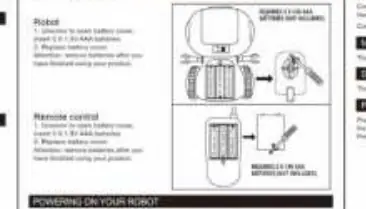
- Unscrew to open the battery cover.
- Insert 3 x 1.5V AAA batteries.
- Replace the battery cover.
Remote control:
- Unscrew to open the battery cover.
- Insert 2 x 1.5V AAA batteries.
- Replace the battery cover.
Powering on
Once batteries are installed, press and hold the ON/OFF button on the robot for one second. The LED lights will flash, indicating the robot is ready. The robot will make a sound when powered on. If the robot is not turning on or powering off, replace the batteries.
Remote control operation
Use the remote control to operate the robot:
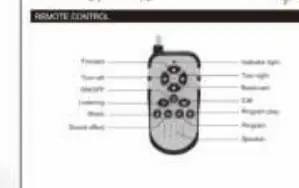
- Moving: Use the arrow buttons (Forward, Backward, Turn Left, Turn Right) to move the robot.
- Listening/Voice Transmission: Press and hold the listening button to record, then release to talk.
- Music: Press the music button to play music.
- Sound Effect: Press the sound effect button to play sound effects.
Programming your robot
You can program the robot to perform a sequence of actions:
- Press the Program button.
- Use the Forward, Backward, Turn Left, or Turn Right buttons on the controller to program your own sequence.
- The robot can be programmed with up to 30 actions.
- Press the Program play button to execute the programmed actions.
Manufacturer information
Kmart
Practical help
Common problems
Robot does not turn on or powers off unexpectedly
Ensure batteries are installed correctly. If the issue persists, replace the batteries with new ones.
Robot does not respond to remote control
Check if the robot is powered on (LED lights should be flashing). Ensure batteries in both the robot and remote are fresh.
Before use
- Install 3 x 1.5V AAA batteries in the robot.
- Install 2 x 1.5V AAA batteries in the remote control.
- Ensure the robot is switched on by holding the ON/OFF button for one second.
- Verify the LED lights are flashing to confirm power.
Images and diagrams
- The robot features an ON/OFF switch and battery compartment on the back.
- The remote control includes dedicated buttons for movement, programming, and sound features.

Manual page author
David Miller
Documentation analyst
Organizes user manual content into clear summaries, with attention to model details, product context, and everyday usability.