Electronics / Monitors
KROM KERTZ 27" Gaming Monitor User Manual
Quick guide for the KROM KERTZ 27" gaming monitor. Includes setup, key functions, technical specifications, safety instructions, and warranty information.
Quick answers from the manual
Quick answer
- The KROM KERTZ is a 27-inch IPS gaming monitor supporting 200Hz refresh rates. It is controlled via physical buttons for OSD navigation and requires a 12V 4A power supply. p. 1, 2
Key actions
- Select video source p. 2
Problems and fixes
No signal
Use the OSD menu to select the correct input source (Auto Select, Display Port, or HDMI 1).
p. 2Show 2 more answers Show less
Technical specifications
| Parameter | Value | Meaning | Pages |
|---|---|---|---|
| Resolution | 1920 x 1080 px | Native display resolution | p. 2 |
| Input Voltage | 12V 4A | Power requirement | p. 2 |
Where to find it in the PDF
- Specifications and Controls p. 2
- Compliance and Warranty p. 3, 4
- Safety Instructions p. 5, 6, 7
Table of contents
Manual images
Click an image to enlargeQuick Guide
The KROM KERTZ is a 27-inch IPS gaming monitor designed for high-performance gaming. This guide covers the essential setup, operation, and safety information required for daily use. Ensure the monitor is placed on a stable surface and connected to a compatible power source (12V 4A) before operation.
Key Functions
The monitor is controlled via physical buttons located on the device. Use the following functions to navigate the On-Screen Display (OSD) menu:
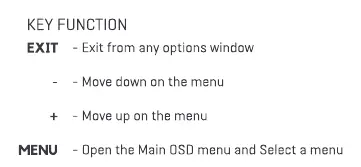
- EXIT: Exit from any options window.
- -: Move down on the menu.
- +: Move up on the menu.
- MENU: Open the Main OSD menu and select a menu.
- POWER: Power the monitor on or off.
Video Source Selection: To select the desired signal (Auto Select, Display Port, or HDMI 1), press the "+" or "-" button to select the input, then press "MENU" to confirm.
Technical Specifications
- Resolution: 1920 x 1080 px (Full HD)
- Dimensions: 612 x 462 x 182 mm
- Dimensions (without stand): 612 x 363 x 60 mm
- Net Weight: 4.5 Kg
- Gross Weight: 5.8 Kg
- Input Voltage: AC 100-240V - 50/60Hz; DC 12V 4A
- Included Cables: 1x 12V Adapter, 1x DisplayPort cable
Ports and Connections
The monitor features the following connectivity options on the rear panel:
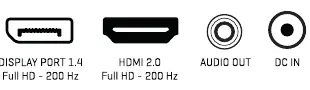
- DisplayPort 1.4: Supports Full HD at 200Hz.
- HDMI 2.0: Supports Full HD at 200Hz.
- Audio Out: For external audio devices.
- DC IN: Power input port.
Pixel Policy
The manufacturer sets limits for acceptable defective dots (sub-pixels) on the LCD panel. The acceptable limits for a Full HD (1080p) panel are:
- Bright Sub-pixel: 3
- Dark Sub-pixel: 3
- Total allowable Sub-pixel: 5
Safety Instructions
- Read and keep these instructions.
- Do not use the product near water.
- Clean only with a soft cloth.
- Do not block any ventilation openings.
- Do not install near heat sources such as radiators or stoves.
- Protect the power cord from being walked on or pinched.
- Unplug the product during lightning storms or when unused for long periods.
- Refer all servicing to qualified service personnel.
Warranty Information
The warranty is valid for the original purchaser only. The warranty period is 3 years from the date of purchase (depending on local laws). For warranty claims, contact Krom's overseas distribution partners or visit www.kromgaming.com. The warranty does not cover damage caused by accidents, misuse, neglect, unauthorized modifications, or failure to follow instructions.
Official resources from the manual
Practical help
Common problems
Monitor does not turn on
Check if the power adapter is securely connected to the DC IN port and the wall outlet.
No signal on screen
Ensure the video cable (HDMI or DisplayPort) is connected properly and use the OSD menu to select the correct input source.
Defective pixels
Check the pixel policy table in the manual; the monitor is considered within spec if defective pixels are below the defined limits.
Before use
- Place the monitor on a stable, flat surface.
- Ensure ventilation openings are not blocked.
- Connect the 12V power adapter to the monitor and a 100-240V power outlet.
- Connect your PC or console using the provided DisplayPort or an HDMI cable.
- Power on the device using the Power button.
Show more Show less
Specs in practice
- Input Voltage
- Requires 12V DC power; ensure the provided adapter is used.
- Refresh Rate
- Supports up to 200Hz for smooth gaming performance.
Images and diagrams
- The rear panel contains the DisplayPort 1.4, HDMI 2.0, Audio Out, and DC IN ports.
- Physical control buttons are used for OSD navigation and power.
Model compatibility
- Supports Full HD (1080p) resolution.
- HDMI 2.0 and DisplayPort 1.4 inputs are required to achieve 200Hz refresh rates.

Manual page author
David Miller
Documentation analyst