Electronics / Monitors
User Guide for LG UltraGear Gaming Monitor 24GQ50F / 27GQ50F Series
Quick setup guide for LG UltraGear gaming monitors. Includes assembly instructions, connection diagrams, compatibility warnings, and full technical specifications for models 24GQ50F, 24GQ50B, 24GQ40W, 27GQ50F, 27GQ50B, and 27GQ40W.
Quick answers from the manual
Quick answer
- This guide provides assembly, connection, and technical specifications for the LG UltraGear monitor series (24GQ50F, 27GQ50F, etc.). p. 1, 2
Key actions
- Assemble the stand to the monitor using the provided screws. p. 4, 5
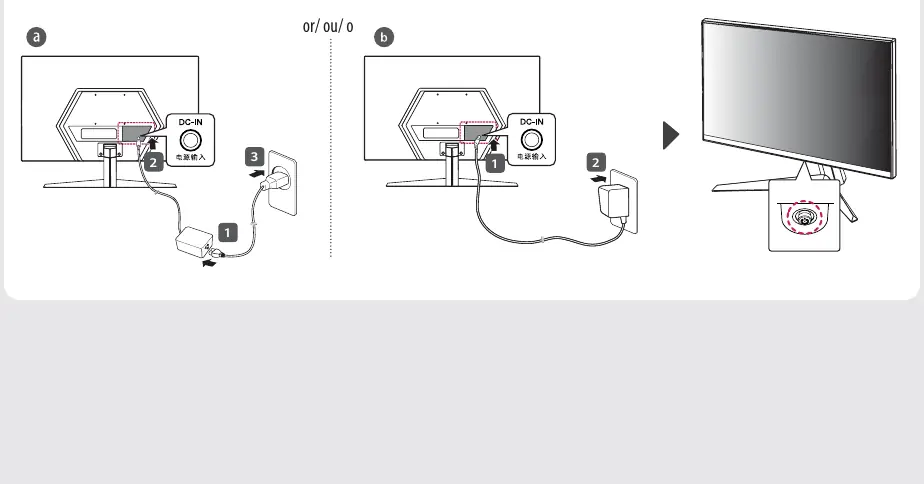
- Connect the power adapter to the DC-IN port. p. 8
Problems and fixes
Device malfunction or compatibility issues
Use the supplied cables; avoid DVI/DP to HDMI adapters.
p. 7Show 2 more answers Show less
Technical specifications
| Parameter | Value | Meaning | Pages |
|---|---|---|---|
| Resolution | 1920 x 1080 | Recommended resolution | p. 9, 10 |
| HDMI Refresh Rate | 144 Hz | Vertical frequency via HDMI | p. 9, 10 |
| DisplayPort Refresh Rate | 165 Hz | Vertical frequency via DisplayPort | p. 9, 10 |
Where to find it in the PDF
- Assembly p. 4, 5
- Connections p. 6
- Technical Specifications p. 9, 10
Table of contents
Manual images
Click an image to enlargeQuick guide from the manual
This document provides essential setup and configuration instructions for the LG UltraGear monitor series. It covers physical assembly, cable connections, and technical specifications required for proper operation.
Assembly and Installation
To assemble the monitor, follow these steps:
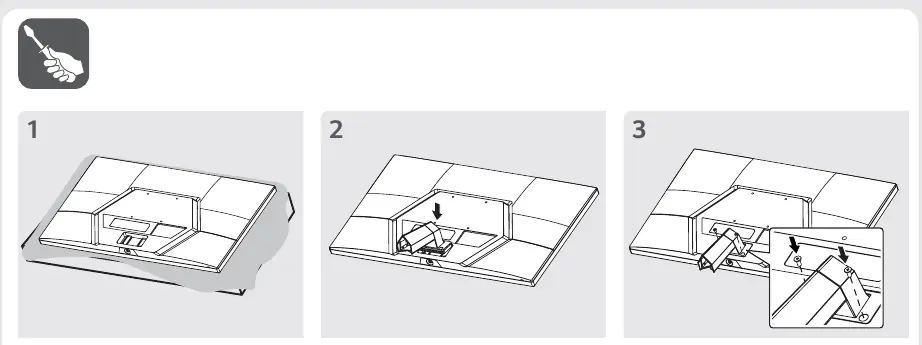
- Place the monitor on a flat surface, ensuring the screen is protected.
- Attach the stand to the monitor body.
- Secure the stand using the provided screws.
- Ensure the stand is firmly attached before standing the monitor upright.
Important: Do not touch or press the screen surface during assembly to avoid damage.
Connections
The monitor features the following ports:
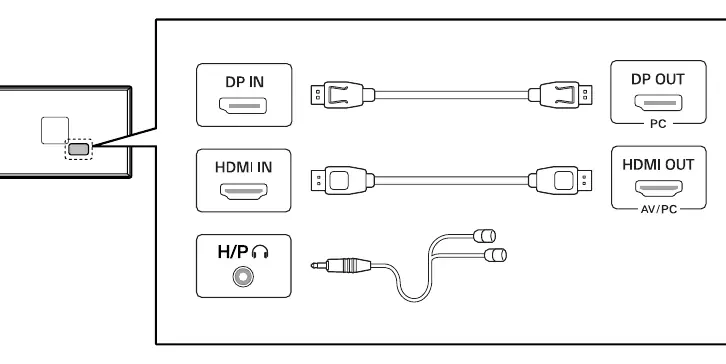
- DP IN: DisplayPort input for high-refresh-rate connectivity.
- HDMI IN: HDMI input for standard video connectivity.
- H/P: Headphone output jack.
Compatibility Warning: Using DVI to HDMI or DisplayPort to HDMI adapters may cause compatibility issues. It is strongly recommended to use the cables supplied with the product to ensure proper functionality.
Power Connection
Connect the power adapter to the DC-IN port on the back of the monitor. Ensure the power cable is securely connected to both the adapter and the wall outlet.
Technical Specifications
The monitor supports a recommended resolution of 1920 x 1080. Refresh rates vary by connection type:
- HDMI: 144 Hz
- DisplayPort: 165 Hz
Power requirements differ by model size (24-inch vs 27-inch). Always refer to the specific power rating on the back of your unit or the technical specifications table in the manual.
Manufacturer information
LG Electronics
Practical help
Common problems
Compatibility issues with video signal
Do not use DVI to HDMI or DP to HDMI adapters. Use the original cables supplied with the monitor.
Screen damage during assembly
Place the monitor face down on a flat, protected surface and avoid pressing on the screen panel.
Before use
- Verify all components are present in the box
- Use only the supplied power adapter and cables
- Ensure the monitor is placed on a stable, flat surface
- Check that the stand is securely fastened before uprighting
Show more Show less
Specs in practice
- Vertical Frequency (HDMI)
- Maximum refresh rate of 144 Hz
- Vertical Frequency (DisplayPort)
- Maximum refresh rate of 165 Hz
- Recommended Resolution
- 1920 x 1080 (Full HD)
Images and diagrams
- Assembly: Shows the stand attachment process to the monitor chassis
- Connections: Illustrates the location of DP, HDMI, and Headphone ports
- Power: Demonstrates the DC-IN connection sequence
Model compatibility
- Use supplied cables to prevent device malfunction
- Avoid third-party video adapters

Manual page author
Emily Carter
User documentation editor