Electronics / Monitors
Owner's Manual for LG LED LCD Monitor
Quick guide and user manual for LG LED LCD Monitor. Includes installation, setup, joystick control, settings, and troubleshooting.
Quick answers from the manual
Quick answer
- This manual provides instructions for installing, setting up, and troubleshooting your LG LED LCD monitor, including joystick control and OSD menu navigation. p. 2, 10, 14, 25
Key actions
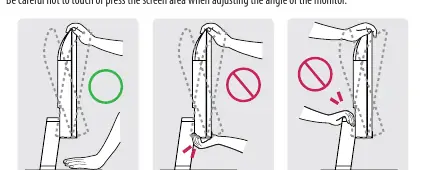
- Adjusting the angle p. 11
- Using the joystick button p. 10
First start
- Connect the power cord and signal cable, then press the joystick button to turn on the monitor. p. 6, 10, 12
Show 4 more answers Show less
Problems and fixes
Nothing is displayed
Check power connections and input settings.
p. 25
Screen retains an image
Use a screensaver to prevent image retention.
p. 25Maintenance and reset
- Use a slightly damp (not wet) cloth to clean the screen. Do not use chemicals. p. 31
Technical specifications
| Parameter | Value | Meaning | Pages |
|---|---|---|---|
| Max Resolution | 1920 x 1080 | Maximum display resolution | p. 20 |
| Operating Temperature | 0°C to 40°C | Operating temperature range | p. 20 |
Where to find it in the PDF
- Assembling and Preparing p. 4, 5, 6, 7
- Using the Monitor p. 12, 13, 14
- User Settings p. 14, 15, 16, 17
- Product Specification p. 20, 21, 22, 23
- Troubleshooting p. 25, 26
Table of contents
Manual images
Click an image to enlargeQuick Guide from the Manual
This manual provides essential information for setting up and using your LG LED LCD monitor. It covers assembly, connection, OSD menu navigation, and troubleshooting.
Assembling and Preparing
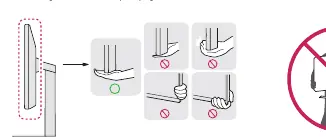
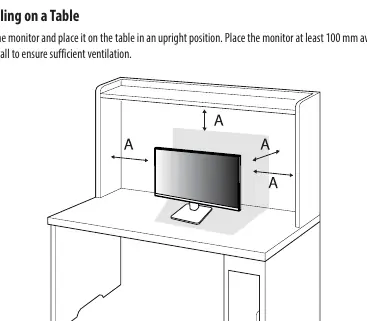
Before using the monitor, ensure you have all supplied components. When moving or lifting the monitor, hold the bottom and side of the frame firmly; do not hold the panel itself. Place the monitor on a table at least 100 mm away from the wall to ensure sufficient ventilation.
Wall Mounting
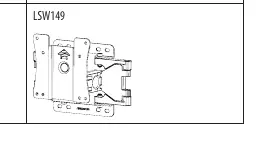
The monitor is compatible with VESA standard wall mounts. Ensure the wall mounting bracket is securely fixed to the monitor and the wall. Use M4 x L10 screws, and ensure the length of each installed screw is 8 mm or less.
Using the Monitor
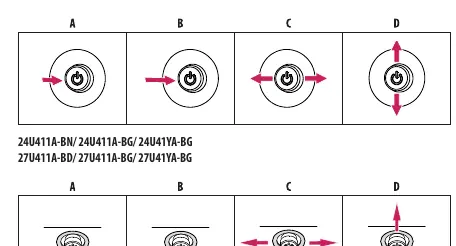
The monitor is controlled using a joystick button located on the back or bottom of the unit. You can press it to turn the monitor on, hold it to turn it off, move it left/right for volume control, and up/down for brightness control.
Connections
- PC Connection: Supports D-SUB and HDMI connections.
- Peripherals: Connect headphones via the headphone port.
User Settings
Access the OSD (On Screen Display) menu by pressing the joystick button. The menu allows you to configure:
- Quick Settings: Brightness, Contrast, Volume, and Color Temp.
- Input: Select input mode and aspect ratio.
- Picture: Adjust Picture Mode (Custom, Vivid, HDR Effect, Reader, Cinema, FPS, RTS, Color Weakness), Picture Adjust, Game Adjust, and Color Adjust.
- General: Language, Smart Energy Saving, Automatic Standby, and OSD Lock.
Troubleshooting
If you encounter issues, check the following:
- Nothing displayed: Ensure the power cord is plugged in, the adapter is connected, and the input setting is correct.
- Screen unstable/shaky: Select the recommended resolution for your PC.
- No sound: Check headphone connections and ensure the PC audio output is set to the monitor.
Maintenance
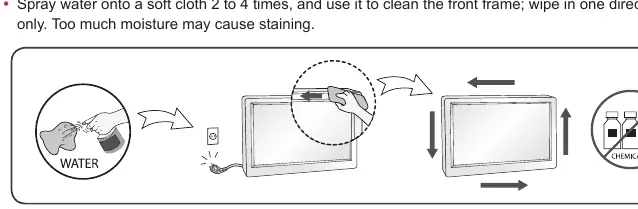
Unplug the monitor before cleaning. Use a slightly damp, soft cloth to clean the screen and frame. Do not use chemicals such as benzene, paint thinners, or alcohol.
Manufacturer information
LG Electronics
Practical help
Common problems
Nothing is displayed on the screen
Check if the power cord is correctly plugged into the power outlet, the adapter is connected, and the input setting is correct.
Screen display is unstable or shaky
Select the recommended resolution for your monitor in your computer's display settings.
No sound from the headphone port
Check headphone connections, increase volume with the joystick, and set the PC audio output to the monitor.
Before use
- Ensure the monitor is placed on a stable surface.
- Check that the power cord and adapter are connected properly.
- Verify the input cable is securely connected to both the PC and the monitor.
- Ensure the monitor is at least 100 mm away from the wall for ventilation.
Show more Show less
Specs in practice
- Max Resolution
- The highest screen resolution supported (e.g., 1920 x 1080).
- Operating Temperature
- The safe temperature range for monitor operation (0°C to 40°C).
- Power Rating
- The required power input (19V, 1.3A).
Images and diagrams
- Joystick button location and basic functions (Power, Volume, Brightness).
- Wall mount installation steps.
Model compatibility
- Supports VESA standard wall mounts.
- Requires a graphic card that supports VRR for the VRR feature.
- Apple Macintosh computers may require a separate plug adapter.

Manual page author
Emily Carter
User documentation editor