Electronics / Monitors
LG 24BA560 LED LCD Monitor Quick Setup Guide
Quick setup guide for the LG 24BA560 LED LCD monitor. Includes assembly instructions, port connectivity, cable management, and important compatibility warnings.
PDF source: HE · summary: English
Quick answers from the manual
Quick answer
- This guide provides instructions for assembling the LG 24BA560 series monitor, connecting cables, and setting up the device. p. 1, 5, 6, 7
Key actions
- Assemble the stand p. 5
- Connect cables p. 7, 9
First start
- Connect the power cable to the AC-IN port and plug into a wall outlet. p. 9
Show 2 more answers Show less
Problems and fixes
Compatibility issues
Do not use DVI to HDMI or DP to HDMI cables.
p. 8Where to find it in the PDF
- Assembly p. 5
Table of contents
Manual images
Click an image to enlargeQuick guide from the manual
This document provides essential instructions for the initial setup and assembly of the LG 24BA560 series LED LCD monitor. It covers the physical assembly of the stand, cable management, and connectivity options.
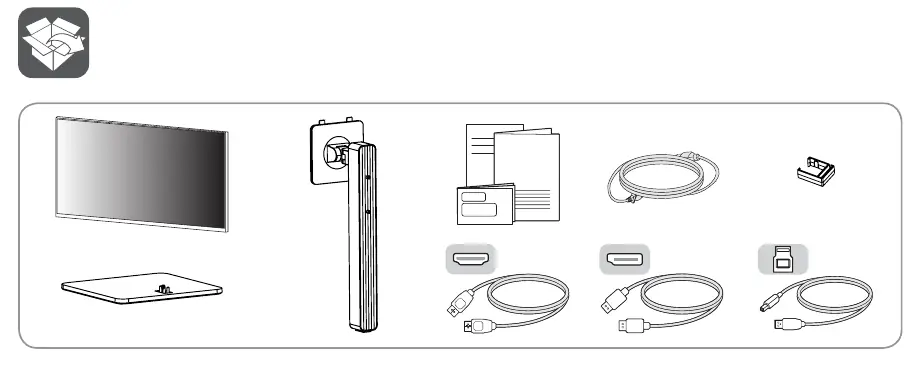
Package contents
Before beginning assembly, ensure all supplied components are present. The package typically includes the monitor, the stand base, the stand neck, and various connection cables (HDMI, DP, USB, etc.). It is highly recommended to use only the components supplied with the product to ensure proper functionality.
Assembly instructions
Follow these steps to assemble the monitor:
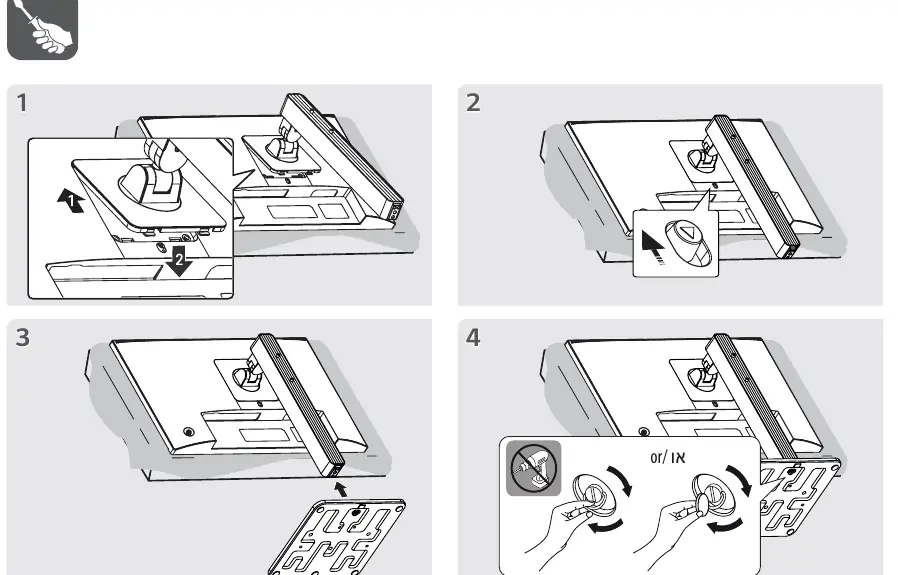
- Place the monitor face down on a flat surface. Important: Do not touch or press the screen surface to avoid damage.
- Attach the stand neck to the monitor body and secure it.
- Attach the stand base to the stand neck.
- Secure the base using the provided mechanism or screws.
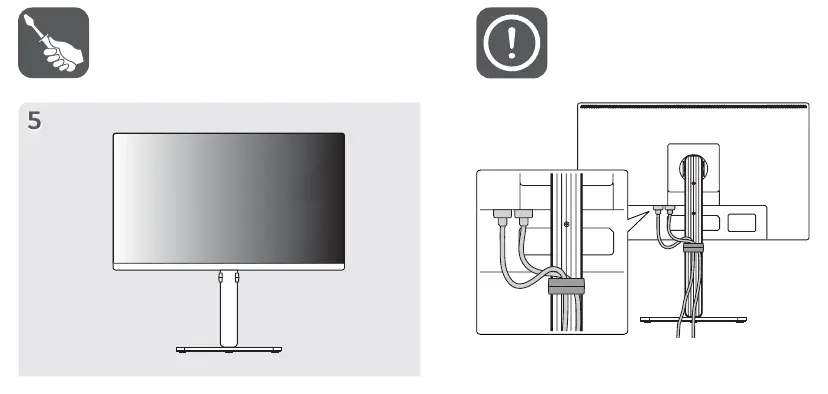
Cable management
To keep your workspace organized, use the cable management clip provided on the stand neck. Route all cables (power, video, USB) through this clip to prevent tangling and strain on the ports.
Connectivity and ports
The monitor features several ports for connectivity:
- USB: The USB port on the product functions as a USB hub.
- Video Inputs: Includes DP (DisplayPort), HDMI, and D-SUB inputs.
- Audio: Headphone/Audio output port.
Important usage notes
- Compatibility: Using DVI to HDMI or DisplayPort to HDMI cables may cause compatibility issues.
- Cables: Always use the supplied cables. Using third-party or incorrect cables may cause the device to malfunction.
Power connection
Connect the power cable to the AC-IN port on the back of the monitor and plug the other end into a wall outlet. Press the power button to turn on the device.
Manufacturer information
LG Electronics
Practical help
Common problems
Compatibility issues with video signal
Avoid using DVI to HDMI or DisplayPort to HDMI cables. Use the cables supplied with the monitor.
Device malfunction
Ensure you are using the original cables provided in the box.
Before use
- Verify all components listed in the package contents are present.
- Ensure the monitor is placed on a flat, stable surface.
- Do not touch the screen surface during assembly.
- Ensure the stand is securely attached to the monitor.
- Route cables through the stand management clip.
Show more Show less
Images and diagrams
- Assembly steps illustrate attaching the stand neck and base to the monitor.
- Cable management diagram shows the correct routing of cables through the stand clip.
- Port layout diagram identifies the location of USB, DP, HDMI, D-SUB, and Audio ports.
Model compatibility
- DVI to HDMI cables may cause compatibility issues.
- DisplayPort to HDMI cables may cause compatibility issues.

Manual page author
David Miller
Documentation analyst