Computers / Keyboards Input
User Manual for Lofree FLOW LITE 100-KEY Mechanical Keyboard
Quick guide for the Lofree FLOW LITE 100-KEY mechanical keyboard. Learn how to connect via wired, Bluetooth, or 2.4G, use multimedia keys, and switch between operating systems.
Table of contents
Quick Guide
The Lofree FLOW LITE 100-KEY is a three-mode mechanical keyboard supporting Wired, Bluetooth, and 2.4G wireless connections. This guide covers the essential setup, connection methods, and system configuration required to operate the device effectively.
Device Overview
The keyboard features several key components for operation:
- Battery Indicator: Flashes red when battery is low, breathes white when charging.
- Numeric Keypad Indicator: Indicates status of the numeric keypad.
- Volume Rotary Switch: Scroll to adjust volume.
- Caps Lock Indicator: White light indicates Caps Lock is on.
- Type-C Interface: Used for charging and wired connection.
- Mode Switch: Toggles between Off, Wired, and Wireless modes.
- 2.4G Receiver: Used for 2.4G wireless connection.
Connection Modes
Wired Connection: Toggle the mode switch to the wired icon. Connect the keyboard to your device using the provided Type-C cable.
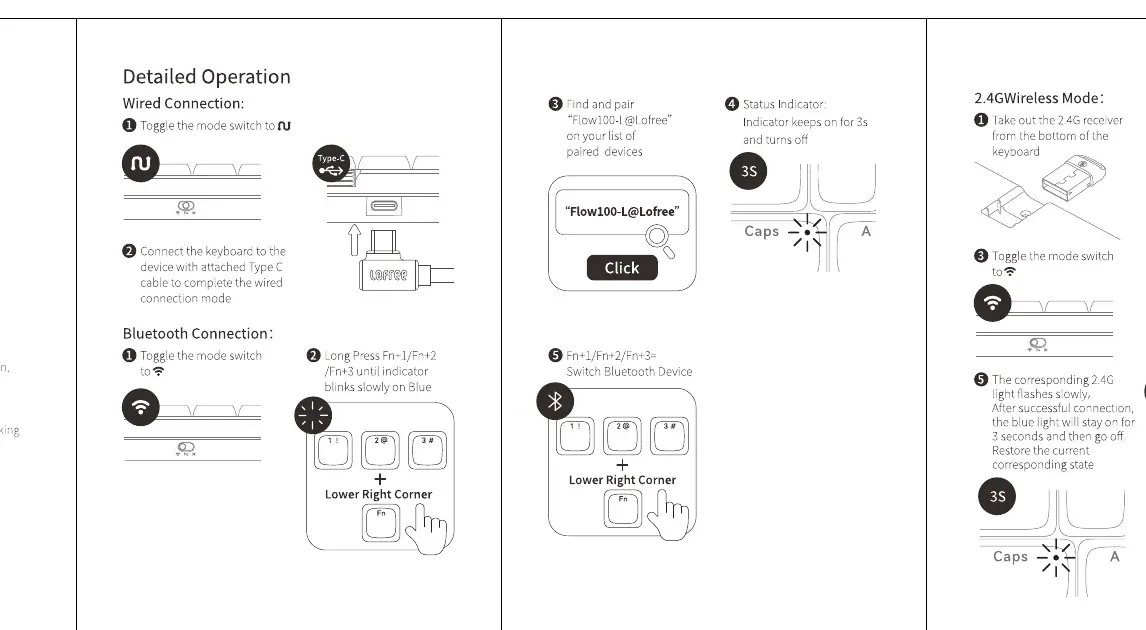
Bluetooth Connection: Toggle the mode switch to the Bluetooth icon. Long press Fn+1, Fn+2, or Fn+3 until the indicator blinks to enter pairing mode. Search for "Lofree@Flow" on your device and pair.
2.4G Wireless Mode: Toggle the mode switch to the 2.4G icon. Take the 2.4G receiver from the bottom of the keyboard and plug it into your computer's USB port. Long press Fn+4 to enter pairing mode if necessary.
System Switching
The keyboard supports different operating systems. Use the following shortcuts to switch modes:
- Fn+N: Triggers the system key for Windows/Android.
- Fn+M: Triggers the system key for Mac/iOS.
Multimedia Keys
The keyboard supports various multimedia functions using the Fn key combined with F1-F12 keys. These include screen brightness control, search, backlight adjustment, media playback controls (play/pause, next/prev track), mute, and volume control.
Ambient Light Control
You can control the ambient light using the Fn key combined with the arrow keys to adjust brightness and effects.
Specifications
- Keys: 100-key hot-swappable mechanical switch.
- Materials: ABS body, PBT+PC keycaps.
- Interface: Type-C.
- Modes: Wired, Bluetooth, 2.4G.
- Dimensions: 374.5 x 138 x 23.5 mm.
Practical help
Common problems
Keyboard not connecting via 2.4G
Ensure the 2.4G receiver is plugged in, the mode switch is set to 2.4G, and long press Fn+4 to re-enter pairing mode.
Bluetooth pairing failed
Ensure the keyboard is in Bluetooth mode, then long press Fn+1, Fn+2, or Fn+3 until the indicator blinks to enter pairing mode.
Battery indicator flashing red
The battery is low. Connect the keyboard to a power source using the Type-C cable.
Before use
- Check the mode switch on the bottom of the keyboard to select the desired connection type.
- Ensure the system switch is set to the correct OS (Windows/Android or Mac/iOS) using Fn+N or Fn+M.
- Charge the keyboard using the provided Type-C cable if the battery indicator is flashing red.
- Locate the 2.4G receiver on the bottom of the keyboard if using wireless mode.
Images and diagrams
- 1: Battery Indicator
- 2: Numeric keypad indicator light
- 3: Volume Rotary Switch
- 4: Caps Lock Indicator
- 5: Type-C Interface
Model compatibility
- Supports Windows, Android, Mac, and iOS systems via the system switch.

Manual page author
Michael Turner
Technical manual editor
Reviews PDF manuals for structure, safety notes, and practical product details so readers can find the right information quickly.