Computers / Keyboards Input
Elgato Stream Deck XL Quick Start Guide
Get started with your Elgato Stream Deck XL. This guide covers software installation, hardware connection, customizing keys with icons, creating folders, and managing social media integrations.
Table of contents
Manual images
Click an image to enlargeQuick Start Guide
This guide provides the essential steps to set up and configure your Elgato Stream Deck XL. Ensure you have a computer with an available USB-A port before beginning.
Setup and Installation
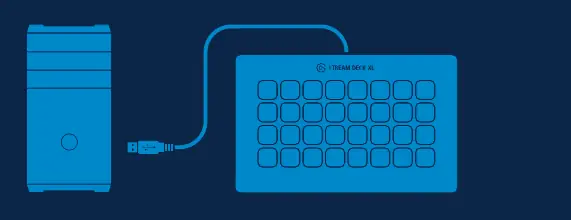
- Download the App: Visit elgato.com/download to download and install the latest Stream Deck software for your PC or Mac.
- Connect the Device: Connect the supplied USB-C to USB-A cable to the Stream Deck XL. Connect the other end directly to a USB-A port on your computer. Do not use a USB hub, as it may cause connectivity issues.
- Positioning: Place the Stream Deck XL on the included stand for optimal viewing and access.
Customizing Your Stream Deck
Once the software is installed and the device is connected, you can begin customizing your keys:
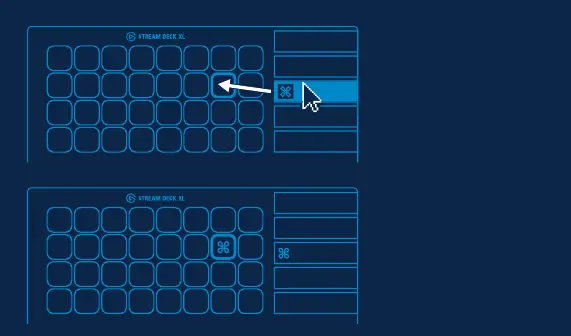
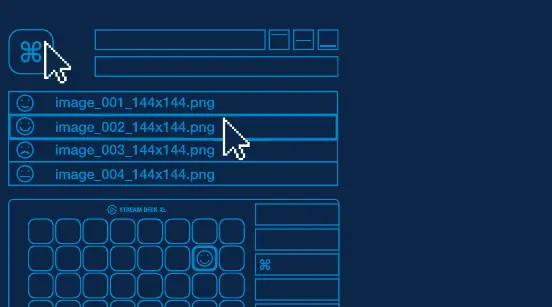
- Assigning Actions: Launch the Stream Deck app. Drag actions from the right-hand panel and drop them onto your desired keys on the left.
- Custom Icons: You can personalize keys with your own icons. For best results, use images that are 144 x 144 pixels in .jpg, .png, or .gif format.
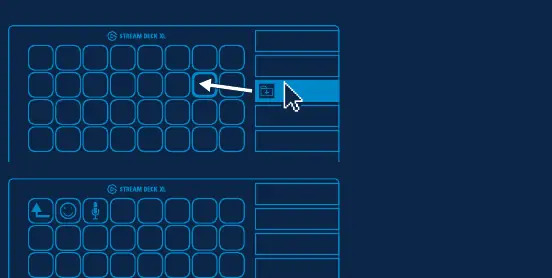
- Creating Folders: To organize your actions, drag the Create Folder action onto a key. You can then drag and drop actions into that folder. Tap the back key to exit a folder and return to the main configuration.
Managing Keys
You can easily modify your setup by right-clicking on any key within the software. This allows you to:
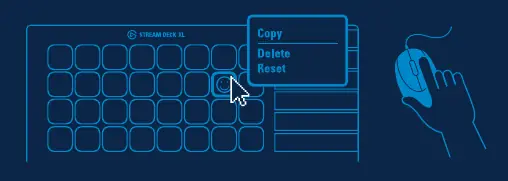
- Copy: Duplicate an action to another key.
- Delete: Remove an action from a key.
- Reset: Restore the key to its default state.
Social Media Integration
To connect with your audience, you can link your social media accounts:
- Open the Preferences menu (gear icon).
- Navigate to the Accounts tab.
- Add your social media accounts to enable direct integration with your stream.
Official resources from the manual
Manufacturer information
Elgato
Practical help
Common problems
Device not recognized by computer
Ensure the device is connected directly to a USB-A port on your PC or Mac. Do not use a USB hub.
Custom icons look distorted or blurry
Ensure your custom images are exactly 144 x 144 pixels and saved in .jpg, .png, or .gif format.
Before use
- Download and install the Stream Deck app from the official Elgato website.
- Ensure an available USB-A port on your computer.
- Prepare custom icons (144x144 px) if you intend to personalize keys immediately.
- Ensure the device is placed on the included stand for stability.
Specs in practice
- Icon Resolution
- 144 x 144 pixels is the recommended size for custom key icons to ensure clarity.
- Supported Image Formats
- The software supports .jpg, .png, and .gif files for key customization.
Images and diagrams
- The connection diagram illustrates the USB-C to USB-A cable path and the importance of a direct connection to the computer.
- The software interface diagram shows the drag-and-drop functionality for assigning actions to keys.
Model compatibility
- Requires a direct USB-A connection; USB hubs are not supported and may cause performance issues.

Manual page author
Michael Turner
Technical manual editor
Reviews PDF manuals for structure, safety notes, and practical product details so readers can find the right information quickly.