Computers / Keyboards Input
User Manual for Pekarejue Swivel Series iPad Keyboard Case
Quick guide for the Pekarejue Swivel Series iPad keyboard case. Includes installation steps, Bluetooth pairing, trackpad gestures, keyboard shortcuts, and troubleshooting tips.
Table of contents
Manual images
Click an image to enlargeQuick guide from the manual
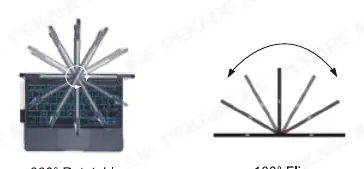
This manual covers the operation of the Pekarejue Swivel Series keyboard case. Before use, ensure your iPadOS is updated to version 14.6 or higher and that AssistiveTouch is enabled in Settings/Accessibility/Touch. The keyboard connects via Bluetooth and features a trackpad, adjustable backlight, and 360-degree rotation.
Installation
To install your iPad into the case:
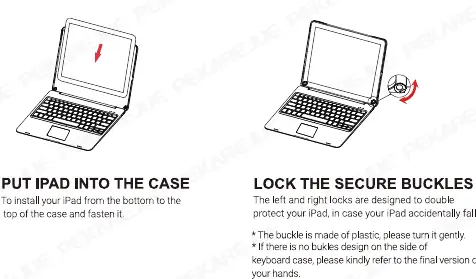
- Insert the iPad into the case starting from the bottom.
- Secure the iPad by fastening the buckles on the sides.
- If your model includes a pencil holder, ensure the Apple Pencil is attached correctly for charging. Note that the 8.3-inch iPad model is not compatible with the pencil holder design.
Power and Charging
The keyboard is powered by a rechargeable battery charged via a Type-C port.
- Charging: Use the included Type-C cable. A red LED indicates charging, and it turns green when fully charged.
- Power Switch: Use the power button to turn the device on or off. The LED will flash 3 times to confirm the status.
- Power Saving: The keyboard enters sleep mode after 10 minutes of inactivity. Press any key to wake it up.
Bluetooth Connection
To pair the keyboard with your iPad:
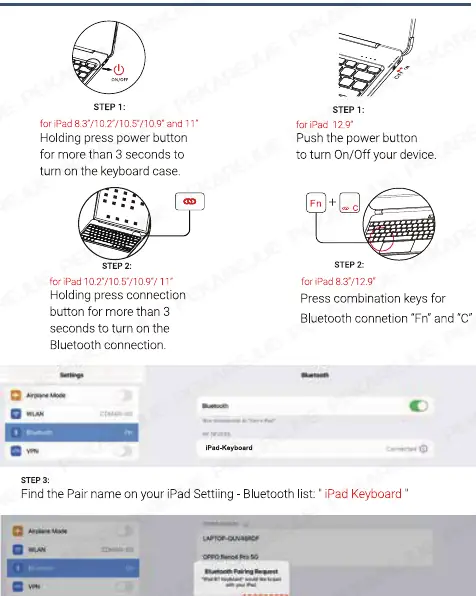
- Turn on the keyboard using the power button.
- Activate pairing mode: For most models, hold the connection button for 3 seconds. For specific models, press the 'Fn' + 'C' keys. The Bluetooth indicator will flash.
- On your iPad, go to Settings > Bluetooth and select 'iPad-Keyboard' from the list.
- Confirm the pairing request on your iPad.
Keyboard Functions and Shortcuts
The keyboard features a row of hotkeys for media and system control. Use the 'Fn' key in combination with other keys to access these functions. You can also adjust the RGB backlight by using 'Fn' + 'Alt/Option' to switch colors, and 'Fn' + 'Q' or 'W' to control breathing effects and speed.
Trackpad Gestures
The trackpad supports multi-finger gestures to navigate iPadOS:
- One Finger: Tap to click, swipe to move the pointer, or open the Dock/Notification Center.
- Two Fingers: Auxiliary tap (right-click), scroll up/down/left/right, or zoom.
- Three Fingers: Swipe up to go home, swipe up and pause to open the app switcher, or swipe left/right to switch between apps.
Troubleshooting
- Keyboard won't connect: Delete the device from your iPad's Bluetooth list, restart the iPad and keyboard, and try pairing again. Ensure the keyboard is charged.
- Space bar not working: Go to Settings > Accessibility > Keyboards > Full Keyboard Access > Commands and change 'Space' from 'Activate' to 'Clear'.
- Keys not working: Reset the keyboard by holding 'L' + 'S' + 'Z' for 3 seconds.
- Delayed input: Check Settings > Accessibility > Keyboards > Slow Keys and ensure it is turned off.
Practical help
Common problems
Keyboard fails to connect to iPad
Delete the keyboard from the iPad Bluetooth list, restart both devices, ensure the keyboard is charged, and keep it within 33 feet.
Space bar does not function
Navigate to Settings > Accessibility > Keyboards > Full Keyboard Access > Commands and set 'Space' to 'Clear'.
Keys are unresponsive or acting strangely
Reset the keyboard by pressing and holding 'L' + 'S' + 'Z' for 3 seconds until the indicator flashes.
Input delay or repeated characters
Check iPad settings under Accessibility > Keyboards and ensure 'Slow Keys' and 'Key Repeat' are configured correctly (or turned off).
Before use
- Ensure iPadOS version is 14.6 or higher.
- Enable AssistiveTouch in Settings > Accessibility > Touch.
- Charge the keyboard fully using the provided Type-C cable.
- Verify your specific iPad model is compatible with the case.
- Set the keyboard layout to English(US)/QWERTY in iPad settings.
Specs in practice
- Bluetooth distance
- Operating range is up to 10 meters.
- Charging time
- Less than 3 hours for a full charge.
- Working time (backlight on)
- Less than 5 hours of continuous use.
- Working time (backlight off)
- Less than 180 hours of continuous use.
- Standby time
- Up to 90 days.
Images and diagrams
- LED 1: Caps lock status indicator.
- LED 2: Battery charging status (Green = Full).
- LED 3: Low battery warning (Red flashing).
- LED 4: Bluetooth pairing status.
Model compatibility
- Compatible with iPad Mini 8.3, 10.2, 10.5, 10.9, 11, and 12.9 inch models.
- iPad 8.3-inch is not compatible with the pencil holder design.
- Requires iPadOS 14.6 or above for full functionality.

Manual page author
David Miller
Documentation analyst
Organizes user manual content into clear summaries, with attention to model details, product context, and everyday usability.