Computers / Storage
User Manual for OWC Envoy Pro Elektron Portable SSD
Quick guide for the OWC Envoy Pro Elektron portable SSD. Learn about system requirements, connection, LED status indicators, and troubleshooting steps.
Table of contents
Manual images
Click an image to enlargeQuick guide from the manual
The OWC Envoy Pro Elektron is a portable storage solution designed for high-speed data transfer. To begin using the device, connect the included USB-C cable to the drive and your computer. The device is plug-and-play, meaning it should be recognized automatically by your operating system once connected.
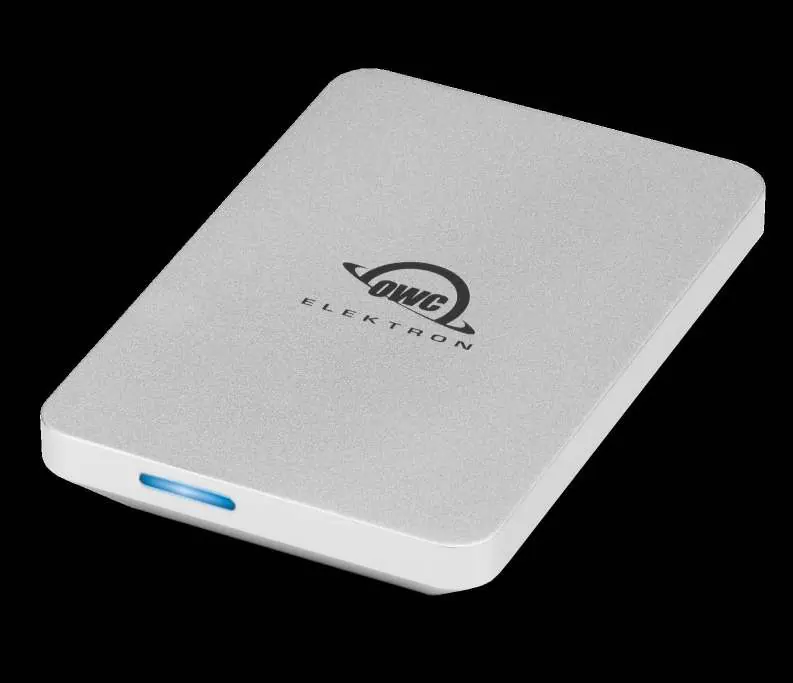
System Requirements
Ensure your system meets the following requirements for optimal performance:
- Operating System: macOS 10.12 or later, Windows 10 or later, iPadOS 13 or later, Chrome OS, Android 10 or later, or Linux.
- Hardware: A Mac, PC, or tablet equipped with a Thunderbolt 3 port or later, or a USB-C port. A 10Gb/s connection is recommended for maximum speed.
- Drives Supported: NVMe M.2 SSD (2242 form factor with M-key connector).
Enclosure Features
The device features an LED indicator and a USB 3.2 Gen 2 port:
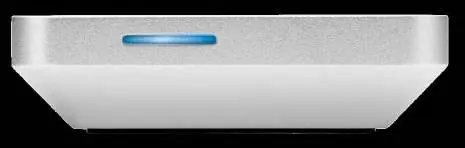
- LED Indicator: Emits a solid blue light when powered on, flashes blue during data access (read/write activity), and pulses blue when in sleep mode.
- USB 3.2 Gen 2 Port: Use this port to attach the included cable via the Type-C connector.
Usage Notes
Please be aware that with prolonged use, the drive case may become warm to the touch. This is normal operation for this device.
Troubleshooting
If you encounter issues with the drive, follow these steps:
- Verify that the USB-C cable is properly plugged into both the computer and the Envoy Pro Elektron.
- Try connecting the cable to a different USB or Thunderbolt 3 port on your computer.
- Try using a different USB-C cable if the issue persists.
Support Resources
If you require further assistance, you can contact OWC technical support:
- Phone: 1.866.692.7100 (North America) or +1.815.338.4751 (International). Available Monday–Friday, 8am–8pm CT.
- Chat: Available Monday–Friday, 8am–8pm CT and Saturday, 9am–5pm CT at www.owc.com/support.
- Email: Support requests are answered within 48 hours at www.owc.com/support.
Official resources from the manual
Practical help
Common problems
Device not working or not recognized
Verify the USB-C cable is securely connected, try a different USB/Thunderbolt port, or test with a different cable.
Before use
- Ensure your computer has a compatible Thunderbolt 3 or USB-C port.
- Verify your operating system is updated (macOS 10.12+, Windows 10+, etc.).
- Connect the included USB-C cable to the drive and the host device.
Specs in practice
- USB 3.2 Gen 2
- Interface standard supporting data transfer speeds up to 10Gb/s.
Images and diagrams
- The LED indicator provides status updates: solid blue (power), flashing blue (data activity), and pulsing blue (sleep mode).
Model compatibility
- Compatible with Mac, PC, iPad Pro, Chromebooks, and Android tablets.
- Type-A ports are supported via the included adapter.

Manual page author
Emily Carter
User documentation editor
Prepares concise manual descriptions and highlights the most useful setup, operation, and maintenance information for readers.