Electronics / USB Hubs & Docking
User Manual for OWC 11-Port Thunderbolt 4 Dock
Quick guide for the OWC 11-Port Thunderbolt 4 Dock. Learn about setup, port functions, firmware updates, display support, and troubleshooting.
Table of contents
Manual images
Click an image to enlargeQuick Start Guide
To set up your OWC 11-Port Thunderbolt 4 Dock, follow these steps:
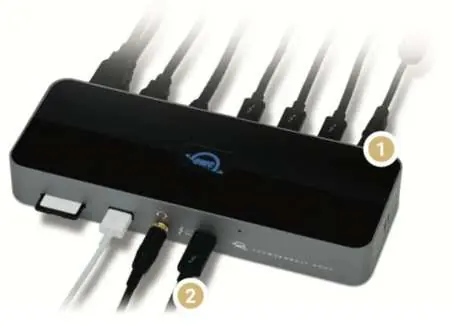
- Connect the included power adapter and cable to the dock and a power outlet.
- Connect the dock to a Thunderbolt 3 or USB 4 port on your Mac, or a Thunderbolt 4 port on your PC using the provided Thunderbolt 4 cable.
- Connect your peripherals to the appropriate ports on the dock.
System Requirements: macOS 11.1 or later, or Windows 10 or later. Requires a host computer with a Thunderbolt 4 port for full functionality.
Device Layout
Front/Top View: Includes an SD Media slot (UHS-II supported), USB 2.0 port, 3.5mm combo audio port, Thunderbolt host port (up to 96W Power Delivery), ClingOn anchor point, and an LED indicator. The LED glows white for power/sleep and blue for active data connection. You can adjust LED brightness using the internal button with a paperclip.
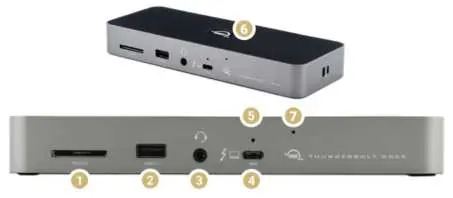
Side/Rear View: Features Kensington Security and Nano slots on the side. The rear panel contains the DC IN power port, three Thunderbolt 4 ports, a Gigabit Ethernet port, and three USB 3.2 Type-A ports (up to 10Gb/s).
Software and Firmware
Innergize Software: Used for OWC Atlas media cards to manage health, sanitize data, and perform field firmware upgrades. Download the application for Mac or PC from the OWC website.
Firmware Updates: A firmware update may be required for the dock to work properly with OWC Innergize. Follow the specific instructions for Windows or Mac provided in the support documentation.
Dock Ejector: A utility to safely eject all connected drives with a single click. Download the installer at go.owc.com/dockejector.
Usage Notes and Display Support
Display Capabilities: The dock supports up to two 4K displays at 60Hz or one 8K display at 60Hz, depending on host hardware and driver support. Note that some Mac hosts (specifically Apple M1/M2/M3) may only support a single display over Thunderbolt.
Daisy-Chaining: You can chain up to five additional Thunderbolt devices to the dock.
Performance: USB Type-A ports, audio, SD slot, and Ethernet share bandwidth. For maximum performance, avoid connecting high-bandwidth devices to all ports simultaneously.
Troubleshooting
If the dock is not recognized:
- Verify the power cable is connected and the power strip is on.
- Ensure the Thunderbolt 4 cable is securely plugged into both the computer and the dock.
- Try a different Thunderbolt 4 cable or a different port on the computer.
- Mac: Check System Information > Thunderbolt to see if the dock is listed.
- PC: Check Device Manager > Thunderbolt Controller.
Safety Precautions
To prevent damage or injury, do not expose the device to temperatures outside the operating range (5°C to 35°C / 41°F to 95°F). Keep ventilation openings clear, avoid moisture, and do not insert metallic objects into the device. Always eject volumes properly before disconnecting the dock.
Official resources from the manual
Practical help
Common problems
Dock not recognized by computer
Verify power connection, check Thunderbolt cable seating, try a different cable, or check System Information/Device Manager.
Audio recording playback is quiet
Connect the audio input device directly to the computer instead of the dock.
Device feels warm
External drives connected to the dock may remain powered on for up to 10 minutes after the host sleeps; this is normal operation.
Before use
- Ensure your OS is macOS 11.1+ or Windows 10+.
- Connect the power adapter to the dock and a wall outlet.
- Connect the dock to the host computer using the provided Thunderbolt 4 cable.
- Install the OWC Dock Ejector software for safe volume removal.
Specs in practice
- Thunderbolt 4 Host Port
- Provides up to 96W of Power Delivery to charge your laptop.
- USB 3.2 Type-A
- Supports data transfer speeds up to 10Gb/s.
- Display Support
- Supports up to 2x 4K @ 60Hz or 1x 8K @ 60Hz, depending on host capabilities.
Images and diagrams
- Front View: Identifies SD slot, USB 2.0, Audio, Thunderbolt host, and LED controls.
- Rear View: Identifies DC IN, Thunderbolt 4 ports, Ethernet, and USB 3.2 ports.
Model compatibility
- Apple Silicon (M1/M2/M3) Macs: Generally support only a single display over Thunderbolt.
- PC: Requires a Thunderbolt 4 host for full functionality.
- UltraStudio Recorder 3G: Not compatible with this dock.

Manual page author
Emily Carter
User documentation editor
Prepares concise manual descriptions and highlights the most useful setup, operation, and maintenance information for readers.