Computers / Storage
User Manual for OWC Thunderbolt Pro Dock
Quick guide for the OWC Thunderbolt Pro Dock. Learn about system requirements, port layout, connection steps, driver installation, and troubleshooting.
Table of contents
Manual images
Click an image to enlargeQuick Guide for OWC Thunderbolt Pro Dock
This guide provides essential information for setting up and using your OWC Thunderbolt Pro Dock. Ensure you have the necessary drivers installed for optimal performance, especially for 10Gb Ethernet and specific Mac peripherals.
System Requirements
The dock is compatible with Mac, iPad, and PC devices featuring Thunderbolt 3, Thunderbolt 4, or USB4/Thunderbolt (USB-C) ports. Supported operating systems include macOS 10.13 or later, Windows 10 or later, and iPadOS 14.5 or later.
Package Contents
- OWC Thunderbolt Pro Dock
- Thunderbolt cable
- Power cable
Front Panel Layout
The front panel includes the following features:
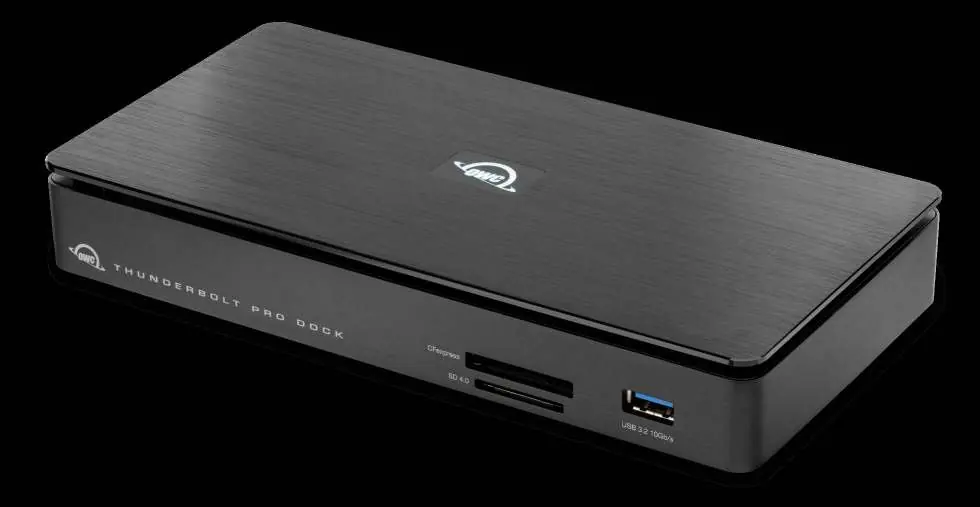
- Power Status LED: White indicates power is established; Blue indicates an active data link.
- CFexpress Type B media slot: For inserting CFexpress cards.
- SD 4.0 media slot: For inserting SD cards.
- USB 3.2 (10Gb/s) Type-A port: For connecting USB devices and accessories.
Rear Panel Layout
The rear panel provides connectivity for peripherals and power:
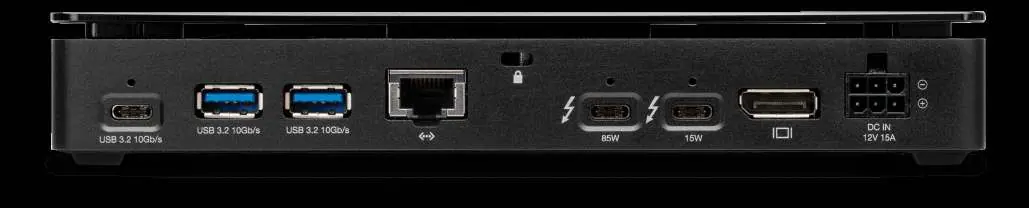
- OWC ClingOn-ready mount: For cable stabilization.
- Security slot: For a security tether.
- USB 3.2 (10Gb/s) Type-C port: For USB devices.
- (2) USB 3.2 (10Gb/s) Type-A ports: For USB devices.
- 10Gb Ethernet port: For wired network connections.
- 85W Thunderbolt 3 Port: Connects to the host computer.
- 15W Thunderbolt 3 Port: Connects to additional Thunderbolt devices.
- DisplayPort 1.4: Supports displays up to 8K resolution.
- DC 12V power port: For the included power supply.
Connection and Setup
- Connect the dock to a power source using the included power supply and cable.
- Connect the dock to your computer's Thunderbolt port using the provided Thunderbolt cable.
- Connect your peripherals to the appropriate ports on the dock.
Drivers and Software
Drivers are required for 10Gb Ethernet use on PCs and for enabling Apple Super Drive, Apple USB Keyboard, and iPad charging on Macs. Download drivers from owcdigital.com/support/software-drivers. The OWC Dock Ejector application is recommended for safely ejecting drives.
Usage Notes
- For best charging performance, connect the host computer to the 85W Thunderbolt 3 port.
- The dock does not have built-in storage.
- The Ethernet interface acts as a network adapter and does not allow connected drives to function as NAS.
Troubleshooting
If the dock is not functioning:
- Verify the power cable is connected to the dock and a live power source.
- Ensure the Thunderbolt cable is securely plugged into both the host and the dock.
- Try connecting to a different host or using a different Thunderbolt cable.
Official resources from the manual
Practical help
Common problems
Dock not working
Verify the power cable is connected to the dock and a live power source. Ensure the Thunderbolt cable is securely plugged into both the host and the dock. Try connecting to a different host or using a different Thunderbolt cable.
10Gb Ethernet not working on PC
Driver installation is required for 10Gb Ethernet use on PCs. Download the latest drivers from the OWC support website.
Charging issues
For best Power Delivery (charging) performance, connect the host computer to the Thunderbolt 4 port labeled '85W'.
Before use
- Verify host computer has Thunderbolt 3, 4, or USB4/Thunderbolt (USB-C) port.
- Ensure OS is macOS 10.13+, Windows 10+, or iPadOS 14.5+.
- Download necessary drivers from owcdigital.com/support/software-drivers.
- Connect power supply to the dock before connecting to the host.
Specs in practice
- 85W Thunderbolt 3 Port
- Primary port for connecting and charging the host computer.
- 15W Thunderbolt 3 Port
- Secondary port for connecting additional Thunderbolt devices.
- 10Gb Ethernet
- High-speed wired network connection (requires driver on PC).
- Power Status LED
- White = Power established; Blue = Active data link.
Images and diagrams
- Front View: Shows CFexpress and SD card slots, and USB 3.2 port.
- Rear View: Shows Ethernet, USB-C, USB-A, Thunderbolt, DisplayPort, and Power input.
- Link Speed Indicator: Green = 100M/1G/2.5G/5G; Orange = 10G.
Model compatibility
- Works with Mac, iPad, and PC with Thunderbolt 3, Thunderbolt 4, or USB4/Thunderbolt (USB-C).
- Ethernet interface does not allow connected devices to function as Network Attached Storage (NAS).

Manual page author
Michael Turner
Technical manual editor
Reviews PDF manuals for structure, safety notes, and practical product details so readers can find the right information quickly.