Electronics / Monitors
Quick Start Guide for Philips 24B2U4301H Monitor
A quick start guide for the Philips 24B2U4301H business monitor. This guide covers essential setup procedures, including stand assembly, cable connections, USB docking, and ergonomic adjustments.
Quick answers from the manual
Quick answer
- This guide provides basic setup instructions for the Philips 24B2U4301H monitor, including stand assembly, cable connections, and ergonomic adjustments. p. 1
Key actions
- Place the monitor face down on a smooth surface to avoid scratches. p. 1
First start
- Connect the power cable and your video source (HDMI, DP, or USB-C) to the monitor ports. p. 1
Show 2 more answers Show less
Technical specifications
| Parameter | Value | Meaning | Pages |
|---|---|---|---|
| Height Adjustment | 150mm | Maximum vertical adjustment range. | p. 1 |
| Tilt | -5° to 30° | Vertical tilt range. | p. 1 |
| Swivel | -180° to 180° | Horizontal rotation range. | p. 1 |
Where to find it in the PDF
- Quick Start Guide p. 1
Table of contents
Manual images
Click an image to enlargeQuick Start Guide
This document provides essential setup instructions for the Philips 24B2U4301H business monitor. It covers the initial physical setup, connection options, and ergonomic adjustments to ensure proper use.
Safety and Handling
CAUTION: To prevent damage to the screen, always place the monitor face down on a smooth, clean surface before attaching the stand or connecting cables. Be careful not to scratch or damage the screen surface during assembly.
Connections and Setup
The monitor supports various connectivity options to enhance productivity:
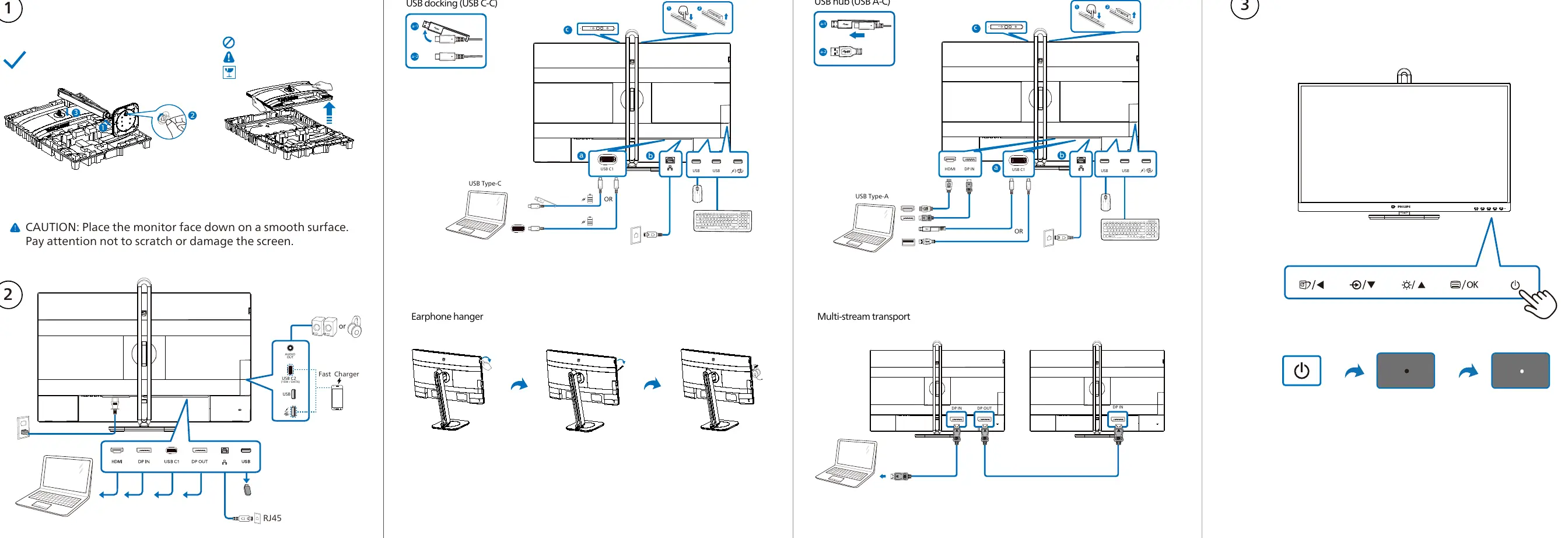
- USB Docking (USB C-C): Allows for video, data, and power delivery through a single USB-C cable.
- USB Hub (USB A-C): Enables the use of the monitor as a USB hub for peripherals.
- Multi-stream transport: Supports daisy-chaining multiple monitors for extended desktop setups.
- Ports: The monitor includes HDMI, DisplayPort (DP), USB-C, USB-A, RJ45, and Audio Out ports.
- Earphone Hanger: A dedicated hanger is available for convenient storage of headphones.
Ergonomic Adjustments
The monitor stand is designed for flexibility to improve user comfort:
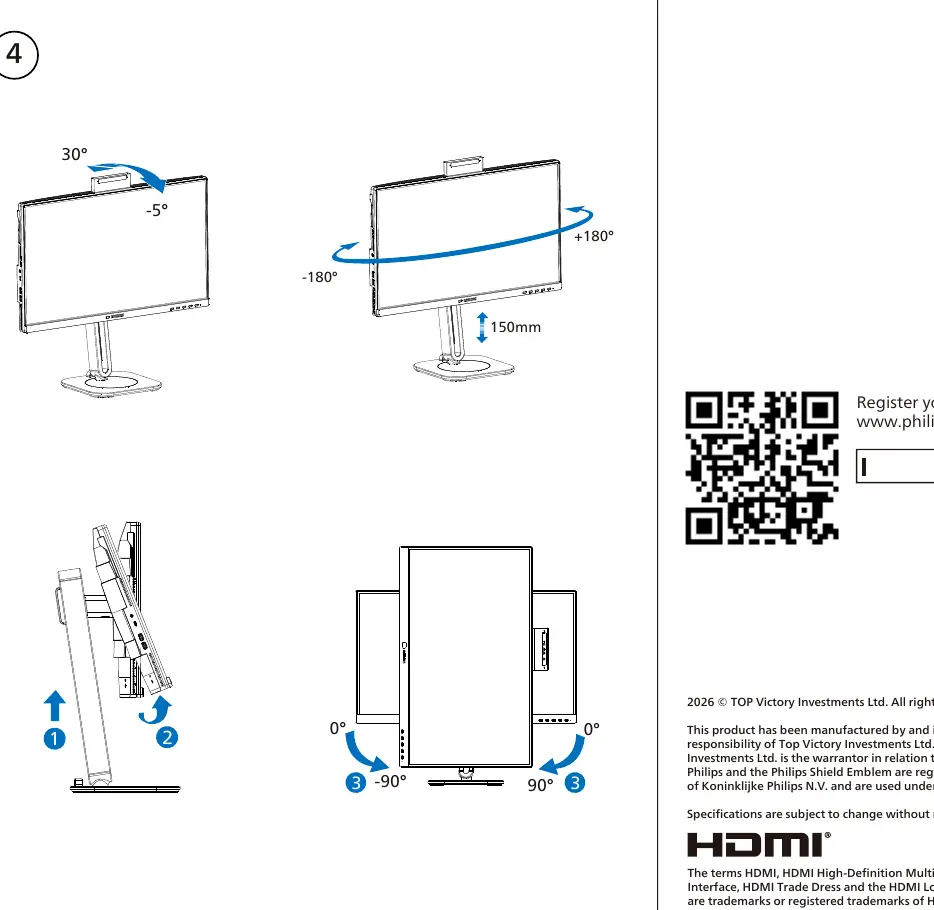
- Tilt: Adjustable from -5° to 30°.
- Swivel: Adjustable from -180° to 180°.
- Height: Adjustable up to 150mm.
- Pivot: Supports 90° rotation.
Support
For further assistance, software downloads, or to register your product, visit the official Philips support website at www.philips.com/welcome or www.philips.com/support.
Official resources from the manual
Manufacturer information
Philips
Practical help
Common problems
Screen damage during setup
Always place the monitor face down on a smooth, clean surface before assembly.
Before use
- Ensure the surface is smooth and clean to protect the screen.
- Identify the correct cables for your setup (HDMI, DP, or USB-C).
- Verify your computer's port compatibility for USB-C docking.
- Check for available space to accommodate the stand's range of motion.
Show more Show less
Specs in practice
- USB-C Docking
- A single-cable solution that transmits video, data, and power to your laptop.
- Multi-stream transport
- Allows you to connect multiple monitors in a series (daisy-chain) to a single video output.
Images and diagrams
- The guide includes diagrams for stand adjustments (tilt, swivel, height, pivot).
- Connection diagrams illustrate how to set up USB-C docking and USB hub configurations.
Model compatibility
- Actual product and accessory availability may vary by country or region.
- Requires devices with compatible video output ports (HDMI, DP, or USB-C).

Manual page author
David Miller
Documentation analyst