Software / Apps Services
Regency Fireplaces App User Guide
A comprehensive guide for the Regency Fireplaces App. Learn how to set up your Wi-Fi connection, operate your fireplace in manual or auto mode, adjust flame and fan settings, and troubleshoot connectivity issues.
Quick answers from the manual
Quick answer
- The Regency Fireplaces App allows remote control of your gas fireplace, including on/off switching, flame height, fan speed, and temperature adjustments via your smartphone. p. 2
Key actions
- Setup the app p. 5, 6
- Adjust flame and fan p. 12
First start
- Download the app, select 'Setup New Fireplace', and follow the on-screen prompts to connect to the fireplace Wi-Fi. p. 5
Show 4 more answers Show less
Problems and fixes
Connection issues
Reboot your modem, check Wi-Fi signal strength (3+ bars), disable VPN, and ensure the phone is on the same network.
p. 15, 16Maintenance and reset
- If the modem/router power is off for >24 hours or password changes, the app resets to factory settings and requires a new setup. p. 16
Technical specifications
| Parameter | Value | Meaning | Pages |
|---|---|---|---|
| Min Temperature | 7°C | Minimum set temperature in Auto mode. | p. 12 |
| Max Temperature | 32°C | Maximum set temperature in Auto mode. | p. 12 |
Where to find it in the PDF
- Operation p. 12
- Troubleshooting p. 15, 16
Table of contents
Manual images
Click an image to enlargeQuick Guide
The Regency Fireplaces App allows you to control your gas fireplace directly from your smartphone. You can turn the unit on/off, adjust flame height, fan speed, and set room temperatures. Before starting, ensure your fireplace is clear of flammable materials and that your remote has working batteries.
Getting Started
To set up the app:
- Download the Regency Fireplaces App from the App Store or Google Play.
- Open the app and select Setup New Fireplace.
- If no fireplace is found, tap the screen and follow the prompts.
- Navigate to your phone's Wi-Fi settings and connect to the network named Regency_XXXXX using the password regencyfire.
- Return to the app, select your home Wi-Fi network, and enter your home Wi-Fi password.
Operation
The app offers two primary modes of operation:
Manual Mode
In Manual mode, you have direct control over the fireplace settings:
- Flame Height: Adjustable in 6 settings using the + and - buttons.
- Fan Speed: Adjustable in 3 settings (1=low, 3=high).
Auto Mode
In Auto mode, the fireplace adjusts based on the temperature measured by the remote:
- Temperature Range: 7°C to 32°C, adjustable in 0.5°C increments.
- Operation: The fireplace turns on if the room temperature is 0.5°C lower than the set temperature and turns off if it is 1°C higher.
Fan Adjustment
The fan will continue to run for 10 minutes after the fireplace is turned off to expel remaining heat. The duration of the fan's operation after shutdown depends on the speed setting (low, medium, or high) at the time of turning off.
Settings and Management
Access the settings menu by clicking the icon in the upper left corner of the app. From here, you can:
- Add/Remove Fireplace: Manage multiple fireplaces or remove existing ones.
- Rename Fireplace: Click the down arrow at the top right of the screen, then press and hold the fireplace name to rename it.
- Support: Access the Regency website for warranty registration and tutorials.
Updating Wi-Fi
If your Wi-Fi dongle requires a software update, the app will prompt you. Ensure your phone is close to the fireplace during this process. Note that only Gen 2 Wi-Fi units support OTA (Over-the-Air) updates. Units installed prior to August 2025 may not support this feature.
Troubleshooting
If you experience connection issues:
- Signal Strength: Ensure your Wi-Fi signal strength is at least three bars. If it fluctuates, consider a Wi-Fi booster.
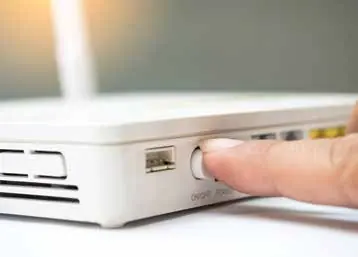
- Reboot Modem: Turn the modem off at the wall for at least two minutes, then turn it back on.
- VPN: If using a VPN on your mobile phone, disable it as it may block the connection.
- Power Outage: After a power outage, the fireplace will not turn on automatically. You must provide input via the remote or app to resume operation.
Safety
Always conduct a visual inspection of the area surrounding the fireplace before starting the fire. Do not start the fire if flammable materials are nearby or if unsupervised children, infirm persons, or pets are in the area.
Practical help
Common problems
App cannot find fireplace during setup
Ensure your phone is connected to the same Wi-Fi network as the fireplace and that the signal strength is at least three bars.
Update fails
Ensure your Wi-Fi dongle supports OTA updates (Gen 2 units only), disable any VPN on your phone, and move closer to the unit.
Fireplace does not turn on after power outage
The unit requires manual input via the remote or app to resume operation after power is restored.
Before use
- Inspect the area around the fireplace for flammable materials.
- Ensure the remote has working batteries.
- Verify Wi-Fi signal strength is 3 bars or greater.
- Ensure your mobile device is connected to your home Wi-Fi network.
Show more Show less
Specs in practice
- Flame Height
- Adjustable in 6 settings in Manual mode.
- Auto Mode Temp
- Adjustable between 7°C and 32°C in 0.5°C increments.
Images and diagrams
- App interface showing flame, fan, and temperature controls.
- Setup steps for Apple and Android devices.
- Modem reboot procedure for troubleshooting.
Model compatibility
- Requires iOS 13 or higher for iPhone.
- Requires Android 10 or higher for Android devices.
- OTA updates require Gen 2 Wi-Fi units.

Manual page author
Emily Carter
User documentation editor