Smart Home / Smart Doorbells
User Manual for Robus Connect Doorbell RCD1080-04
Quick guide for the Robus Connect Doorbell RCD1080-04. Learn how to install, pair with the app, understand LED indicators, and troubleshoot common setup issues.
Table of contents
Manual images
Click an image to enlargeQuick guide from the manual
The Robus Connect Doorbell RCD1080-04 is a smart doorbell with a 1080p camera and 2-way audio. Important: This device must be installed by a qualified electrician. It requires an AC/DC 12V-24V power supply and a 2.4GHz WiFi network for operation. Ensure your router, smartphone, and camera are in close proximity during the initial pairing process.
Product Overview
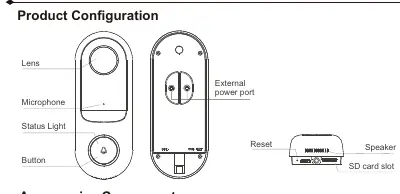
The doorbell features a lens, microphone, status light, and a button on the front. The rear/side includes an external power port, reset button, speaker, and an SD card slot (supports up to 128GB, not included).
Installation
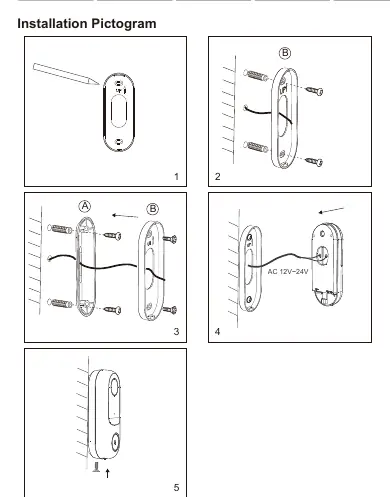
- Ensure the power supply is switched off before commencing work.
- Mark the appropriate fixing hole positions on the wall or door frame. Check for buried cables before drilling.
- Feed the power cables through the base plate and fix the base plate using the supplied screws. An angle bracket is also provided if needed.
- Connect the power cables to the terminals. Polarity is not important.
- Attach the doorbell to the base plate and secure it with screws.
App Pairing
- Download the ROBUS CONNECT App from the official website.
- Register and log in to the app.
- Enter pairing mode by pressing the reset button on the device for 5 seconds.
- Select 'Add device' in the app, choose 'Smart Camera', and follow the on-screen instructions.
LED Indicators
- Red LED On: Camera or network fault.
- Red LED Flashing: Awaiting WiFi connection.
- Blue LED On: Camera is in normal operation.
- Blue LED Flashing: Connecting to the network.
Technical Specifications
- Power Supply: AC/DC 12V-24V.
- WiFi: 2.4GHz only.
- Storage: Supports local SD card storage up to 128GB.
- Protection: IP44 rated.
Safety and Disposal
Electrical products can cause death, injury, or property damage. If in doubt, consult a professional. This product must be disposed of separately from household waste according to local WEEE regulations. Do not dispose of this equipment in normal household waste.
Practical help
Common problems
Red LED On
Indicates a camera or network fault.
Red LED Flashing
The device is awaiting a WiFi connection.
Blue LED Flashing
The device is currently connecting to the network.
Before use
- Ensure power supply is switched off before starting installation.
- Check for buried cables in the wall before drilling.
- Verify power source is AC/DC 12V-24V.
- Ensure a 2.4GHz WiFi network is available.
- Download the ROBUS CONNECT App.
- Have a qualified electrician perform the installation.
Specs in practice
- Power Supply
- Requires AC/DC 12V-24V input.
Images and diagrams
- Product Configuration: Shows the location of the lens, microphone, status light, button, and ports.
- Installation Pictogram: Illustrates the mounting process, including the use of the bracket and wiring connections.
Model compatibility
- Requires 2.4GHz WiFi network.
- Must be installed by a qualified electrician.
- SD card is not included.

Manual page author
David Miller
Documentation analyst
Organizes user manual content into clear summaries, with attention to model details, product context, and everyday usability.