Electronics / Cables & Adapters
User Guide for Rocstor USB-C to HDMI and DisplayPort Adapter
Quick guide for the Rocstor USB-C to HDMI and DisplayPort adapter. Learn about connection, MST mode, system requirements, and safety instructions.
Table of contents
Quick guide from the manual
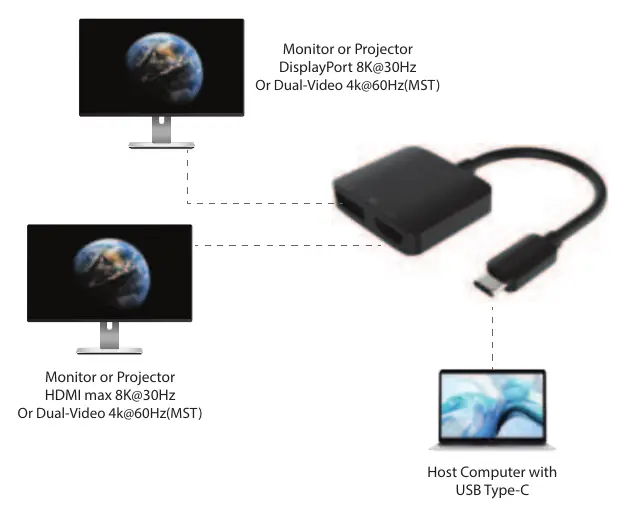
This adapter allows you to transmit video signals from a USB-C host computer to HDMI and DisplayPort displays. It supports dual-video output up to 4K/60Hz using MST (Multi-Stream Transport) mode or single-port output up to 8K. Ensure your host computer's USB-C port supports DisplayPort Alt mode for the device to function.
Product Overview
The Rocstor adapter features a USB-C male connector for the host computer and two downstream ports: one HDMI female port and one DisplayPort female port. It is designed for high-resolution video transmission and supports various color depths and audio formats.
Connection Guide
To use the adapter, connect the USB-C male connector directly to your host computer's available USB-C port. Connect your monitors or projectors to the HDMI or DisplayPort female ports on the adapter. The output resolution and refresh rate will depend on the capabilities of both your computer and the connected monitors.
System Requirements
The adapter is compatible with host computers featuring a USB-C port that supports DisplayPort Alt mode. Supported operating systems include:
- Windows 7, 8, 10, 11
- Android OS
- Chrome OS
- Linux OS
- Mac OS v10.5 or above
Safety Information
It is normal for the Rocstor adapter to become warm during operation. To ensure safety and performance:
- Always allow adequate ventilation around the adapter.
- Avoid extended skin contact with the adapter while it is plugged in.
- Do not use the adapter in locations with water, such as sinks, bathtubs, or shower stalls.
- Do not connect or disconnect the adapter with wet hands.
- Do not place the adapter under pillows, blankets, or your body while in use.
Technical Specifications
- Input: USB-C Male
- Output: HDMI Female, DisplayPort Female
- Operating Temperature: 0°C to +45°C (32°F to +113°F)
- Storage Temperature: -10°C to +70°C (14°F to +158°F)
- Input Voltage: 5V
- Weight: 28g
Support
Technical support is available for registered users. You can contact Rocstor support via phone at +1 (818) 727-7000 or via email at [email protected]. Support hours are Monday to Friday, 9:00 am - 5:00 pm PST.
Practical help
Common problems
Adapter becomes warm during use
This is normal operation. Ensure there is adequate ventilation around the adapter and avoid extended skin contact.
No video output
Verify that your host computer's USB-C port supports DisplayPort Alt mode. Ensure all cables are securely connected.
Resolution or refresh rate lower than expected
The output resolution and refresh rate depend on the performance of the connected computer and the monitor.
Before use
- Verify the host computer has a USB-C port with DisplayPort Alt mode support.
- Check that your operating system is supported (Windows, Android, Chrome, Linux, or Mac OS).
- Ensure the adapter is not covered by blankets or pillows during use.
- Keep hands dry when connecting or disconnecting the device.
Specs in practice
- Operating Temperature
- The safe ambient temperature range for the device is 0°C to 45°C.
Images and diagrams
- The connection diagram illustrates connecting the USB-C male end to the host computer.
- It shows the two output options: connecting a monitor/projector to the HDMI port or the DisplayPort.
Model compatibility
- Requires USB-C port with DisplayPort Alternate Mode.
- Compatible with Windows, Android, Chrome OS, Linux, and Mac OS v10.5+.

Manual page author
Michael Turner
Technical manual editor
Reviews PDF manuals for structure, safety notes, and practical product details so readers can find the right information quickly.