Electronics / Cables & Adapters
User Manual for Rocstor 0C239-W1 USB-C to DisplayPort 1.2 Cable
Quick guide for the Rocstor 0C239-W1 USB-C to DisplayPort 1.2 cable. Includes connection instructions, safety warnings, technical specifications, and usage tips.
Table of contents
Manual images
Click an image to enlargeQuick guide from the manual
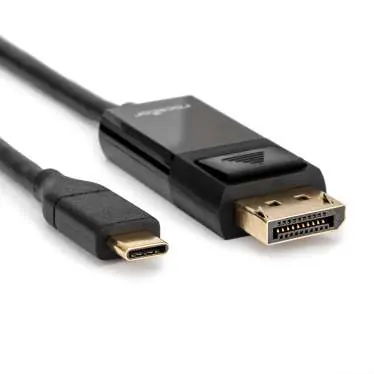
This Rocstor adapter allows you to transmit signals from a USB-C enabled host (such as a MacBook or Chromebook) to a DisplayPort display. The device is bus-powered, meaning no external power supply is required.
Product Features
- Supports USB-C input to DisplayPort output.
- Supports resolutions up to 4K x 2K at 60Hz.
- Features HDCP and HDR bypass.
- USB bus-powered (no external power supply needed).
Connection Instructions
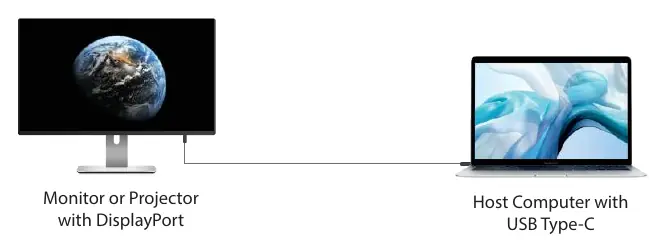
To use the adapter, connect the USB-C male connector to your host computer and the DisplayPort male connector to your monitor or projector. Note that the output resolution, refresh rate, and video pixel format depend on the performance capabilities of both the host computer and the connected monitor.
Safety Information
Warning: It is normal for the Rocstor adapter to become very warm during use. To reduce the risk of overheating or heat-related injuries:
- Always allow adequate ventilation around the adapter.
- Avoid extended skin contact with the hub when it is plugged in.
- Do not use the adapter while sleeping or place it under blankets, pillows, or your body.
- Never use the adapter in locations with water (e.g., sink, bathtub, shower).
- Do not connect or disconnect the adapter with wet hands.
Technical Specifications
- Connector: USB-C Male (First End) to DisplayPort Male (Second End).
- Resolution: Up to 4K x 2K @ 60Hz.
- Operating Temperature: 0°C to +45°C (32°F to +113°F).
- Storage Temperature: -10°C to +70°C (14°F to +158°F).
- Humidity: 10% to 90% RH (non-condensing).
- Warranty: 2-year limited warranty.
Practical help
Common problems
Adapter feels warm during operation
This is normal behavior. Ensure there is adequate ventilation around the adapter and avoid extended skin contact.
Resolution or refresh rate is lower than expected
The output quality depends on the performance of both the host computer and the monitor. Check the specifications of your connected devices.
Before use
- Verify package contents (Main unit, User Manual).
- Ensure the host device has a compatible USB-C port.
- Ensure the display device has a DisplayPort input.
- Do not use the adapter in wet environments.
Specs in practice
- 4K x 2K @ 60Hz
- The maximum resolution and refresh rate supported by the cable.
- USB Bus Power
- The device draws power from the USB-C port; no external power adapter is required.
Images and diagrams
- Connect the USB-C end of the cable to the host computer.
- Connect the DisplayPort end of the cable to the monitor or projector.
Model compatibility
- Compatible with USB-C enabled hosts (MacBook, Chromebook).
- Requires a display with a DisplayPort input.

Manual page author
Emily Carter
User documentation editor
Prepares concise manual descriptions and highlights the most useful setup, operation, and maintenance information for readers.