Electronics / Cables & Adapters
User Manual for Rocstor Type-C 10-in-1 Dual Displays Portable Dock
Quick guide for the Rocstor Type-C 10-in-1 Dual Displays Portable Dock (Y10A323-S1). Includes connection instructions, port specifications, safety warnings, and technical details.
Table of contents
Quick Guide
The Rocstor Type-C 10-in-1 Dual Displays Portable Dock is designed to expand the connectivity of Type-C or Thunderbolt hosts. To use, connect the integrated Type-C cable to your host device (PC, laptop, or mobile phone). The dock supports high-speed data transfer, dual display output, and power delivery.
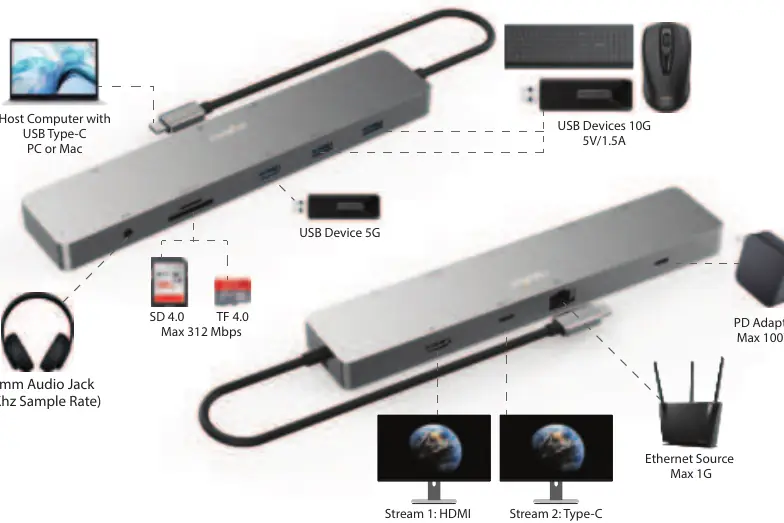
Connection Diagram
Connect your host computer to the dock using the integrated Type-C cable. Connect peripherals such as monitors (HDMI/Type-C), USB devices, Ethernet, SD/TF cards, and audio equipment to the respective ports on the dock. Connect a PD power adapter to the Type-C PD port to charge your host device.
Port Features
- USB Type-C (Upstream): Connects to host. Supports DP1.4 Alt mode, 16.2Gbps bandwidth, and USB 3.2 data transfer.
- HDMI: Supports up to 8K/30Hz output, HDR, and HDCP 2.3/1.4. Supports dual 4K/30Hz (MST) or dual 4K/60Hz (SST) depending on host.
- Type-C Video & Data: Supports 8K/30Hz video or 10Gbps data.
- USB-A 10G: Two ports for high-speed data (10Gbps). One supports 7.5W charging.
- USB-A 5G: One port for 5Gbps data.
- RJ45 (Ethernet): Gigabit Ethernet (10/100/1000M).
- SD/microSD 4.0: Supports UHS-II up to 312MBps.
- 3.5mm Audio: Supports 44.1/48/96KHz sample rates.
- Type-C PD Charging: Supports PD 3.0 up to 100W input (85W to host).
Safety Information
- The device may become warm during use; this is normal.
- Ensure adequate ventilation around the device.
- Avoid prolonged skin contact with the device.
- Do not sleep with the device connected to a host.
- Do not use in locations with water (sink, bathtub, shower).
- Never connect or disconnect with wet hands.
Practical help
Common problems
Device gets warm during use
This is normal operation. Ensure adequate ventilation around the device.
No internet connection
Check the RJ45 port light. Orange indicates network connection; yellow flashing indicates data transmission.
Resolution issues
Actual output resolution is determined by the host and display capabilities. Some hosts supporting DP1.4 & DSC can output dual 4K/60Hz.
Before use
- Ensure host device supports DP Alt mode.
- Check that the PD adapter is connected if high power is needed.
- Verify all cables are securely connected.
- Ensure the host is a Type-C or Thunderbolt device.
Specs in practice
- HDMI/Type-C Video
- Supports up to 8K/30Hz resolution.
Images and diagrams
- Shows host connection to the dock.
- Illustrates peripheral connections (HDMI, USB, Audio, Ethernet, SD/TF).
- Indicates PD power adapter connection.
Model compatibility
- Requires DP Alt mode supported Type-C host.
- Dual 4K/60Hz output requires host support for DP1.4 & DSC.

Manual page author
David Miller
Documentation analyst
Organizes user manual content into clear summaries, with attention to model details, product context, and everyday usability.