Power / Batteries Chargers
SCANGRIP APP Quick Guide
Comprehensive guide for the SCANGRIP App, covering device connection, group management, and specific control settings for various work lights and UV curing lamps.
Table of contents
Manual images
Jump to the sectionGetting Started with the SCANGRIP App
The SCANGRIP App allows for seamless wireless control of your professional lighting equipment. To begin, ensure your mobile device has Bluetooth enabled. Upon opening the app, you will be presented with a list of available lamps. If your lamps do not appear, ensure that location services (GPS) are enabled on your device and that the app has the necessary permissions to access your location.
Scanning and Connecting
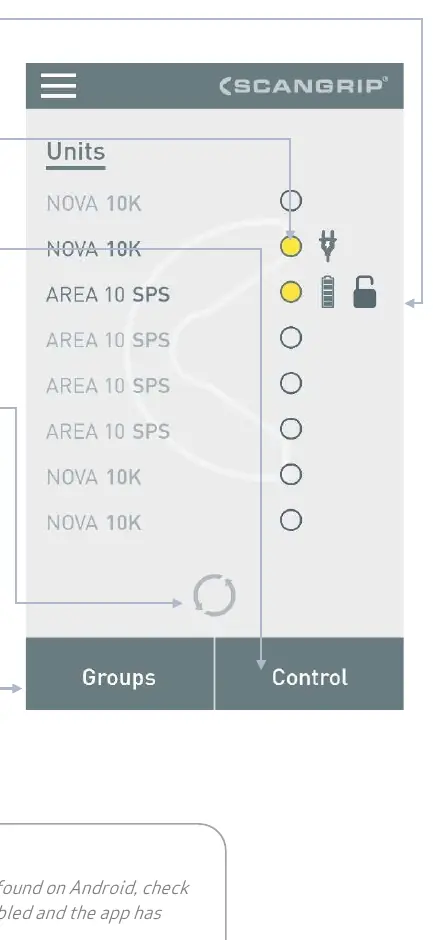
The app interface provides a clear overview of your connected devices. You can select up to four lamps simultaneously by tapping their names or the yellow selection dot next to them. The lamp status indicator shows whether a connection is active, the current power status, and if a PIN lock is enabled. To refresh the list of available devices, simply swipe down on the screen or tap the update icon.
Group Functionality
The group function is designed to streamline the management of multiple lights. You can create groups of compatible lamps to control them as a single unit. While some models like the NOVA 10K, NOVA SPS, and NOVA CAS can be grouped together, other models are restricted to grouping with lamps from the same series. Once a group is created, you can adjust settings such as brightness, color temperature, or curing time for all lights in that group simultaneously.
Controlling Work Lights and UV Lamps
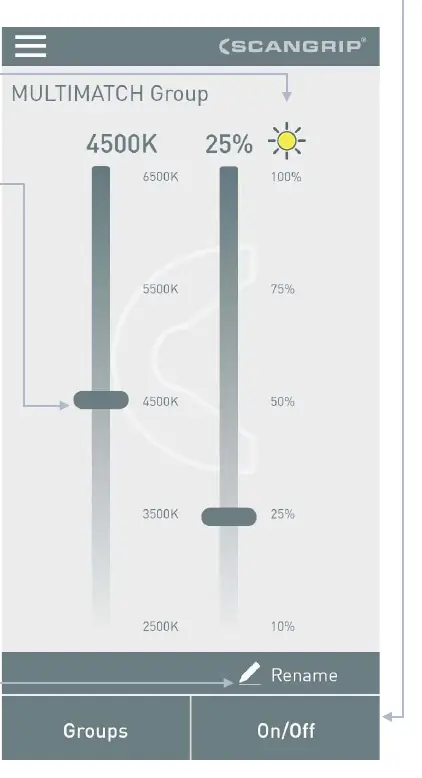
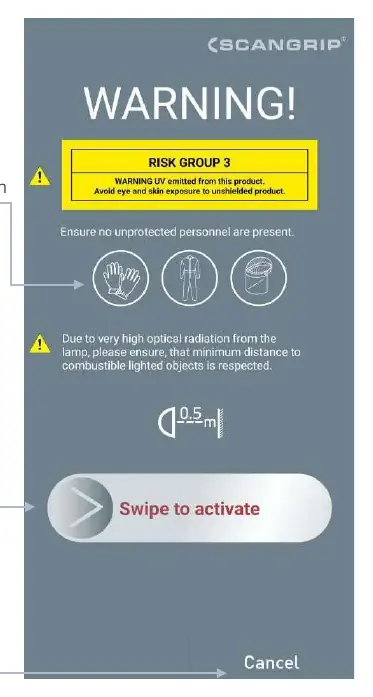
The control interface varies depending on the type of lamp connected. For standard work lights, you can adjust brightness and color temperature using intuitive sliders. For UV-EXTREME series lamps, the app provides a specialized curing time interface. The app includes a safety screen for UV lamps, requiring a deliberate swipe action to activate the light, ensuring that users are aware of the risks associated with high-intensity UV radiation. Always ensure that no unprotected personnel are present when operating UV equipment.
Settings and Maintenance
Within the settings menu, you can manage your preferences, including enabling or disabling low battery notifications and adjusting the scan interval for new lamps. You can also review your consent for analytical data collection and access the privacy policy. If you encounter issues with connectivity, ensure your lamp is within range and that no other device is currently controlling it. The app is designed to provide real-time feedback on battery levels and remaining operation time, helping you manage your equipment efficiently during professional tasks.
Manufacturer information
SCANGRIP A/S
Practical help
Common problems
Lamps not appearing in the app list
Ensure location data (GPS) is enabled on your Android device and the app has permission to access location.
UV lamp will not turn on
You must use the safety slider on the Safety screen and swipe all the way to the right to activate the lamp.
Before use
- Ensure Bluetooth is enabled on your mobile device.
- Grant the app permission to access location services.
- Verify the lamp is powered on and within range.
- Check if the lamp is already connected to another device.
Specs in practice
- Back-up mode
- Indicates the lamp is running on battery while connected to mains power.
Images and diagrams
- The main interface displays a list of units with status icons for power and connectivity.
- Sliders are used for precise control of brightness, color temperature, and curing time.
- The group control screen allows for synchronized On/Off switching and settings adjustment.
- The safety screen for UV lamps includes a mandatory swipe-to-activate mechanism.
Model compatibility
- NOVA 10K, NOVA SPS, and NOVA CAS lamps can be grouped together.
- Other models can only be grouped with lamps from the same series.
- Some features like CCT adjustment are only available on specific models like the MULTIMATCH series.

Manual page author
Emily Carter
User documentation editor
Prepares concise manual descriptions and highlights the most useful setup, operation, and maintenance information for readers.