Electronics / Headphones Earbuds
Quick Guide for Simolio 2.4GHz Wireless TV Hearing Devices
Quick setup guide for Simolio 2.4GHz Wireless TV Hearing Devices. Learn how to connect via Digital Optical, RCA, or AUX cables, configure TV audio settings, and troubleshoot common sound issues.
Quick answers from the manual
Quick answer
- Connect the transmitter to your TV's audio output (Optical, RCA, or AUX). In your TV settings, set the audio output to 'External Speakers' or 'Headset' and ensure the audio format is set to 'PCM'. p. 1, 2
Key actions
- Set TV Audio Format to PCM p. 1
- Set TV Audio Output to External Speakers p. 1, 2
Problems and fixes
No sound
Check cable connections, ensure TV audio output is set correctly, and set Audio Format to PCM.
p. 1, 2Show 1 more answers Show less
Where to find it in the PDF
- Quick Guide and Optical Connection p. 1
- RCA and AUX Connections p. 2
Table of contents
Manual images
Click an image to enlargeQuick Guide for Simolio 2.4GHz Wireless TV Hearing Devices
This guide provides essential setup and troubleshooting information for your Simolio wireless TV hearing device. Proper configuration of your TV's audio settings is critical for optimal performance.
Important Setup Tips
- Interference Prevention: Place the transmitter base at least 4 feet away from routers, smart WiFi TVs, or other WiFi devices to avoid signal interference.
- Volume Levels: If the audio signal is too weak, the headset may experience sound cutting out or automatic shutoff. We suggest setting your TV box volume to at least 30% and your TV volume to at least 40%.
- Connection Point: If you cannot access the back of your TV, you can connect the transmitter to the audio output of your cable/satellite box or DVD player instead.
Method 1: Digital Optical Connection
This is the recommended method for digital models.
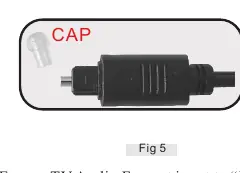
- Preparation: Remove the protective plastic caps from both ends of the optical digital audio cable.
- Connection: Connect the cable to the TV's Optical Audio Out port.
- TV Settings: Set the TV Audio Format to PCM (or turn Dolby/DTS OFF).
- Output Selection: Set your TV speaker output to External Speakers.
Method 2: RCA Analog Connection
- Connection: Connect the RCA cable to the TV's ports labeled AUDIO OUT or OUTPUT. Do not use ports labeled "Input".
- Output Selection: Set your TV speaker output to External Speakers.
- Volume Control: If your TV has "Variable" or "Fixed" analog settings, set it to Fixed if you want to control the TV volume and headset volume independently.
Method 3: AUX/3.5mm Analog Connection
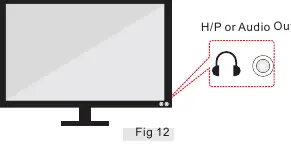
- Connection: Connect the 3.5mm cable to the TV's headphone or audio out port (usually marked with a headphone icon).
- Output Selection: Set your TV speaker output to Headset.
- Note: This connection typically mutes the TV's internal speakers.
Troubleshooting
- No sound: Verify that the cable is connected to an "Audio Out" port, not an "Input" port. Ensure the TV audio output is set to the correct mode (External Speakers or Headset) and the audio format is set to PCM.
- Sound cuts in and out: Increase the TV volume level to ensure a stronger signal is sent to the transmitter.
- Headset shuts off automatically: This is often caused by a weak input signal; increase the volume on the audio source.
Practical help
Common problems
No sound from headset
Check that the cable is connected to an 'Audio Out' port, ensure TV audio output is set to 'External Speakers' or 'Headset', and set the TV Audio Format to 'PCM'.
Sound cuts in and out
Increase the TV volume level to 30-40% to provide a stronger signal to the transmitter.
Headset shuts off automatically
Increase the audio source volume; the headset may shut off if the input signal is too weak.
Before use
- Remove protective plastic caps from both ends of the optical cable
- Place the transmitter at least 4 feet away from WiFi routers
- Set TV Audio Format to PCM
- Set TV Audio Output to External Speakers or Headset
- Ensure cables are connected to 'Audio Out' ports
Show more Show less
Specs in practice
- Fixed vs. Variable
- Fixed output allows the TV volume to be controlled independently of the headset volume.
Images and diagrams
- Fig 5: Removing protective caps from the optical cable.
- Fig 6: Setting TV Audio Format to PCM.
- Fig 9: Identifying correct RCA Audio Out ports.
- Fig 12: Identifying the 3.5mm headphone/audio out port.
Model compatibility
- Some TVs may require setting the audio output to 'Internal TV Speaker + Audio Out' to use both simultaneously.
- If your TV only has Dolby/Auto options and no PCM, the system may not work with streaming media.

Manual page author
Michael Turner
Technical manual editor