Home / Security
User Manual for Smart Ear Cleaner Y39 and NE3-D
Quick guide for the Smart Ear Cleaner Y39 and NE3-D. Learn how to connect via Wi-Fi, use the app, troubleshoot connection issues, and maintain your device safely.
Quick answers from the manual
Quick answer
- To use the Smart Ear Cleaner, download the designated app (AIR-LOOK for Y39, HND for NE3-D), power on the device by holding the button for 2 seconds, connect to the device's Wi-Fi network in your phone settings, and launch the app. p. 1, 2, 3
Key actions
- Powering on the device p. 1, 2, 3
- Connecting to Wi-Fi p. 1, 2, 3
First start
- Download the app, power on the device, connect to the device Wi-Fi, and launch the app. p. 1, 2, 3
Problems and fixes
Screen Frozen / Stuck
Use the product closer to the connected phone or charge the battery.
p. 2
No Image Display
Ensure phone connects to the exact WiFi name of your device. If software glitch, close app, power off device, and restart both.
p. 2Maintenance and reset
- Lens cleaning p. 2
Technical specifications
| Parameter | Value | Meaning | Pages |
|---|---|---|---|
| Optimal Focus | 1.5 to 2 cm | Distance for sharpest image | p. 1 |
| Charging | 5V | Standard charger requirement | p. 1 |
Where to find it in the PDF
- Y39 Setup and Precautions p. 1
- NE3-D Android Connection and Troubleshooting p. 2
- NE3-D App Download and iOS Connection p. 3
Table of contents
Manual images
Click an image to enlargeQuick Start Guide
To begin using your Smart Ear Cleaner, ensure the device is charged. The device uses a dedicated mobile application to stream video from the ear pick camera to your smartphone.
App Installation
Depending on your model, download the required application:
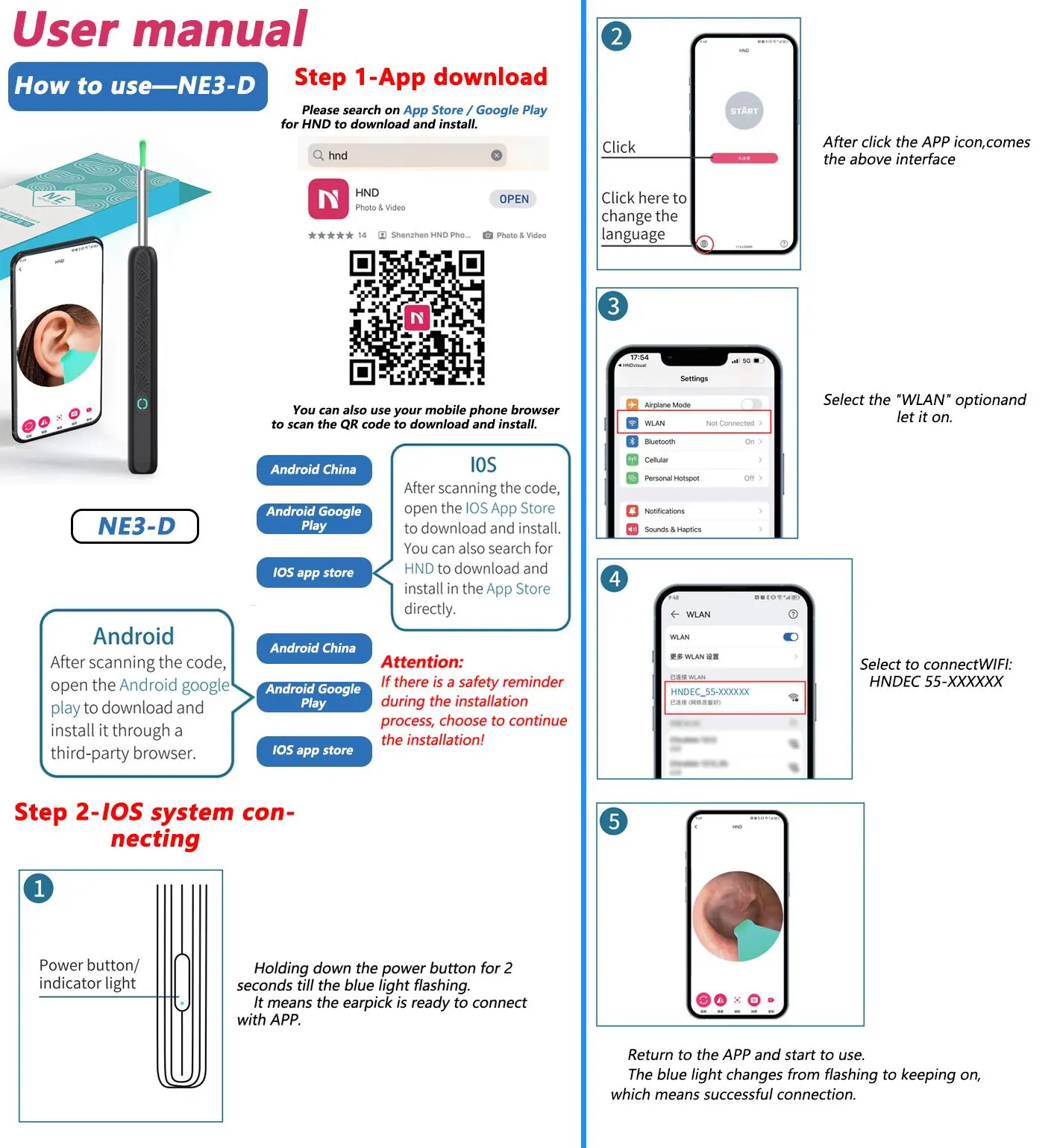
- Y39 Model: Download the AIR-LOOK app from the Apple App Store or Google Play Store.
- NE3-D Model: Download the HND app from the Apple App Store or Google Play Store.
You can also scan the QR codes provided in the manual to download the application directly.
Connecting to the Device
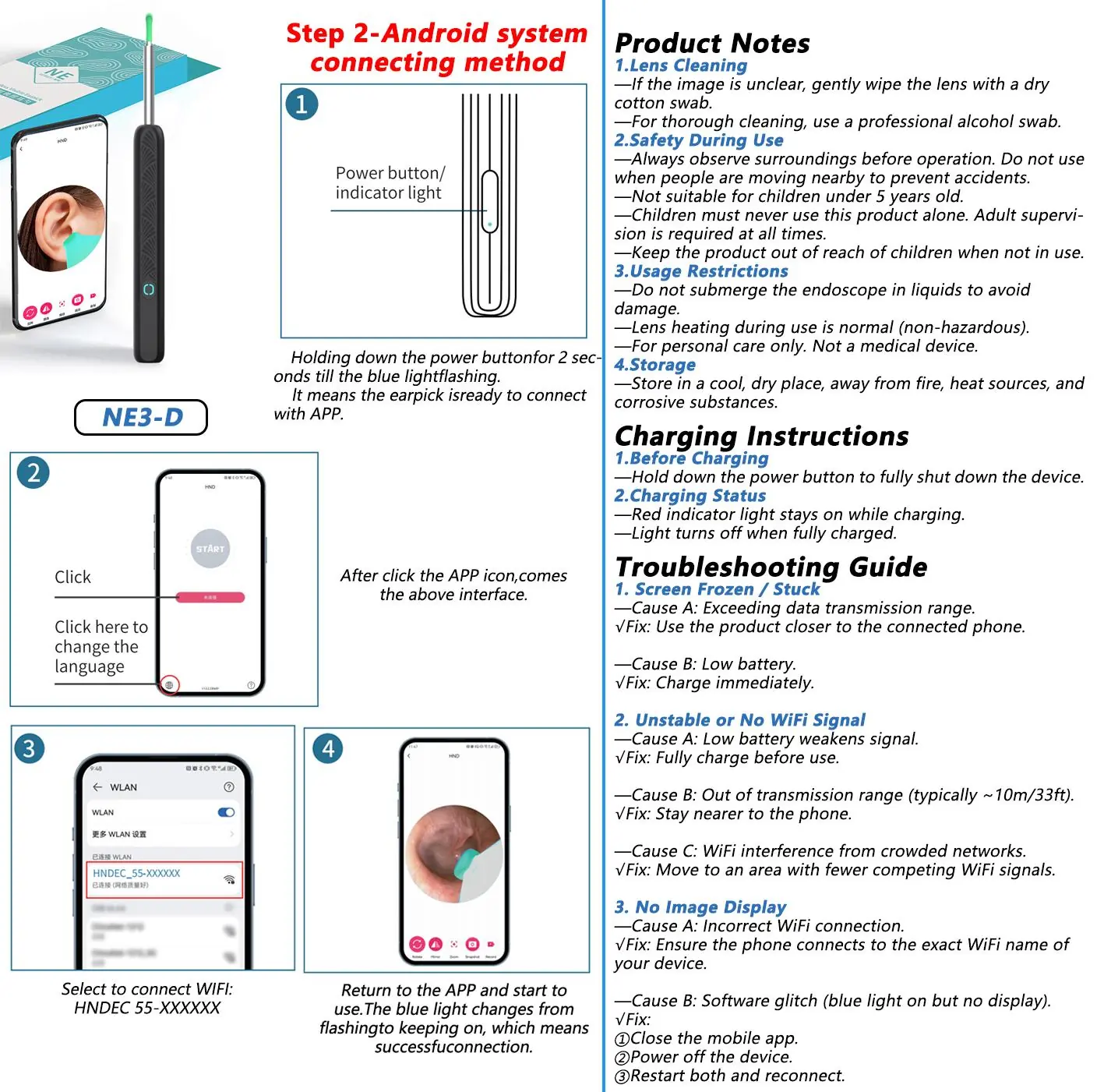
- Power On: Press and hold the power button for 2 seconds. The indicator light will flash blue, indicating the device is in waiting-to-connect mode.
- Wi-Fi Settings: Open your phone's Wi-Fi settings. Locate and connect to the network starting with AIR-ES-***** (for Y39) or HNDEC_55-***** (for NE3-D).
- Launch App: Once connected, open the downloaded app and tap Start to view the camera feed.
Indicator Light Status
- Flashing Blue: Powering on / Waiting for connection.
- Solid Blue: Wi-Fi connected.
- Flashing Light (Rapid): Low battery.
- Solid Light (Red/Other): Charging.
- Light Off: Fully charged.
Troubleshooting
If you encounter issues, follow these steps:
- No Image / Frozen Screen: Ensure your phone is connected to the device's Wi-Fi. Try restarting the app or the device.
- Connection Failure: Power off the unit, reboot it, and attempt to reconnect.
- Unstable Wi-Fi Signal: Ensure the battery is charged, stay within 10 meters of the phone, and avoid areas with heavy Wi-Fi interference.
Safety and Maintenance
- Lens Cleaning: Gently wipe the lens with a dry cotton swab or a professional alcohol swab if the image is unclear.
- Usage Restrictions: Do not submerge the main unit in liquids. The device is for personal care only and is not a medical device.
- Child Safety: Children should not use this product alone. Keep out of reach when not in use.
- Charging: Use only a standard 5V charger. Do not use chargers with higher voltage.
- Operating Temperature: The product may rise slightly in temperature during use (not exceeding 45°C / 113°F), which is normal.
Practical help
Common problems
No image, frozen screen, or artifacts
Ensure your phone is connected to the device Wi-Fi. Try restarting the device or the mobile app.
Unable to establish connection
Power off the unit, reboot it, and try reconnecting.
Unstable or no Wi-Fi signal
Charge the device, stay within 10m/33ft of the phone, or move to an area with fewer competing Wi-Fi signals.
Before use
- Charge the device fully before first use.
- Download the correct app (AIR-LOOK for Y39 or HND for NE3-D).
- Survey your environment to ensure safety.
- Ensure the lens is clean.
Specs in practice
- Optimal Focus
- The lens is fixed-focus; objects appear sharpest at 1.5 to 2 cm away.
- Charging Voltage
- Use only a standard 5V charger.
- Operating Temperature
- Normal usage temperature is up to 45°C (113°F).
Images and diagrams
- Power button: Hold for 2 seconds to turn on/off.
- Indicator light: Flashing blue indicates the device is ready to connect.
Model compatibility
- Compatible with Android and iOS devices.
- Requires specific app based on model (AIR-LOOK or HND).

Manual page author
David Miller
Documentation analyst
Organizes user manual content into clear summaries, with attention to model details, product context, and everyday usability.