Electronics / USB Hubs & Docking
Quick-Start Guide for StarTech.com 196N-USBC-DOCK and 196UE-USBC-DOCK USB-C Docking Station
Get started with your StarTech.com USB-C Dual Monitor Docking Station. This guide covers port identification, system requirements, and step-by-step installation instructions.
Quick answers from the manual
Quick answer
- This guide provides instructions for connecting and setting up the StarTech.com USB-C Docking Station (196N-USBC-DOCK / 196UE-USBC-DOCK). p. 1, 2
Key actions
- Connect Power Adapter p. 2
- Connect Host Computer p. 2
First start
- Connect power, peripherals, and host computer; the computer will automatically detect the dock. p. 2
Technical specifications
| Parameter | Value | Meaning | Pages |
|---|---|---|---|
| Power Delivery | Up to 100W | Laptop charging capacity | p. 1 |
| USB-C Port | 10Gbps | Data transfer speed | p. 1 |
Where to find it in the PDF
- Port Layout and Requirements p. 1
- Installation Steps p. 2
Table of contents
Quick Start Guide
This document provides setup instructions for the StarTech.com USB-C Docking Station (196N-USBC-DOCK / 196UE-USBC-DOCK).
Product Overview
The docking station features various ports for connectivity:
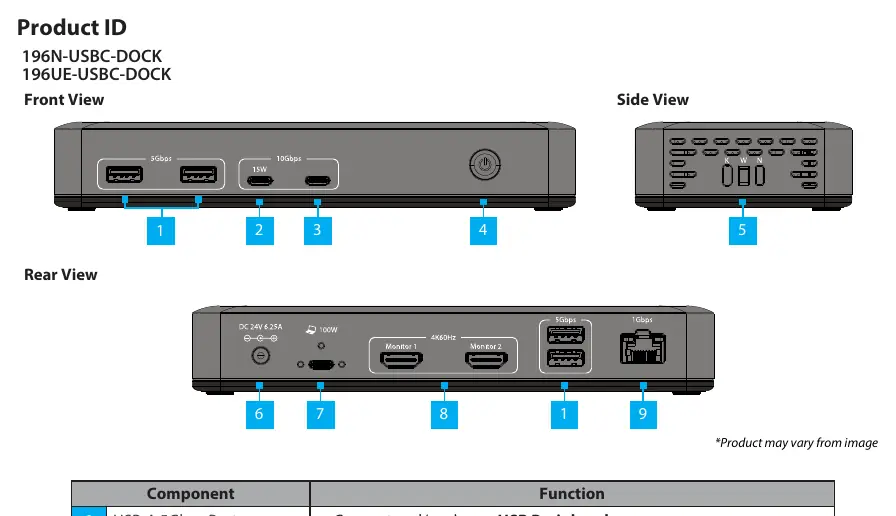
- USB-A 5Gbps Ports: For connecting and charging USB peripherals.
- USB-C 10Gbps Ports: For connecting peripherals; one port supports charging up to 15W.
- Power Button: Press to toggle power on or off.
- Lock Slots: Supports K-Slot, Nano, or Wedge locking devices.
- Power Input: Connects to the included Universal Power Adapter.
- USB-C Host Connection: Connects to the laptop; supports Power Delivery 3.0 up to 100W.
- HDMI Outputs: Supports up to two HDMI displays.
- Gigabit Ethernet: Wired network connection.
Package Contents
- Docking Station x 1
- 3.3ft (1m) Host Cable x 1
- Universal Power Adapter x 1
- Product Documentation x 1
System Requirements
The host computer's USB-C port must support Power Delivery and DisplayPort Alt Mode for full docking station functionality. Video support and performance, such as the number of external displays, their resolution, and refresh rate, depend on the host computer and the performance of the video card or host port.
Installation
- Connect the Power Adapter from an AC Outlet to the Power Input Port on the Docking Station.
- Connect a Network Cable from a Network Port/Device to the Gigabit Ethernet Port on the back of the Docking Station.
- Connect USB Devices or Peripherals to the USB-A and USB-C Ports located on the front and rear of the Docking Station.
- Connect up to two HDMI Displays to the HDMI Outputs on the back of the Docking Station using an HDMI Cable (sold separately).
- Connect the included 3.3ft (1m) Host Cable from the USB-C Host Connection on the back of the Docking Station to a USB-C Port on the Laptop.
- Press the Power Button on the front to power on the Docking Station.
- The Host Computer will automatically detect the Docking Station and install the required Drivers.
Official resources from the manual
Practical help
Common problems
No video output on external displays
Ensure the host computer's USB-C port supports DisplayPort Alt Mode.
Laptop not charging
Ensure the host computer's USB-C port supports Power Delivery and that the power adapter is connected to an AC outlet.
Before use
- Verify host computer has a USB-C port.
- Confirm host computer supports Power Delivery.
- Confirm host computer supports DisplayPort Alt Mode.
- Ensure you have an HDMI cable for displays.
- Ensure the power adapter is connected to a wall outlet.
Specs in practice
- USB-C Host Connection
- Connects to laptop, supports up to 100W charging.
- Gigabit Ethernet
- Wired network connection.
Images and diagrams
- Front view shows USB ports and power button.
- Rear view shows power input, host connection, HDMI, and Ethernet.
Model compatibility
- Requires USB-C port with Power Delivery and DisplayPort Alt Mode support.

Manual page author
Michael Turner
Technical manual editor
Reviews PDF manuals for structure, safety notes, and practical product details so readers can find the right information quickly.