Electronics / USB Hubs & Docking
User Manual for StarTech.com 102B-USBC-MULTIPORT USB-C Multiport Adapter
Quick-start guide for the StarTech.com 102B-USBC-MULTIPORT USB-C Multiport Adapter. Learn how to connect displays, peripherals, Ethernet, and power delivery for your laptop.
Table of contents
Quick guide from the manual
This guide provides instructions for setting up and using the StarTech.com 102B-USBC-MULTIPORT adapter. The device allows you to connect multiple peripherals, displays, and network cables to your laptop via a single USB-C connection. For Windows users, the device is typically plug-and-play. For other operating systems, you may need to download specific drivers from the manufacturer's website.
Product Overview
The adapter features three sides with various ports:
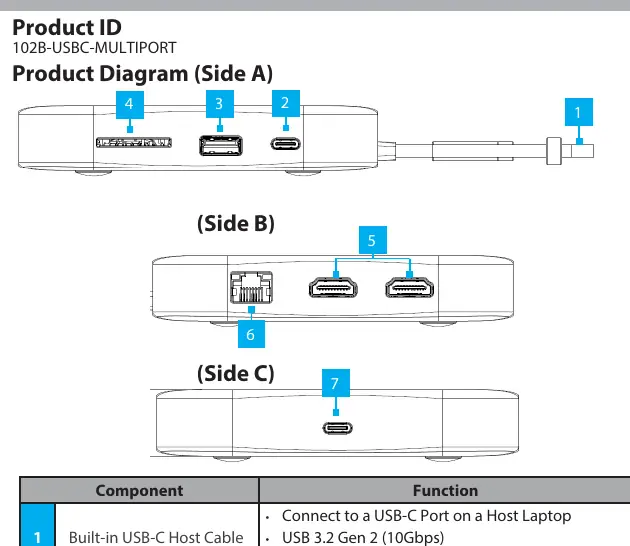
- Side A: Built-in USB-C Host Cable (connects to laptop) and USB-C Data Port (for peripherals).
- Side B: SD Card Reader, two HDMI Output Ports, and Gb Ethernet Port.
- Side C: USB-C 100W Power Delivery Port.
Installation
Windows Computers: Connect the built-in USB-C Host Cable to a USB-C port on your laptop. The operating system should automatically detect the device and install the necessary drivers.
Non-Windows Computers: If the device is not automatically detected, disconnect it and follow these steps:
- Visit www.StarTech.com/102B-USBC-MULTIPORT.
- Navigate to the Drivers/Downloads tab.
- Download the Driver Package for your operating system and follow the included installation guide.
Connecting Peripherals
- USB-C Data Port: Connect USB-C peripherals here. It supports USB 3.2 Gen 2 (10Gbps).
- USB-A Data/Charge Port: Connect USB-A peripherals. It supports BC1.2 5V/1.5A (7.5W) charging.
- SD Card Reader: Push the SD card (label side up) into the slot to lock it. To remove, push the card in again to release it. Always safely eject the card via your computer's OS before physical removal.
- HDMI Ports: Connect up to two HDMI displays. Supports HDMI 2.0 and resolutions up to 4K (4096x2160) at 60Hz.
- Gb Ethernet Port: Connect a CAT 5e or CAT 6 cable for a wired network connection (10/100/1000Mbps).
Power Delivery
To charge your laptop while using the adapter, connect a USB-C power adapter (up to 100W) to the USB-C 100W Power Delivery Port on the adapter. The adapter reserves 15W of power for its own operation, providing up to 85W for charging your laptop. Without an external power adapter connected, the USB ports will only output whatever bus power is available (up to 4.5W).
Official resources from the manual
Practical help
Common problems
Drivers not installing automatically
Disconnect the device, visit www.StarTech.com/102B-USBC-MULTIPORT, download the Driver Package for your OS, and follow the included installation guide.
Laptop not charging
Ensure a USB-C power adapter is connected to the USB-C 100W Power Delivery Port on the adapter.
SD card not recognized
Ensure the card is pushed in fully to lock. If it still does not mount, check that you have safely ejected it via the OS before re-inserting.
Before use
- Verify your laptop has a USB-C port.
- Ensure you have a USB-C power adapter if you need to charge your laptop.
- Have CAT 5e or CAT 6 cables ready for Ethernet connection.
- Have HDMI cables ready for display connection.
- Check if your OS requires manual driver installation.
Specs in practice
- USB-C Host Cable
- USB 3.2 Gen 2 (10Gbps) with Power Delivery 3.0 support.
- Power Delivery
- Reserves 15W for the adapter, provides up to 85W to the connected laptop.
Images and diagrams
- Side A contains the host cable and USB-C data port.
- Side B contains the SD card reader, HDMI ports, and Ethernet port.
- Side C contains the USB-C Power Delivery port.
Model compatibility
- Windows: Plug and play.
- Non-Windows: May require manual driver installation from the StarTech website.

Manual page author
David Miller
Documentation analyst
Organizes user manual content into clear summaries, with attention to model details, product context, and everyday usability.