Electronics / USB Hubs & Docking
User Manual for StarTech.com USB-C 10Gbps Multiport Adapter DKT31CHVL
Quick-start guide for the StarTech.com DKT31CHVL USB-C Multiport Adapter. Learn how to connect displays, peripherals, and network cables, and troubleshoot driver installation.
Table of contents
Manual images
Click an image to enlargeQuick guide from the manual
This guide provides essential setup instructions for the StarTech.com DKT31CHVL Multiport Adapter. The most critical requirement is that your host computer must support DP Alt Mode to output video. Please note that only one video output port (HDMI or VGA) can be used at a time; if both are connected, the HDMI port takes priority.
Product Overview
The adapter features the following ports:
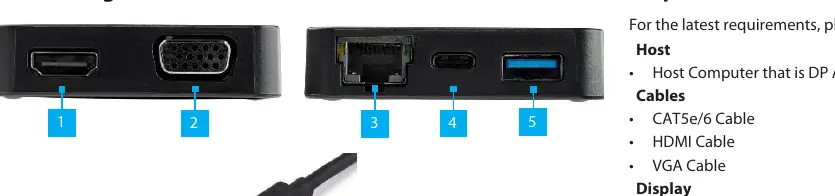
- HDMI Port: Supports up to 3840 x 2160 / 30Hz (4K UltraHD).
- VGA Port: Supports up to 1920 x 1080 / 60Hz.
- RJ45 Port: For network connectivity (requires Cat5e/6 cable).
- USB-C Port: For connecting USB peripherals.
- USB-A Port: For connecting USB peripherals.
- USB-C Connector: Built-in cable to connect to the host computer.
Connecting the Multiport Adapter
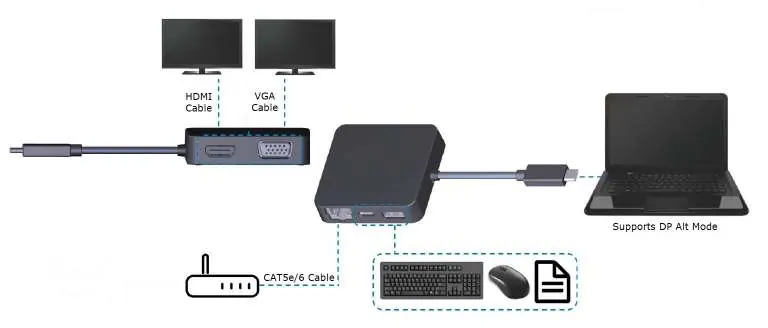
- Connect an HDMI cable to the HDMI port or a VGA cable to the VGA port on the adapter, then connect the other end to your display device.
- Connect your peripheral devices (keyboard, flash drive, etc.) to the USB-C or USB-A ports.
- Connect a Cat5e/6 cable to the RJ45 port and your network device.
- Connect the adapter's built-in USB-C cable to a USB-C port on your host computer.
Powering the Adapter
The Multiport Adapter is bus-powered, meaning it draws power directly from the host computer's USB-C port. It does not require or support an external power adapter.
Installing the Drivers
Drivers typically install automatically once the device is connected. If they do not, follow these steps:
- Visit www.startech.com/DKT31CHVL in a web browser.
- Click the Support tab.
- Download the driver.
- Extract the compressed file and run the appropriate driver for your operating system.
- Restart your computer if prompted.
Configuring Display Settings
Use your operating system's display settings to manage multiple monitors, such as extending your laptop screen to an external HDMI or VGA display.
Official resources from the manual
Practical help
Common problems
No video output on the display
Ensure your host computer supports DP Alt Mode. Verify that only one video output (HDMI or VGA) is connected, as the adapter cannot output to both simultaneously.
Drivers not installing automatically
Navigate to www.startech.com/DKT31CHVL, go to the Support tab, download the latest drivers, and manually run the installer for your operating system.
Before use
- Verify host computer supports DP Alt Mode
- Have a compatible HDMI or VGA cable ready
- Have a Cat5e/6 cable for network connection
- Ensure USB-C port on host is available
Images and diagrams
- The connectivity diagram illustrates the adapter acting as a hub between a host laptop and various peripherals, including monitors, network cables, and USB devices.
Model compatibility
- Only one video output port can be used at a time.
- HDMI port takes priority over VGA if both are connected.
- Host computer must support DP Alt Mode.

Manual page author
David Miller
Documentation analyst
Organizes user manual content into clear summaries, with attention to model details, product context, and everyday usability.