Electronics / USB Hubs & Docking
User Manual for StarTech.com 104B-USBC-MULTIPORT USB-C Multiport Adapter
Quick-start guide for the StarTech.com 104B-USBC-MULTIPORT adapter. Learn how to connect your display, power supply, and USB peripherals, and check system requirements for optimal performance.
Table of contents
Quick Guide
This guide provides instructions for setting up the StarTech.com 104B-USBC-MULTIPORT adapter. Before beginning, ensure your host computer has a USB-C port that supports DisplayPort (DP) Alt Mode. Video performance, including resolution and refresh rate, depends on your host computer's video controller.
Product Overview
The adapter features two sides with various ports for connectivity:
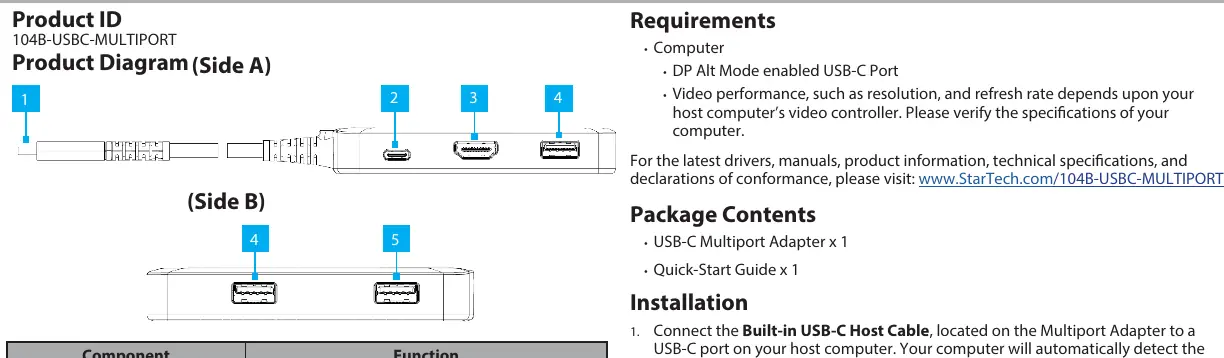
- Built-in USB-C Host Cable: Connects to your host computer. Supports USB 3.2 Gen 1 (5 Gbps) and Power Delivery 3.0.
- USB-C 100W Power Delivery Port: Used to connect a USB-C power adapter to charge your host computer (supports up to 100W input, with up to 86W available for charging).
- HDMI Output Port: Connects to an HDMI display device. Supports up to 4K (4096x2160) at 60Hz via DisplayPort 1.4 Alt Mode.
- 2x USB-A Data Ports: USB 2.0 (480 Mbps), supports up to 5V/0.5A (2.5W) of power.
- 1x USB-A Data Port: USB 3.2 Gen 1 (5 Gbps), supports up to 5V/0.9A (4.5W) of power.
Installation
- Connect the Built-in USB-C Host Cable to a USB-C port on your host computer. The computer will automatically detect the device and install the necessary drivers.
- (Optional) Connect a USB-C power adapter (up to 100W) from an AC outlet to the USB-C 100W Power Delivery Port on the adapter to charge your host computer.
- Connect an HDMI-enabled display device to the HDMI Output Port using an HDMI cable.
- Connect your USB peripheral devices to the available USB-A Data Ports.
Important Usage Notes
Please note that high-powered USB devices, such as bus-powered SSD enclosures, are not recommended for use with the USB-A Data Ports on this device.
Technical Support
For the latest drivers, manuals, product information, technical specifications, and declarations of conformance, please visit www.startech.com/104B-USBC-MULTIPORT. For additional support, FAQs, videos, and technical drawings, visit www.startech.com/support.
Official resources from the manual
Practical help
Common problems
High-powered devices (e.g., bus-powered SSDs) are not working.
Do not use high-powered USB devices with the USB-A Data Ports on this adapter.
No video output on the connected display.
Ensure your host computer's USB-C port supports DisplayPort (DP) Alt Mode.
Before use
- Verify your computer has a USB-C port with DP Alt Mode support.
- Ensure you have an HDMI cable for your display.
- Check if you need to charge your host computer (requires a USB-C power adapter).
- Confirm your host computer is running the latest version of Chrome OS or compatible operating system.
Specs in practice
- USB-C 100W Power Delivery Port
- Supports up to 100W input, providing up to 86W for charging the host computer.
- HDMI Output Port
- Supports up to 4K (4096x2160) at 60Hz via DisplayPort 1.4 Alt Mode.
- USB-A Data Ports (2x)
- USB 2.0 (480 Mbps), supports up to 5V/0.5A (2.5W) of power.
- USB-A Data Port (1x)
- USB 3.2 Gen 1 (5 Gbps), supports up to 5V/0.9A (4.5W) of power.
Images and diagrams
- Side A shows the built-in USB-C host cable and the USB-C power delivery port.
- Side B shows the HDMI output port and the three USB-A data ports.
Model compatibility
- Requires a host computer with a USB-C port that supports DisplayPort Alt Mode.
- Video performance depends on the host computer's video controller.

Manual page author
Emily Carter
User documentation editor
Prepares concise manual descriptions and highlights the most useful setup, operation, and maintenance information for readers.