Electronics / USB Hubs & Docking
User Guide for StarTech.com USB-C Triple Monitor Docking Station
A quick-start guide for the StarTech.com USB-C Triple Monitor Docking Station. Includes installation steps, port diagrams, power delivery details, and troubleshooting for connectivity and driver installation.
Table of contents
Quick guide from the manual
This guide provides essential information for setting up and operating the StarTech.com USB-C Triple Monitor Docking Station. Before beginning, ensure your host computer's USB-C port supports DP Alt Mode and USB Power Delivery, as functionality depends on the host computer's video controller and hardware capabilities.
Product Overview
The docking station features multiple ports for connectivity:
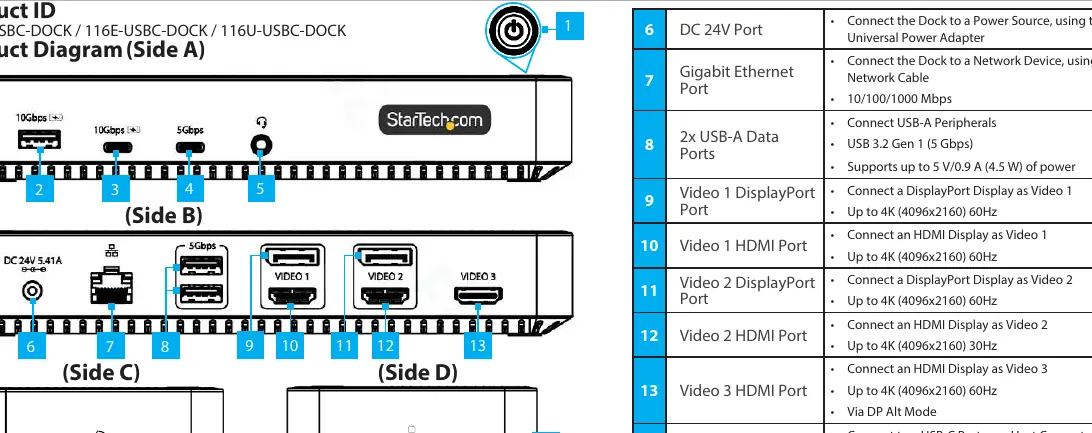
- Power Button: Toggles power for the dock.
- USB-A/USB-C Data Ports: Supports various speeds (USB 3.2 Gen 1 at 5 Gbps or Gen 2 at 10 Gbps) and charging (BC 1.2).
- Audio Port: 3.5mm 4-position jack for headsets (CTIA/OMTP).
- Gigabit Ethernet: RJ-45 port for 10/100/1000 Mbps wired network connections.
- Video Ports: Includes DisplayPort and HDMI options for up to three monitors. Note that Video 3 requires DP Alt Mode.
- USB-C Host Port: Connects to the host computer, supporting Power Delivery 3.0 up to 100W.
- Lock Slot: K-Slot style for security.
Installation
- Connect the Universal Power Adapter to the DC 24V port on the dock and plug it into an AC outlet.
- Connect your USB peripherals to the appropriate USB-A or USB-C data/charge ports.
- Connect a network cable (CAT 5e or better) to the Gigabit Ethernet port.
- Connect your displays to the Video 1, Video 2, and Video 3 ports. Note: Only a single display can be connected to either of the Video 1 or Video 2 output options.
- Connect the USB-C Host Cable to the USB-C Host Port on the dock and to your laptop.
- For Windows computers with internet access, drivers should install automatically. If using a non-Windows OS or if drivers do not install, visit www.StarTech.com/116N-USBC-DOCK (or the specific model URL) to download the driver package.
Over Current Protection
The dock features Over Current Protection (OCP) to protect connected devices from power surges. If a high-powered USB peripheral attempts to draw more than 1.8 A of power, the dock will prevent the device from connecting consistently. This may cause the computer to repeatedly re-recognize the device. If this occurs, disconnect the device and consult the product support page for troubleshooting.
Technical Requirements
To ensure full functionality, the host computer must have a USB-C port that supports DP Alt Mode. Video support and performance on Video 3, including resolution and refresh rate, are dependent on the host computer's video controller. Not all USB-C ports support the full functionality of the USB-C standard, including DP Alt Mode and USB Power Delivery.
Official resources from the manual
Practical help
Common problems
Device not connecting consistently
A high-powered peripheral may be drawing more than 1.8 A. Disconnect the device and check the product support page for OCP troubleshooting.
Drivers not installing automatically
Disconnect the dock, visit the StarTech.com support website for your specific model, and download the driver package for your operating system.
Before use
- Verify the host computer has a USB-C port with DP Alt Mode support.
- Ensure the host computer supports USB Power Delivery.
- Connect the Universal Power Adapter to the DC 24V port.
- Use a CAT 5e or better cable for the Gigabit Ethernet connection.
- Confirm that only one display is connected to either the Video 1 or Video 2 output options.
Specs in practice
- USB 3.2 Gen 2
- Supports data transfer speeds up to 10 Gbps.
- USB 3.2 Gen 1
- Supports data transfer speeds up to 5 Gbps.
- Power Delivery 3.0
- Allows the dock to charge the host computer up to 100W.
- 4K (4096x2160) 60Hz
- Maximum resolution and refresh rate for supported video ports.
Model compatibility
- Video 3 performance depends on the host computer's video controller.
- Not all USB-C ports support DP Alt Mode and USB Power Delivery.

Manual page author
Michael Turner
Technical manual editor
Reviews PDF manuals for structure, safety notes, and practical product details so readers can find the right information quickly.