Electronics / Audio
User Manual for TC Helicon GoXLR Online Broadcaster Platform
Quick start guide and setup manual for the TC Helicon GoXLR broadcaster platform. Includes connection diagrams, software setup, and troubleshooting steps.
Table of contents
Manual images
Jump to the sectionQuick guide from the manual
The GoXLR is a 4-channel mixer designed for online broadcasting. To operate the device, you must download and install the GoXLR app. The setup process involves connecting the device via USB, configuring Windows sound settings to route audio to the correct faders, and setting up your streaming software (OBS, Streamlabs, or XSplit) to use the GoXLR Stream Mix.
Controls
The GoXLR features several physical controls for real-time audio management:
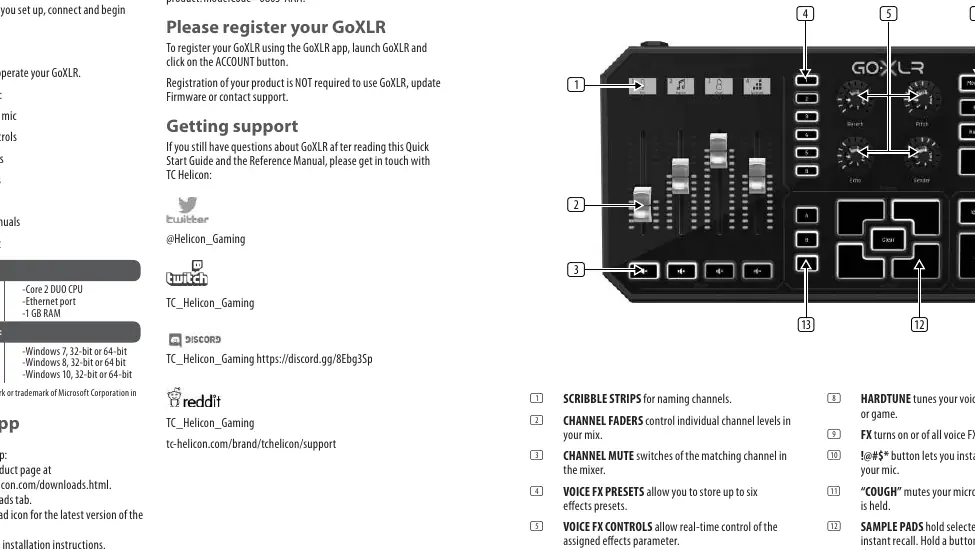
- Scribble Strips: Used for naming channels.
- Channel Faders: Control individual channel levels in your mix.
- Channel Mute: Switches for muting channels in the mixer.
- Voice FX Presets: Store up to six effects presets.
- Voice FX Controls: Real-time control of assigned effects parameters.
- Megaphone/Robot/Hardtune: Buttons to apply specific vocal effects.
- FX: Turns all voice effects on or off.
- !@#$* Button: Instantly censors and "bleeps out" your mic.
- Cough Button: Mutes the microphone while held.
- Sample Pads & Bank: Used for recording, storing, and playing back samples and bumpers.
Setup Steps
Follow these steps to get your GoXLR running:
- Download and install the GoXLR app from the official website.
- Connect the GoXLR to your computer via USB and connect the power supply.
- Open the GoXLR app and ensure it displays "GoXLR connected via USB".
- In Windows Sound Settings, set your output device to "System (TC-HELICON GoXLR)" and input device to "Chat Mic (TC-HELICON GoXLR)".
- For chat applications (Discord, Skype, etc.), select "Chat Mic" as the input and "Chat" as the output device.
- In your streaming software (e.g., OBS), select "GoXLR Stream Mix" as your primary audio input device.
Connection Diagram
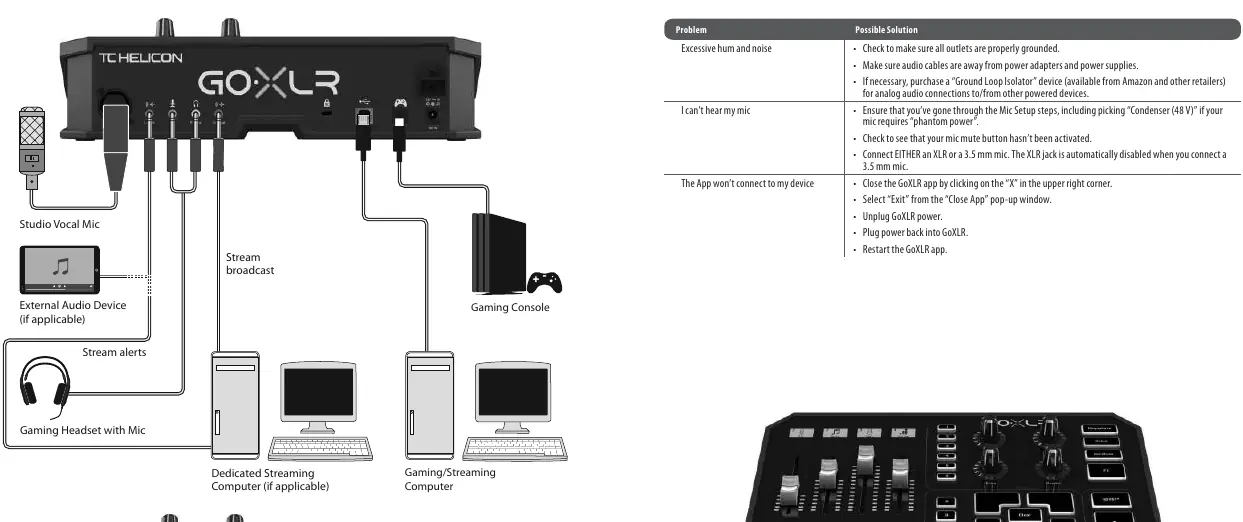
The GoXLR supports various inputs including professional XLR microphones, headset microphones, and external audio devices. It also features a line out for streaming computers or speakers, and an optical input for gaming consoles. Ensure analog audio cables are routed away from power cables to prevent interference.
Troubleshooting
If you experience issues, try the following:
- Excessive hum/noise: Check grounding, keep cables away from power supplies, or use a Ground Loop Isolator.
- Can't hear mic: Ensure the correct mic type (Condenser 48V if needed) is selected in the app, check the mute button, and ensure only one mic (XLR or 3.5mm) is connected.
- App won't connect: Close the app, unplug the GoXLR power, plug it back in, and restart the app.
Specifications
The GoXLR features 24-bit @ 48 kHz A/D – D/A conversion, a frequency response of 10 Hz to 20 kHz, and a dynamic range of > 110 dB. It requires a 12 V DC power supply.
Practical help
Common problems
Excessive hum and noise
Check that all outlets are properly grounded. Keep audio cables away from power adapters and power supplies. Use a Ground Loop Isolator for analog connections if necessary.
I can't hear my mic
Ensure you have completed the Mic Setup steps in the app, including selecting 'Condenser (48 V)' if your mic requires phantom power. Check that the mute button is not active. Note that the XLR jack is automatically disabled when a 3.5 mm mic is connected.
The App won't connect to my device
Close the GoXLR app, unplug the GoXLR power, plug it back in, and restart the app.
Before use
- Download and install the GoXLR app.
- Ensure PC meets minimum hardware requirements (Core 2 DUO, Ethernet port, 1 GB RAM).
- Connect GoXLR via USB.
- Configure Windows Sound Settings for 'System' and 'Chat Mic'.
- Configure streaming software (OBS/Streamlabs/XSplit) to use 'Stream Mix'.
Specs in practice
- A/D – D/A conversion
- 24-bit @ 48 kHz for high-quality digital audio processing.
- Frequency response
- 10 Hz to 20 kHz, +0/-2 dB, covering the full human hearing range.
- Dynamic range
- > 110 dB, ensuring clear audio without noise floor issues.
Images and diagrams
- Connection Diagram shows how to connect a Studio Vocal Mic, Gaming Headset, and external audio devices to the GoXLR.
- Shows routing for streaming computers and gaming consoles.
Model compatibility
- Requires Windows 7, 8, or 10 (32-bit or 64-bit).
- XLR jack is automatically disabled when a 3.5 mm mic is connected.

Manual page author
David Miller
Documentation analyst
Organizes user manual content into clear summaries, with attention to model details, product context, and everyday usability.