Computers / Tablets
User Manual for TCL TAB 10L Gen 2 Tablet
Quick guide for the TCL TAB 10L Gen 2 tablet. Learn about safety, usage, troubleshooting, battery care, and technical specifications.
Table of contents
Manual images
Click an image to enlargeQuick guide from the manual
Before using your TCL TAB 10L Gen 2, ensure the battery is fully charged. The device is not waterproof; keep it away from moisture and extreme temperatures (0°C to 40°C). Use only approved accessories and chargers. If the device becomes unresponsive, you can force a restart or perform a factory reset via the settings menu or hardware buttons.
Device layout
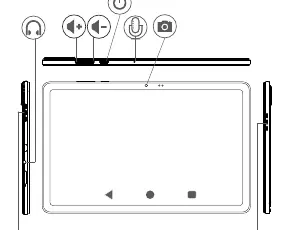
The tablet features a power button, volume keys, microphone, and camera. The SIM/microSD card tray is located on the side. Refer to the device diagram on page 2 for the exact location of ports and buttons.

Safety and usage
- Traffic Safety: Do not use the tablet or headphones while driving.
- Medical Devices: Keep the tablet at least 15 cm away from medical devices like pacemakers or insulin pumps.
- Hearing Protection: Avoid listening at high volumes for extended periods to prevent hearing damage.
- Environment: Do not use the tablet in areas with explosive atmospheres, such as gas stations or chemical plants.
- Children: Supervise children when they use the tablet.
Maintenance and cleaning
The tablet does not require periodic maintenance. To clean the device, use a dry, lint-free cloth. Do not use water, alcohol, thinner, or other solvents, as these can damage the screen and casing.
Battery and charging
The battery is non-removable. Do not attempt to open the back cover or remove the battery. Charge the device using the provided charger. If the battery is completely drained, it may take up to 20 minutes for the charging indicator to appear on the screen. Do not dispose of the tablet in household waste; follow local recycling regulations.
Troubleshooting
If you encounter issues, try these steps:
- Tablet won't turn on: Charge for at least 20 minutes.
- Tablet frozen: Press and hold the Power button until it shuts down, then restart.
- Factory Reset: If software issues persist, go to Settings > System > Reset > Factory data reset. Alternatively, with the device powered off, hold the Power and Volume Up buttons simultaneously to access the recovery menu.
- Connectivity issues: Check Wi-Fi settings and ensure you are within range of a network.
Technical specifications
- Processor: MT8766B
- Battery: 6000 mAh
- Screen: 800x1280 FHD+
- Weight: 472g
- Dimensions: 241.2 x 156.6 x 7.99 mm
- Connectivity: Wi-Fi 802.11a/b/g/n/ac, Bluetooth V5.0
Manufacturer information
TCL
Practical help
Common problems
Tablet does not turn on
Charge the device for at least 20 minutes to ensure minimum battery power, then try turning it on again.
Tablet is frozen or unresponsive
Press and hold the Power button until the device shuts down, then restart it. If that fails, perform a factory reset.
Charging issues
Ensure the charging environment is between 0°C and 40°C. If the battery was completely empty, wait 20 minutes for the charging icon to appear.
Cannot connect to Wi-Fi
Check your internet connection settings and ensure you are within the coverage area of the network.
Before use
- Charge the battery fully before first use.
- Remove any protective films from the screen.
- Ensure the device is kept away from medical devices (15cm distance).
- Verify that the operating environment temperature is between 0°C and 40°C.
Images and diagrams
- Page 2 shows the physical layout of the tablet, including the power button, volume keys, microphone, and camera.
- Page 2 illustrates the correct procedure for inserting the SIM/microSD card into the tray.
Model compatibility
- Use only TCL-approved batteries, chargers, and accessories.
- The device is intended for indoor use when operating in the 5150-5250 MHz frequency band.

Manual page author
Emily Carter
User documentation editor
Prepares concise manual descriptions and highlights the most useful setup, operation, and maintenance information for readers.