Power / Transformers & Supplies
User Manual for Thermaltake Toughpower GF A3 Snow Power Supply
Quick guide and installation instructions for the Thermaltake Toughpower GF A3 Snow power supply. Learn how to install, connect cables, and troubleshoot your PSU.
Table of contents
Manual images
Click an image to enlargeImportant Information
Before installing or using your Thermaltake Toughpower GF A3 Snow power supply, please read the following safety guidelines:

- Do not unplug the AC power cord while the power supply is in use, as this may damage components.
- Do not place the power supply in environments with high humidity or extreme temperatures.
- High voltages exist inside the power supply. Do not open the case; doing so will void the warranty and is dangerous.
- Use only genuine Thermaltake modular cables. Third-party cables may not be compatible and could cause serious damage to your system.
- Ensure all cables are plugged in properly; loose connections can damage the power supply and your system.
Installation Steps
Step 1: Removing Your Existing Power Supply
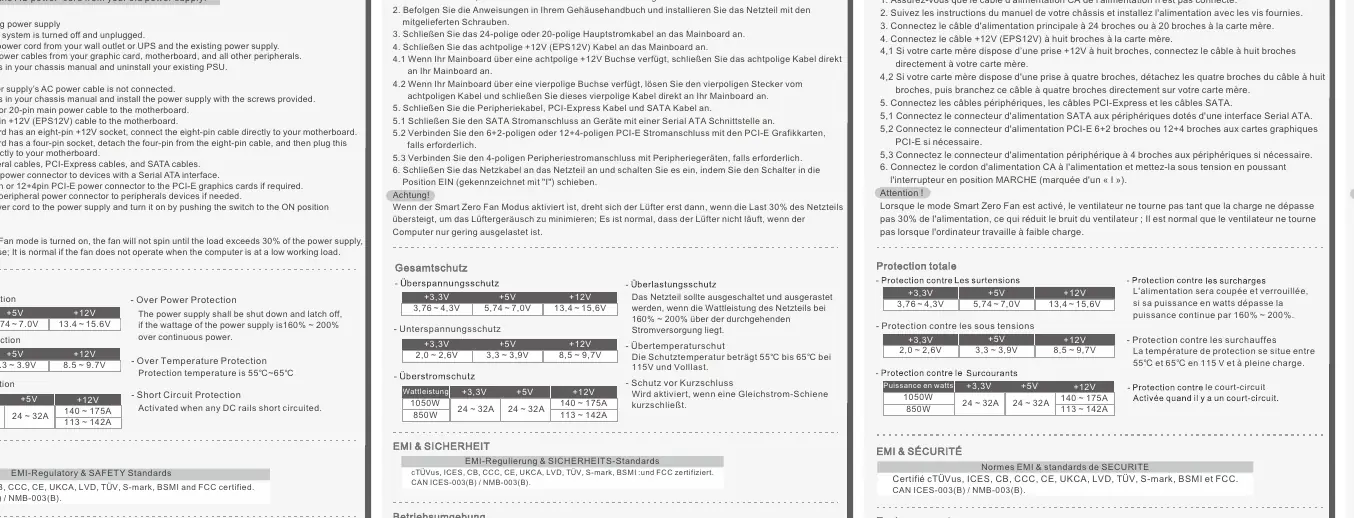
- Ensure your system is turned off and unplugged.
- Disconnect the AC power cord from the wall outlet or UPS and the existing power supply.
- Disconnect all power cables from the graphics card, motherboard, and other peripherals.
- Follow your chassis manual instructions to uninstall the existing PSU.
Step 2: Installing the New Power Supply
- Ensure the power supply's AC power cable is not connected.
- Install the power supply into your chassis using the provided screws.
- Connect the 24-pin or 20-pin main power cable to the motherboard.
- Connect the 8-pin +12V (EPS12V) cable to the motherboard. If your motherboard has a 4-pin socket, detach the 4-pin section from the 8-pin cable and plug it in.
- Connect peripheral cables, PCI-Express cables, and SATA cables as needed:
- Connect SATA power connectors to Serial ATA devices.
- Connect 6+2 pin or 12+4 pin PCI-E power connectors to graphics cards if required.
- Connect 4-pin peripheral power connectors to peripheral devices if needed.
- Connect the AC power cord to the power supply and turn the switch to the ON position (marked with I).
Smart Zero Fan Mode
When the Smart Zero Fan mode is enabled, the fan will not spin until the load exceeds approximately 30% of the power supply's capacity. This minimizes fan noise. It is normal for the fan not to operate when the computer is at a low working load.
Troubleshooting
If the power supply does not function properly, check the following before contacting support:
- Ensure the power cord is correctly connected to the wall outlet and the power supply.
- Verify that the I/O switch on the power supply is in the I (ON) position.
- Check that all power connectors are securely attached to all devices.
- If connected to a UPS, ensure the UPS is turned on and plugged into a power source.
Manufacturer information
Thermaltake
Practical help
Common problems
Power supply does not turn on
Check AC power cord connection, ensure I/O switch is set to 'I', verify all internal cable connections, and check if the UPS (if used) is powered on.
Before use
- Ensure the system is turned off and unplugged.
- Disconnect all cables from the old power supply.
- Verify that you are using only genuine Thermaltake modular cables.
- Check motherboard manual for 8-pin or 4-pin +12V CPU power requirements.
- Ensure the power supply is installed with the provided screws.
Specs in practice
- Smart Zero Fan
- Fan remains stationary at low loads (<30%) to reduce noise; it will spin automatically when the load increases.
- 12+4 pin PCI-E
- High-power connector for modern graphics cards.
Images and diagrams
- The cable connector table outlines the quantity of available connectors for both 1050W and 850W models.
- Installation steps provide a clear sequence for removing old hardware and connecting the new PSU.
Model compatibility
- Use only genuine Thermaltake modular cables; third-party cables may cause damage and void the warranty.

Manual page author
Michael Turner
Technical manual editor
Reviews PDF manuals for structure, safety notes, and practical product details so readers can find the right information quickly.