Electronics / Gaming Peripherals
Windows Calibration Reset Guide for Thrustmaster Joysticks and Rudder Pedals
Step-by-step guide to resetting Windows calibration for Thrustmaster joysticks and rudder pedals. Resolve non-progressive axis issues by clearing conflicting Windows settings and reinstalling drivers.
Table of contents
Manual images
Click an image to enlargeQuick Guide: Resetting Windows Calibration
This guide is intended for users experiencing issues where joystick or rudder pedal axes are not progressive after calibration in the Windows control panel. This issue typically occurs due to a conflict between Windows calibration settings and the default product calibration or driver-specific calibration. Follow these steps to reset the configuration.
Step-by-Step Reset Procedure
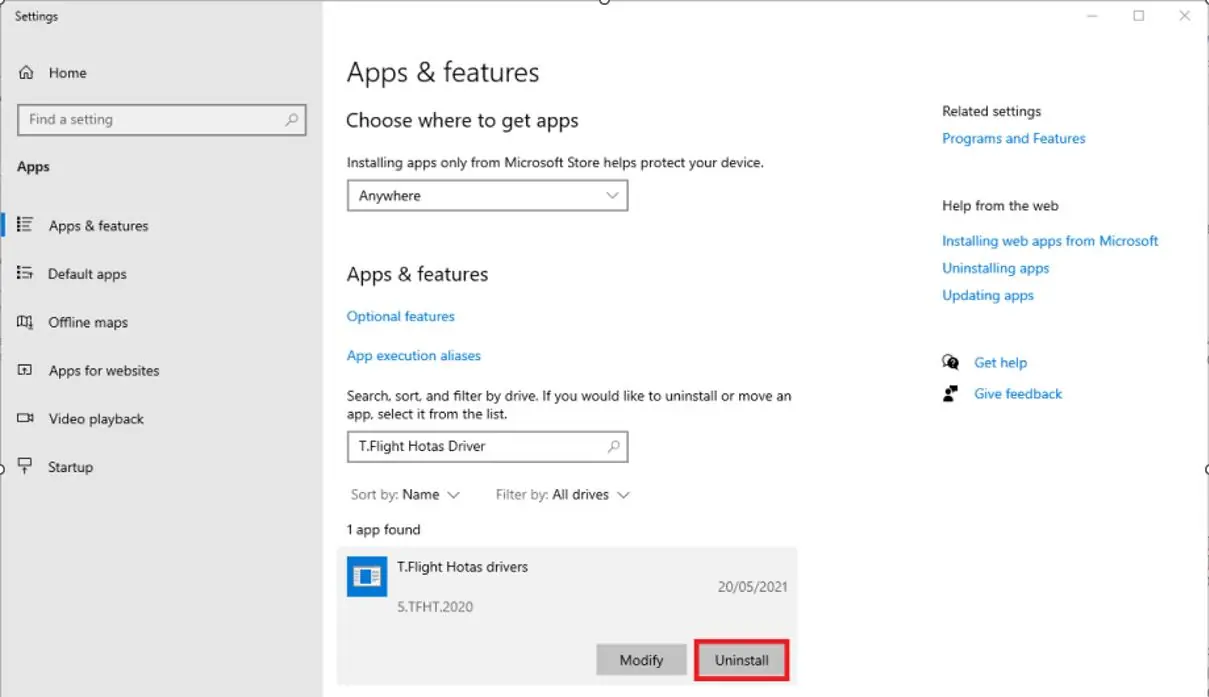
- Uninstall the Driver: Right-click the Windows Start button and select Apps & features. Search for T.Flight Hotas drivers (or simply Flight), select the driver, and click Uninstall.
- Restart: Once the uninstallation is complete, restart your computer.
- Connect Device: After the restart, connect your joystick or pedal set to the computer.
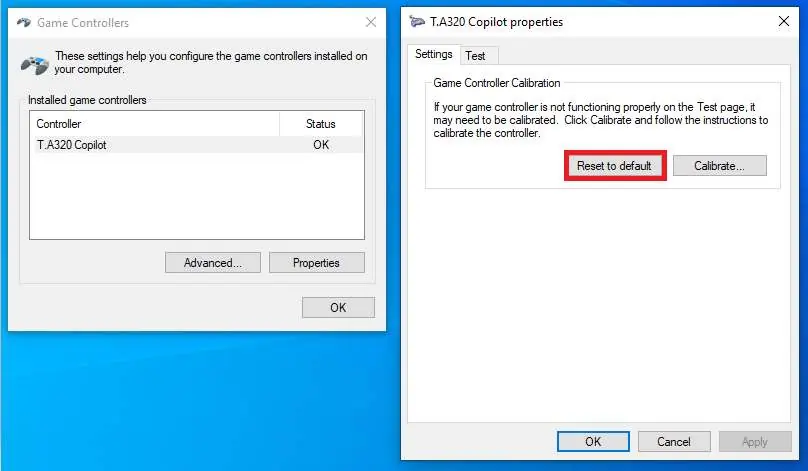
- Open Game Controllers: Press the Windows and R keys simultaneously on your keyboard. In the window that appears, type joy.cpl and press Enter.
- Reset Calibration: In the Game Controllers window, select your device and click Properties. Navigate to the Settings tab and click the Reset button. Click OK to close the window.
- Finalize: Disconnect the product from your computer. The Windows calibration reset is now complete. You must now reinstall your product's driver.
Troubleshooting
If any of the steps above do not proceed correctly, please contact Thrustmaster customer service. Providing screenshots or photos of the issue or any error messages displayed will help the support team assist you more effectively. If you require a link to download your product's driver again, request it from the customer service team.
Official resources from the manual
Practical help
Common problems
Device axes are not progressive after Windows calibration.
Reset the Windows calibration as it conflicts with the default product calibration and driver settings.
Steps do not proceed correctly.
Contact customer service and provide screenshots or photos of the error or issue encountered.
Before use
- Ensure you have the driver installer ready for reinstallation.
- Close any running games or applications.
- Ensure the joystick or pedal set is connected to the computer.
Images and diagrams
- The guide includes a screenshot of the Windows 'Apps & features' menu to help locate and uninstall the driver.
- The guide includes a screenshot of the 'Game Controllers' window showing the 'Properties' and 'Reset to default' options.
Model compatibility
- Applies to Thrustmaster joysticks and rudder pedals.
- Requires a Windows operating system.

Manual page author
Michael Turner
Technical manual editor
Reviews PDF manuals for structure, safety notes, and practical product details so readers can find the right information quickly.