Home Appliances / Small Kitchen Appliances
Xiaomi Mi Smart Band 4C Smartwatch
Quick guide for the Xiaomi Mi Smart Band 4C. Learn how to install the straps, pair with your phone, charge the device, and use the touchscreen features.
Table of contents
Manual images
Click an image to enlargeQuick guide from the manual
This guide provides essential instructions for setting up and using your Xiaomi Mi Smart Band 4C. Ensure you have the Xiaomi Wear or Xiaomi Wear Lite app installed on your smartphone (Android 4.4 or iOS 10 and above) before beginning the pairing process. Always charge the device fully before first use and ensure the straps are securely attached.
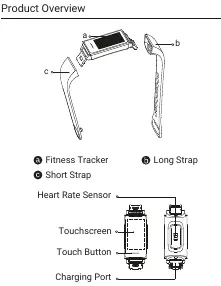
Product Overview
The device consists of the main fitness tracker unit, a short strap, and a long strap. The fitness tracker features a touchscreen, a touch button, a heart rate sensor, and a charging port located at the end of the tracker.
Installation
To assemble the band:
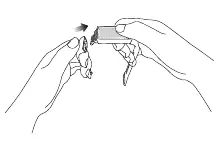
- Insert the USB charging plug of the fitness tracker into the slot of the short strap and ensure they are connected securely.
- Attach the long strap to the other end of the fitness tracker in the same manner.
How to Wear
For accurate data collection, tighten the band comfortably around your wrist, approximately one-finger width away from your wrist bone. Wearing the strap too loosely may negatively impact heart rate sensor accuracy.
How to Connect
To pair the device with your phone:
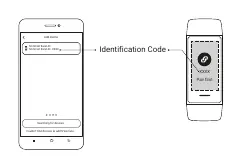
- Download the Xiaomi Wear or Xiaomi Wear Lite app.
- Press and hold the button on the band to wake the screen.
- Sign in to your Mi account in the app and select the band to pair.
- Ensure Bluetooth is enabled on your phone and keep the devices close together.
- Match the identification code displayed on the band's screen with the code shown in the app.
- Follow the on-screen instructions to complete the pairing.
How to Use
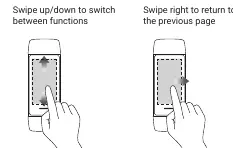
Once paired, the band tracks daily activities and sleep. Use the touch button to wake the screen. Swipe up or down to browse activity data and heart rate measurements. Swipe right to return to the previous page.
Charging
When you receive a low battery notification, charge the device immediately:
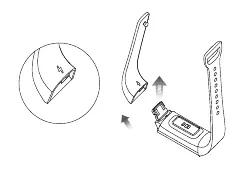
- Remove the short strap to expose the USB charging plug.
- Insert the charging plug into any standard USB port.
Precautions
- The band has a water resistance rating of 5 ATM. It is suitable for swimming and showering but not for saunas or scuba diving.
- The touchscreen and button do not function underwater. Wipe the device dry with a soft cloth after contact with water.
- This is not a medical device; do not use data for diagnosis or treatment.
- If skin irritation occurs, stop using the device immediately.
Manufacturer information
Xiaomi Corporation
Practical help
Common problems
Cannot pair with phone
Ensure Bluetooth is enabled on your phone, keep the devices close together, and verify that the identification code on the band matches the one in the app.
Screen does not turn on
Press and hold the touch button to wake the screen on its first use.
Inaccurate heart rate data
Ensure the band is worn about one-finger width away from the wrist bone and is not too loose.
Before use
- Charge the device fully.
- Download the Xiaomi Wear or Xiaomi Wear Lite app.
- Enable Bluetooth on your smartphone.
- Ensure the straps are securely attached to the fitness tracker.
Specs in practice
- Water Resistance
- 5 ATM rating; suitable for swimming, but not for saunas or scuba diving.
- Connectivity
- Bluetooth 5.0 BLE.
- Operating Temperature
- -10°C to 50°C.
Images and diagrams
- The fitness tracker has a USB charging plug hidden under the short strap.
- The touch button is located below the screen.
Model compatibility
- Requires Android 4.4 or iOS 10 and above.

Manual page author
David Miller
Documentation analyst
Organizes user manual content into clear summaries, with attention to model details, product context, and everyday usability.